
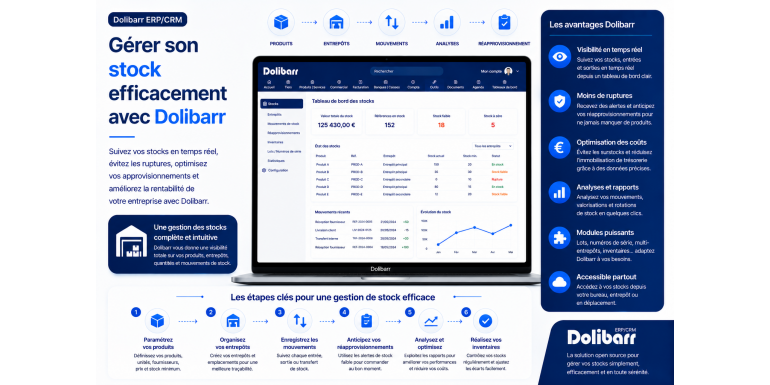
The complete 2026 guide to optimizing your inventory management and improving your profitability
Inventory management is one of the major challenges for any business that handles physical products: retailers, e-commerce businesses, distributors, tradespeople, restaurateurs, and manufacturers. Poorly managed inventory can quickly become a nightmare: stockouts leading to lost sales, overstocking tying up cash flow, inaccurate inventory counts distorting accounting, expired goods ending up in the trash, and undetected theft. According to several industry studies, poor inventory management can represent up to 30% of financial losses for some businesses, a considerable expense.
Fortunately, Dolibarr ERP & CRM includes a comprehensive and powerful inventory management module that allows any business, regardless of size, to control its inbound and outbound inventory. Whether you manage a few dozen products or several thousand SKUs, whether you have a single warehouse or multiple locations, whether you use barcodes or manual entry, Dolibarr can adapt to your needs. And the good news is that this feature is completely free, natively integrated into the software, with no additional monthly charges like with proprietary solutions.
In this comprehensive guide, we'll explore in depth how to get the most out of inventory management in Dolibarr. You'll discover the fundamental concepts to master, how to activate and configure the Inventory module, how to create and organize your products, how to manage multiple warehouses, how to process inbound and outbound stock, how to conduct a physical inventory count, how to manage accounting valuations (Weighted Average Cost, FIFO, LIFO), how to use barcodes, how to automate replenishment, and much more. Whether you're new to inventory management or an experienced user looking to optimize your processes, this guide will provide you with all the keys to transforming your inventory management into a true competitive advantage.
Article summary
• Why is proper inventory management essential?
• The fundamental concepts of inventory management
• Activate and configure the Stocks module in Dolibarr
• Create and structure your product catalogue
• Managing multiple warehouses and locations
• Record stock entries
• Managing outflows and sales
• Conduct a physical inventory
• Accounting valuation methods
• Use barcodes and traceability
• Automate replenishment
• Managing variants and nomenclatures
• Analyze your inventory using reports
• Useful add-ons
• Best practices and mistakes to avoid
• Conclusion
1. Why is good inventory management essential?
Before delving into the technical aspects, let's take a moment to understand the importance of good inventory management. These importance goes far beyond simply counting goods.
The direct impact on cash flow
Inventory ties up capital. Every product on the shelf or in the warehouse represents capital that doesn't generate revenue until it's sold. Chronic overstocking can put a heavy strain on a company's cash flow: tied-up capital, storage costs, and the risks of obsolescence or expiration. Conversely, insufficient inventory leads to stockouts, resulting in lost sales and customer frustration. Achieving the optimal balance requires rigorous monitoring.
Customer experience
For both e-commerce and brick-and-mortar stores, inventory directly impacts customer satisfaction. A stockout on an order already placed means a dissatisfied customer, a refund, a bad review, and likely a customer lost forever. According to several studies, 65% of customers who encounter a stockout turn to the competition, and 70% of them will not return. Therefore, having available stock is a crucial business advantage.
Accounting reliability
The value of inventory is included in the company's annual balance sheet and directly impacts taxable income. Incorrectly valued inventory distorts the accounts, can generate significant discrepancies in the balance sheet, and exposes the company to risks in the event of a tax audit. The chosen valuation method (Weighted Average Cost, FIFO, LIFO) must be applied rigorously and consistently from one fiscal year to the next.
Anomaly detection
A good inventory management system allows for the rapid detection of anomalies: theft, unreported breakage, receiving errors, data entry errors, and forgotten expiration dates. Without such a system, these losses accumulate silently and can represent several percent of annual revenue. Reducing shrinkage from 2% to 0.5% through improved tracking can completely transform a business's profitability.
Process optimization
Beyond the accounting aspect, meticulous inventory management fuels the entire supply chain: procurement, warehouse organization, order preparation, and deliveries. The more accurate and up-to-date the information, the smoother and more efficient the operational processes. For successful e-commerce businesses, inventory management is central to overall performance.
???? KEY FIGURE: For a commercial company, inventory represents on average 15 to 25% of assets. A 10% optimization of inventory turnover therefore frees up 1.5 to 2.5% additional cash flow, which can be considerable.
2. The fundamental concepts of inventory management
To use Dolibarr effectively, you must first master some essential inventory management concepts. These concepts will structure your entire approach.
Physical stock and theoretical stock
Physical stock is what is actually present in your warehouse. Theoretical stock is what your software indicates. Ideally, the two should match exactly. In reality, discrepancies occur due to data entry errors, theft, breakage, etc. The goal of good management is to minimize this discrepancy and measure it periodically through physical inventories.
Minimum stock and safety stock
The minimum stock level (or reorder point) is the threshold below which a replenishment order must be triggered. Safety stock is an additional reserve to cope with unforeseen events (supplier delays, unexpected surges in demand). Clearly defining these thresholds is crucial: too low and you risk stockouts, too high and you unnecessarily tie up cash. Dolibarr allows you to configure these thresholds on a per-product basis.
Restocking
Replenishment involves placing an order with the supplier to replenish stock. The quantity to order and the optimal timing are determined by several factors: current stock levels, supplier delivery times, product sales speed, and pricing conditions (quantity discounts). Effective replenishment planning prevents both stockouts and overstocking.
Stock turnover
Inventory turnover measures the number of times inventory is completely replenished over a given period. A rapid turnover (for example, 12 times per year for food products) is beneficial as it minimizes capital tied up. A slow turnover (for example, twice per year for seasonal products) can be justified but requires monitoring. The average sales-to-inventory ratio provides the turnover rate.
The inventory
An inventory is the physical count of all products in stock, generally carried out at least once a year. It provides an opportunity to verify the consistency between theoretical and physical stock levels, identify discrepancies, and update the figures in the software. An annual inventory is also a legal requirement for closing the accounts.
Valuation methods
Inventory valuation is necessary for accounting purposes. Three main methods exist: Weighted Average Cost (WACC), First In First Out (FIFO), and Last In First Out (LIFO, prohibited in France for accounting purposes but usable in management). Each method has its advantages and disadvantages, which we will detail later.
3. Activate and configure the Stocks module in Dolibarr
Before using inventory management, you need to activate and configure the corresponding module in Dolibarr. Let's look at the essential steps.
Activate the Stocks module
Log in with an administrator account. Go to Configuration > Modules/Applications. Find the "Inventory" module in the Sales Management category and activate it. Once activated, a new menu will appear in the main interface, providing access to all inventory management features: warehouses, movements, inventories, and transfers.
Activate related modules
To fully utilize inventory management, several add-on modules are useful: Products/Services (for the catalog), Supplier Invoices (to record incoming goods), Customer Orders (to manage outgoing goods), Shipments (to track deliveries), and Receiving (to track incoming goods). Activate these modules according to your business needs.
Configure the main settings
Click on the gear icon to the right of the Stocks module to access its settings. Here you can configure: automatic stock decrement upon invoicing (recommended), the valuation method (Weighted Average Cost, FIFO), location management (if you have multiple zones in a warehouse), batch and serial number tracking (for traceability), and low stock alerts.
Define the units of measurement
Go to Settings > Dictionaries > Units. Verify that all the units used in your business are available: piece, kg, liter, meter, m², m³, etc. Proper unit configuration prevents confusion and facilitates conversions. For products sold in multiple units (e.g., pieces and kg), you can create separate products or configure conversions.
Configure accounting accounts
To ensure inventory management correctly feeds into the accounting system, configure the associated accounts. Typical accounts are: 31 (raw materials), 32 (other supplies), 35 (product inventory), and 37 (merchandise inventory). Go to Setup > Accounting > Default Accounts to link these accounts to inventory transactions.
Configure user rights
Inventory management involves sensitive operations. Clearly define who can do what: who can view stock levels, who can record incoming stock, who can process outgoing stock, and who can approve inventory counts. Go to Users and Groups to configure permissions tailored to your organization.
4. Create and structure your product catalog
Effective inventory management relies on a well-organized product catalog. This structuring step is fundamental and determines everything that follows.
Distinguishing between products and services
In Dolibarr, a distinction is made between products (physical goods with inventory) and services (services without inventory). Only products are subject to inventory management. This distinction is important during setup: be sure to select "Product" and activate inventory management for the items you wish to track. Services will not appear in inventory reports.
Define a logical coding
Adopt a consistent and well-thought-out product coding system. Several approaches exist: simple numerical coding (00001, 00002, etc.), coding structured by product family (T-001 for T-shirts, P-001 for pants), coding based on supplier references, and hybrid coding combining multiple pieces of information. Good coding facilitates searching, sorting, and analysis.
Provide all relevant information
For each product, take the time to enter all the information: code and reference, clear and descriptive label, detailed description (useful for e-commerce product pages), unit of measurement, purchase price (excluding and including VAT), selling price, VAT rate, EAN/UPC barcode, dimensions and weight (for logistics), product image, and technical specifications. The more complete the product information, the more efficient it will be to use on a daily basis.
Organize into categories
Create a category tree to organize your products: main categories (clothing, accessories, electronics, etc.), subcategories (clothing > sweaters, T-shirts, pants, etc.), and sub-subcategories if needed. Go to Products > Categories to create this structure. A product can belong to several categories simultaneously. This organization facilitates searching and allows for targeted analysis.
Linking products to suppliers
Each product can be associated with one or more suppliers, each with their own specific terms and conditions: supplier reference (sometimes different from your internal reference), purchase price excluding VAT, payment terms, delivery time, minimum order quantity, and any applicable discounts. This information is invaluable for automatic replenishment.
Bulk import from Excel
If you're starting with a large catalog, importing via Excel or CSV file is significantly faster than manual entry. Go to Configuration > Tools > Import. Prepare your file with all the relevant columns, map them to the Dolibarr fields, and launch the import. In just a few minutes, hundreds or even thousands of products will be created.
???? TIP: Before bulk importing, test first with 5 to 10 products. Verify that everything is imported correctly before launching the entire process. A failed import with incorrectly formatted data can be very time-consuming to correct.
5. Manage multiple warehouses and locations
If your business spans multiple sites or if you want to finely organize your warehouse, Dolibarr allows multi-site and multi-location management.
Create multiple warehouses
Go to Inventory > Warehouses > New Warehouse. You can create as many warehouses as needed: a main warehouse, a secondary warehouse, a physical store, a mobile trailer, a customer drop-off point, etc. For each warehouse, enter: name, full address, manager, and description. Each warehouse will then have its own stock level per product.
Set the default warehouse
To simplify routine operations, define a default warehouse that will be automatically suggested when entering data. Go to Configuration > Inventory > Settings. The default warehouse is usually the one where most of your goods arrive and from which most of your orders are shipped. You can always choose a different one on a case-by-case basis.
Perform transfers between warehouses
To move products from one warehouse to another, use the Transfer function. Go to Inventory > Transfers > New Transfer. Select the source warehouse, the destination warehouse, the products, and the quantities to be transferred. The transfer can be in progress (goods are en route) or confirmed (receipt confirmed). This traceability is invaluable for ensuring nothing is lost.
Manage internal locations
Within a warehouse, you can take location management even further: aisle A, shelf 3, shelf 2, etc. This fine-grained control is invaluable for large warehouses where precise product location saves considerable time during order picking. Location management may require an add-on module depending on your version of Dolibarr.
Restrict access by warehouse
If different teams manage different warehouses, you can restrict access rights. A salesperson in Paris might not need access to the inventory in the Marseille warehouse. Configure these restrictions in user profiles to avoid confusion and accidental changes.
Special cases: consignment sales, customer stock
Some business models require specific setups. For consignment sales (where you leave your merchandise with a customer who sells it on your behalf), create a "Consignment Sales Customer X" warehouse for each relevant customer. For spare parts left with a customer (on consignment, loan), create a dedicated warehouse. This virtual warehouse system allows you to precisely track the location of your merchandise.
6. Record stock entries
Stock receipts correspond to the arrival of goods at your premises: supplier purchases, customer returns, manufacturing, incoming transfers. Let's see how to record them correctly.
Entry by receipt
The most rigorous method is to use the Receiving module. When a purchase order arrives: create a receiving slip linked to the order, physically check the goods received (quantities, condition), enter the quantities actually received (which may differ from the order), and confirm the receipt. The inventory is automatically updated. This method guarantees complete traceability between order, delivery, and inventory.
Manual entry
For simple entries (a customer returns an item, you find a forgotten product, etc.), you can directly enter a stock movement. Go to Stock > Movements > New Entry. Specify the product, quantity, warehouse, and reason (very important for traceability). The stock is updated immediately.
Entry from a supplier invoice
If you work without a delivery note, you can update the stock directly from the supplier invoice. When entering the invoice, select the "Increment stock on validation" option. When the invoice is validated, the stock will automatically increase by the invoiced quantity. This method is faster but less accurate because it doesn't differentiate between order, receipt, and invoicing.
Enter the purchase price
For each entry, accurately record the unit purchase price. This information is crucial for two reasons: calculating inventory valuation (weighted average cost or FIFO), and tracking purchase price changes over time. Without this data, your inventory accounting becomes inaccurate and you lose visibility into your costs.
Enter the batch and serial numbers
For products requiring traceability (food, pharmaceuticals, electronics), record the batch or serial numbers upon entry. Dolibarr allows you to track this information for each transaction. In the event of a product recall or after-sales service, you can immediately identify the affected customers. Activate this feature in the module settings.
Managing reception discrepancies
It regularly happens that the quantities received do not match the order: missing product, breakage during transport, supplier error. Always document these discrepancies: take photos, note any issues on the delivery slip, and immediately notify the supplier. In Dolibarr, enter the actual quantity received and keep the original order form for potential disputes.
7. Manage exits and sales
Stock withdrawals correspond to the departure of goods: customer sales, breakage, detected theft, internal use, and outgoing transfers. Rigorous management of these withdrawals is essential to maintaining accurate stock levels.
Automatic billing exit
The simplest and most widely used method is automatic stock deduction upon invoicing. When you validate a customer invoice, Dolibarr automatically subtracts the sold quantities from the stock. Enable this feature in the module settings. This is the recommended option for most businesses.
Exit by expedition
For more detailed tracking, use the Shipments module. The process is as follows: the customer order is validated, a shipping slip is created, the products are picked from the warehouse, the shipment is validated (deducting stock), and the invoice is issued. This separation between order, shipment, and invoicing is useful for organizations with a true supply chain.
Manual exit
For non-sale items (breakage, theft, internal use, free samples), enter a manual transaction. Go to Inventory > Transactions > New Issue. Specify the product, quantity, and detailed reason ("Breakage — carton fell during handling," "Free sample for sales purposes"). This traceability is invaluable for analyzing losses.
Managing customer returns
When a customer returns a product, create a credit note in Dolibarr. Depending on your settings, the stock may or may not be automatically refilled. For products put back on sale, yes; for damaged products, no (instead, create a "damage" entry). Adapt your process according to your sales policy and the nature of the products.
Sales in physical stores
If you have a physical store, Dolibarr's Point of Sale (TakePOS) module is very useful. It allows for quick sales entry with automatic stock decrement, payment method management, and receipt generation. Store inventory is updated in real time, preventing unexpected stockouts.
Synchronize with an e-commerce site
For an e-commerce website, inventory synchronization with Dolibarr is crucial. Modules allow you to connect Dolibarr to PrestaShop, WooCommerce, Shopify, and Magento. When a sale is made on the website, the Dolibarr inventory is decremented. When you update the inventory in Dolibarr, the website is synchronized. This automation prevents fraud and overselling.
⚠️ WARNING: If multiple sales channels are active (store, e-commerce, marketplace), real-time inventory synchronization is essential. Without it, you risk selling the same product twice, generating customer dissatisfaction and additional costs.
8. Conduct a physical inventory
Despite all precautions, discrepancies always arise between theoretical and physical stock levels. Inventory is the operation that allows everything to be rectified.
Why take an inventory?
Several reasons justify taking inventory: legal obligation (at least once a year to close the accounts), data reliability (correcting discrepancies), loss detection (theft, unreported breakage), accounting valuation of stock for the balance sheet, internal audit, and process analysis. Without regular inventory, your stock figures become increasingly unreliable over time.
The frequency of inventories
Several approaches are possible depending on your business. A full annual inventory is the minimum requirement, generally carried out at the end of the fiscal year. Cycle counts involve regularly inventorying a portion of the stock (for example, one-third each quarter, or by product category). Perpetual inventory, in real time, allows you to know the stock status at any given moment—this is ideal but requires a great deal of discipline.
Create an inventory in Dolibarr
Go to Stocks > Inventories > New inventory. Select the relevant warehouse and date. You can choose to inventory all products or a specific category. Dolibarr generates an inventory sheet with the theoretical quantities. You can print it for the physical count.
Perform the physical count
On-site, physically count each product. Ideally, use several people to avoid errors: one to count, one to record. For high-volume products, sample counts may suffice. Record the quantities on the inventory sheet or directly in a Dolibarr-compatible mobile application.
Enter the results into Dolibarr
Back in Dolibarr, enter the physically counted quantities. For each product, the software automatically calculates the discrepancy compared to the theoretical stock. Identify any significant discrepancies and investigate whether they are justified (data entry errors, theft, unreported breakages) or if a recount is necessary. Once everything is validated, confirm the inventory and the stock levels will be updated.
Analyze the discrepancies
Inventory is a goldmine of valuable information. Analyze the discrepancies category by category: where are the losses? Are they concentrated on certain products, warehouses, or time periods? This analysis helps identify problems (theft, breakage, process errors) and implement corrective actions.
Inventory with barcodes
Using barcode scanners or mobile apps radically transforms inventory management. It's faster, more reliable, and less tedious. Several solutions integrate with Dolibarr to enable mobile inventory. This is an investment worth considering if you have a large number of SKUs.
9. Accounting valuation methods
Inventory valuation is essential for accounting purposes. The choice of method directly impacts taxable income and must be applied consistently.
The Weighted Average Unit Cost (WAUC)
Weighted Average Cost (WAC) is the simplest and most widely used method. It involves calculating a weighted average price each time a new purchase occurs. For example, if you have 100 units at €10 and you buy 50 units at €12, the WAC becomes (100 × 10 + 50 × 12) / 150 = €10.67. All subsequent purchases use this average price until the next purchase. Advantages: simplicity, smoothing of price fluctuations, tax compliance. Disadvantages: does not perfectly reflect the actual physical flow of goods and services.
FIFO (First In First Out)
The FIFO method values outgoing stock at the price of the products that entered first. In practice, it assumes that the oldest products are sold first. This method aligns with actual physical practice in most cases (especially for perishable goods). Advantages: accurately reflects physical reality, values the ending inventory at the most recent prices (therefore more accurate). Disadvantages: more complex to manage manually, can generate fictitious profits during periods of inflation.
LIFO (Last In First Out)
LIFO values outgoings at the price of the most recently received products. This is the opposite of FIFO. This method is prohibited in French accounting for annual financial statements, but can be used for internal management or in certain countries (notably the USA). It tends to understate profit during periods of inflation, which can be a tax advantage where it is permitted.
Choosing the right method
For most French SMEs, the weighted average cost (WAC) method is recommended: simple, compliant, and sufficiently precise. First-in, first-out (FIFO) is relevant for perishable goods (food, cosmetics) where the actual physical turnover is FIFO. First-in, last-out (LIFO) should be avoided in France for official accounts. Whatever your choice, you must apply it consistently from one fiscal year to the next, unless a change is justified and documented.
Configure the method in Dolibarr
In Configuration > Inventory > Settings, choose the valuation method. Dolibarr will then automatically apply this method to calculate your inventory value. Note: changing the method during the fiscal year may cause inconsistencies. Confirm your initial choice with your accountant.
Valuation at purchase price or market price
The principle of accounting prudence dictates that inventory should be valued at the lower of the purchase price and the market price (probable resale value). If you have inventory whose market value has significantly decreased (due to obsolescence or being out of fashion), you must create a provision for depreciation. This depreciation impacts your profit and loss statement and should be reviewed with your accountant.
10. Use barcodes and traceability
Barcodes and fine traceability are radically transforming inventory management, enabling speed, reliability and regulatory compliance.
Types of barcodes
Several standards exist: EAN-13 (the most common in Europe, 13 digits), UPC-A (American equivalent, 12 digits), Code 128 (internal barcodes for logistics), and QR Codes (2D codes that can store more information). For products sold to the general public, EAN-13 codes are usually obtained through GS1 France for a fee. For internal codes, you can generate them freely.
Configure barcodes in Dolibarr
Activate the Barcodes module in Configuration > Modules. In each product record, enter the corresponding barcode (EAN, UPC, or internal code). Dolibarr can also automatically generate barcodes for your internal products if you don't have a coding system provided.
Equip your team with scanners
Several hardware options are available: wired USB scanners (inexpensive, €30 to €80), wireless Bluetooth scanners (€80 to €200, practical in warehouses), handheld terminals with screens (€200 to €500, ideal for mobile inventory), and smartphones with dedicated apps (economical but less powerful). Choose according to your usage volume and environment.
Scanner for entries
Upon receiving a delivery, scan each product to confirm receipt. Scanning prevents manual data entry errors (incorrect reference, incorrect quantity). For large quantities of identical products, some scanners automatically increment the counter with each scan, speeding up the process.
Scanner for sales
In stores, barcode scanning at the checkout has become standard practice. It's fast, reliable, and reassuring for the customer. In e-commerce, scanning can be used in order preparation: each picked product is scanned to verify its match with the order, thus eliminating shipping errors.
Traceability by batch and serial number
For sensitive products (food, pharmaceuticals, electronics), traceability by batch or serial number is essential. Dolibarr allows you to track every movement with these identifiers: batch X entering supplier Y, part of batch X leaving customer Z. In the event of a product recall, you can immediately identify who received what.
11. Automate replenishment
Automating replenishment eliminates stockouts and prevents overstocking. Here's how Dolibarr can help.
Define minimum stock levels
For each product, define a minimum stock level in the product details. This threshold is the level below which restocking should be triggered. The calculation of the minimum stock level depends on several factors: the product's sales speed, the supplier's delivery time, and the safety margin. A product that sells 10 units per day with a 5-day delivery time requires a minimum stock level of at least 50 units (ideally 70 with a safety margin).
Low stock alerts
Dolibarr can send alerts when a product falls below the minimum stock level. Configure these alerts in Settings > Notifications. You can receive an automated email listing all products with alerts at a defined frequency (daily, for example). This automation prevents you from forgetting to check stock levels.
Order proposals
More powerful than a simple alert, Dolibarr can automatically generate supplier order proposals. Based on the products in the alert and their respective suppliers, the software suggests orders grouped by supplier. You then validate, modify if necessary, and send the order. The time saved is considerable, especially if you have many suppliers.
Calculate the economic order quantity
To optimize replenishment, the economic order quantity (Wilson's formula) helps find the balance between storage costs and ordering costs. The larger the quantity ordered, the higher the unit storage cost, but the ordering cost decreases. The optimal quantity is a compromise. Advanced Dolibarr modules incorporate this calculation.
Anticipating seasonal changes
For seasonal businesses, minimum stock levels aren't enough: you need to anticipate demand peaks. Regularly adjust your stock levels according to seasonal trends: increase them before Christmas for toys, before summer for beach products, and before back-to-school season for school supplies. This manual forecasting remains essential for businesses with pronounced seasonality.
Fully automatic replenishment
For the most advanced systems, fully automated replenishment is possible: order generation, automatic dispatch to the supplier (via EDI or email), and automatic recording of delivery notes. This level of automation frees up significant time but requires a high degree of trust in the system. It should be implemented gradually.
???? TIP: Before automating, ensure the accuracy of your data first: if stock levels are incorrect, automation will amplify the errors instead of correcting them. Perform a complete inventory and clean the system before automation.
12. Managing variants and nomenclatures
For structures with derivative or composite products, Dolibarr offers advanced functionalities.
Product variants
Many products exist in several variations: sizes, colors, patterns, and models. Rather than creating a separate record for each variation (which multiplies the number of items to manage), Dolibarr allows you to create a generic product with its variations. For example: a T-shirt in sizes S, M, L, XL and in red, blue, green, and black = 16 variations for a single generic product. Stock is tracked by variation.
Configure the variants
Activate the Product Variants module in Configuration > Modules. First, define the attributes (Size, Color, Style, etc.) and their values (S, M, L for Size; Red, Blue for Color). For each product, select the appl