
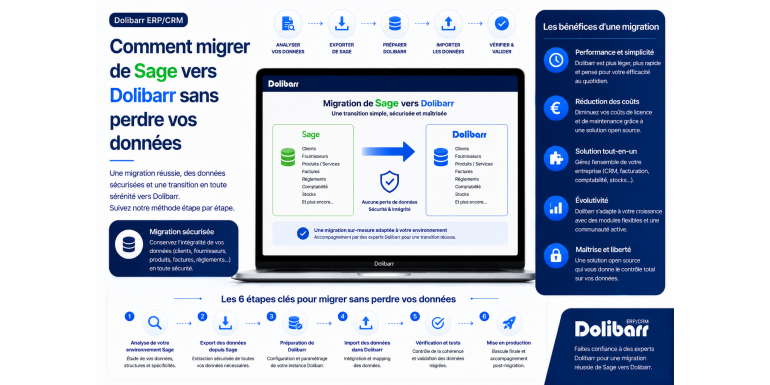
The complete 2026 guide to successfully transitioning from proprietary software to an open-source ERP
Have you been using Sage for several years to manage your business, but the subscription costs are becoming too burdensome, the features no longer meet your needs, or you simply want to gain more flexibility and independence? Migrating to Dolibarr ERP & CRM , a free and modular open-source solution, is an excellent alternative that is attracting a growing number of French companies. However, the prospect of migrating several years' worth of accounting data, customer records, invoices, and settings can be daunting, even frightening.
However, migrating from Sage to Dolibarr is entirely feasible , provided you follow a rigorous methodology and prepare your project thoroughly. Thousands of companies have already taken the plunge, some successfully, others encountering difficulties that could have been avoided with proper preparation. The key to success lies in anticipation, planning, and adhering to precise steps. A poorly prepared migration can lead to data loss, accounting inconsistencies, and even tax penalties if you lose critical information.
In this comprehensive guide, we'll walk you through your Sage to Dolibarr migration project step by step. You'll discover why this migration can be beneficial, how to assess its scope, how to export your data from Sage (whether it's Sage 50, Sage 100, or Sage Business Cloud), how to import it into Dolibarr, what precautions to take, how to manage the transition for your team, and how to avoid common pitfalls. Whether you're a small business owner, an administrative manager of a small or medium-sized enterprise (SME), or an accountant advising a client, this guide will provide you with all the tools you need to successfully complete your migration without stress and without losing your valuable data.
Article summary
• Why migrate from Sage to Dolibarr?
• Assess the scope of your migration project
• The different Sage environments to consider
• Preparing the ground: auditing and cleaning the data
• Install and configure Dolibarr
• Step 1: Export the data from Sage
• Step 2: Prepare the files for Dolibarr
• Step 3: Import the third parties into Dolibarr
• Step 4: Import the products and services
• Step 5: Import invoice history
• Step 6: Migrate accounting and chart of accounts
• Step 7: Test and validate the migration
• The period of dual exploitation
• Train the team on the new software
• Common mistakes to avoid
• Should you use a service provider or not?
• Conclusion
1. Why migrate from Sage to Dolibarr?
Before embarking on a complex project like a migration, it's essential to have clear motivations. Let's look at the main reasons why companies abandon Sage in favor of Dolibarr.
The drastic reduction of costs
Sage charges monthly subscriptions ranging from €30 to several hundred euros per month, depending on the plan and the number of users. Over a decade, this adds up to several thousand, or even tens of thousands of euros. Dolibarr is completely free when self-hosted, and even as a SaaS solution, its costs remain lower than Sage's. This financial difference can translate into a very rapid return on investment, as early as the first or second year.
The end of dependence on a publisher
With Sage, you're locked into a vendor who can decide to raise prices, change offerings, discontinue a product, or force you to migrate to a new version. With Dolibarr, you own your installation and your data. No vendor can force you. This technological independence is a real asset, particularly valued by companies concerned about digital sovereignty.
Flexibility and customization
Sage is proprietary software with limited customization options, or customizations that come at a premium price from the publisher. Dolibarr is open source: you can adapt everything to your needs (custom fields, document templates, workflows, integrations with other tools). This flexibility is particularly valuable for companies with specific business processes.
Modularity
Sage markets several different products (Sage 50, Sage 100, Sage Business Cloud, Sage Generation i7, etc.) that must be combined to cover all your needs, each with its own price. Dolibarr offers everything in a single modular software package: sales management, CRM, accounting, project management, HR, inventory, etc. You only activate the modules you need.
An active and international community
Dolibarr benefits from a very active global community, with contributors, integrators, and users all over the world. This community ensures the continuous development of the software, the regular release of new modules, and a substantial knowledge base. Resources are particularly abundant for the French-speaking community.
Evolvability and modernity
Dolibarr is evolving rapidly with regular updates that bring new features. The modern web interface is accessible from any device. The REST API allows for advanced integrations with other tools. For companies looking to modernize their information systems, Dolibarr is often seen as more up-to-date than traditional Sage solutions.
2. Assess the scope of your migration project
Not all Sage to Dolibarr migrations are the same. Before you begin, take the time to accurately assess the scope of the project to choose the right approach.
The volume of data to be migrated
How many third parties (customers, suppliers) do you have in Sage? How many products and services? How many invoices have been issued and received in recent years? How many accounting entries? These figures directly determine the complexity of the migration. A company with 50 customers and 200 invoices per year will not require the same approach as an SME with 2,000 customers and 10,000 invoices per year.
History to keep
Do you need to migrate all historical data from Sage, or only the most recent years? French law requires accounting documents to be kept for 10 years, but this can be done in different ways. You can choose to migrate only recent data (3 to 5 years) to Dolibarr and keep the Sage archives read-only for legal purposes. This approach significantly simplifies the migration.
The features used in Sage
List precisely the features you use in Sage: invoicing, general ledger accounting, cost accounting, sales management, CRM, payroll, project management, fixed assets, etc. Verify that each of these features is available in Dolibarr (with or without an add-on module). If a critical feature is missing, you will need to identify a solution before migrating.
Existing integrations
Is Sage connected to other software in your company (e-commerce site, payroll software, bank, external CRM)? These integrations will need to be re-established with Dolibarr. Identify all incoming and outgoing data flows, and check the availability of equivalents for Dolibarr (via the REST API, existing modules, or tools like Zapier).
The number of users affected
The larger the team, the more complex the migration: training, change management support, and managing resistance are all essential. For a team of more than 10 people, plan a full-fledged change management project, including training phases, user support, and internal ambassadors.
???? TYPICAL ESTIMATE: For a very small business with fewer than 5 users and a modest data volume, expect a project duration of 4 to 8 weeks. For a small or medium-sized enterprise (SME) with 10 to 30 users and a significant data history, plan for 3 to 6 months. Beyond that, the project becomes comparable to a standard ERP migration.
3. The different Sage environments to consider
Sage markets several products that do not all function in the same way. Accurately identifying your Sage environment is essential for planning the migration.
Sage 50cloud (formerly Ciel)
Sage 50cloud is the solution for very small businesses and freelancers. It is installed locally on a workstation, sometimes with cloud synchronization. Data export is generally done via internal tools: accounting export in text format, journal entry export, and customer record export. Sage 50 also has a proprietary .mae format for accounting, which can complicate migration. Migration from Sage 50 is generally the simplest due to the smaller data volumes.
Sage 100cloud
Sage 100cloud is the solution for SMEs, available in several modules: Accounting, Sales Management, Payroll, Fixed Assets, etc. Data is stored in a proprietary SQL Server database. Exporting is more complex than with Sage 50, but Sage offers standard export tools (Sage Export, ImportExport.exe). Data volumes are generally larger, which complicates the migration process.
Sage Business Cloud
Sage Business Cloud (formerly Sage One) is the online SaaS solution. Data is hosted by Sage. Export is done via the web interface or the Sage API. Available formats are generally CSV or Excel. Migration from Sage Business Cloud can be facilitated by the API, but sometimes requires more mapping effort.
Sage Generation i7 and other historical versions
Older versions of Sage (Sage Line 30, Line 100, Generation i7) may still be used in some companies. They often use older data formats. If this applies to you, first check the available export tools. In some cases, an intermediate step (exporting to a recent version of Sage 100, then to Dolibarr) may be necessary.
Sage X3 (for large companies)
Sage X3 is the solution for large companies and mid-sized businesses. It's a true ERP with highly advanced features (multi-company, multi-country, multi-currency, complex business processes). Migrating from Sage X3 to Dolibarr is rarely worthwhile, except to significantly simplify processes. For large organizations, Dolibarr may not meet all the needs of Sage X3.
Identify your version precisely
First, precisely identify your Sage version and all activated modules. This information is crucial for: finding the right export tools, understanding data structures, and anticipating specific difficulties. This information is usually found in the Help > About Sage menu.
4. Prepare the ground: audit and clean the data
A migration is the perfect opportunity to do a major cleanup of your data. Don't migrate to Dolibarr the clutter you may have accumulated in Sage over the years.
Auditing third parties
Review your customer and supplier database in Sage. Identify: duplicates (the same customer created multiple times with different spellings), incomplete records (missing contact information), obsolete records (customers who haven't been active for 5 or 10 years), and test or demonstration records created at startup. Cleaning this data before migration will prevent you from polluting your new Dolibarr installation.
Check the account balances
Before migrating, verify that your Sage accounting system is up-to-date and balanced. Customer and supplier account balances must correspond to outstanding invoices. The general ledger must also balance. Any imbalance detected before migration will be infinitely easier to correct in Sage than in Dolibarr after import.
Document the specific settings
Carefully document all your specific Sage settings: custom payment terms, specific VAT rates, custom accounting accounts, product codes, category codes, etc. These settings will need to be manually recreated in Dolibarr. Without documentation, you risk overlooking important details.
List the users and their rights
Create an inventory of current Sage users and their access rights. For each user, note: who can do what, which modules they use, and which reports are essential for them. This information will be used to configure user profiles in Dolibarr.
Identify the documents and attachments
If you store documents and attachments in Sage (scanned invoices, contracts, photos), identify them and prepare for their separate migration. Dolibarr also allows you to store documents, but the bulk import mechanism is less straightforward. Manual migration may be necessary for important documents.
⚠️ WARNING: Never launch a migration without first performing a thorough cleanup. Importing 5,000 customer records, half of which are duplicates or outdated, will permanently pollute your new Dolibarr installation.
5. Install and configure Dolibarr
Before migrating data, you must of course have a working and correctly configured Dolibarr installation. Here are the essential points.
Choose your accommodation type
First decision: SaaS or self-hosting? For a transition from Sage, where you were probably used to a turnkey solution, SaaS (like DoliCloud) is often more reassuring. If you have technical skills or a service provider, self-hosting (shared, VPS) is more economical and flexible. This choice must be made at the very beginning of the project because it determines everything else.
Install the same version that will be in production
Install the version of Dolibarr you intend to use in production. Do not test on an older version and then migrate to a newer one; this will cause problems. Instead, choose the latest stable (LTS) version to benefit from long-term maintenance.
Configure the basic settings
Before importing, configure Dolibarr: your company information (name, address, SIRET number, VAT number), accounting period, default currency, language, and general settings. Activate the modules you will need: Third Parties, Invoices, Accounting, etc. This initial configuration should reflect your current Sage settings.
Recreate the chart of accounts
Import or create in Dolibarr the chart of accounts that corresponds to the one you use in Sage. For France, the standard French General Chart of Accounts (PCG) is generally suitable. If you have specific accounts (customer sub-accounts, analytical accounts), add them manually in Dolibarr before importing any accounting data.
Configure VAT rates
Verify that all the VAT rates you use in Sage are correctly applied in Dolibarr: 20%, 10%, 5.5%, 2.1%, and any foreign rates. Go to Configuration > Dictionaries > VAT Rates to check and complete the entries if necessary. An error in the VAT rates after migration can lead to incorrect accounting entries.
Define the payment terms
Recreate in Dolibarr all the payment terms you use in Sage: upon receipt, 30 days, 60 days end of month, etc. Go to Configuration > Dictionaries > Payment Terms. The exact correspondence between the Sage and Dolibarr codes will facilitate future imports.
6. Step 1: Export the data from Sage
This is the first technical step of the migration. Let's see how to properly extract your data from Sage.
Exports available in Sage
Sage offers several export tools depending on the module used. In the File > Export menu, you will generally find options to export: third parties (customers and suppliers), products and services, invoices (headers and details), accounting entries (in text, CSV, or Excel format), and the chart of accounts. Choose the CSV or Excel format, which will be easier to work with later.
Exporting the FEC (Accounting Entries File)
For accounting purposes, exporting to FEC is the most standardized option. It's a standardized format mandated by the French tax authorities that all accounting software must be able to generate. In Sage, go to the Accounting menu > Journal Entries File. Select the period and start the generation process. You'll obtain a structured .txt file containing all your journal entries.
Export third parties
For third parties, exporting is generally done via a wizard that offers: selection of fields to include (name, address, phone number, email, SIRET number, etc.), filtering (all third parties or a selection), and output format (CSV, Excel). Export with as many fields as possible: it will always be easier to remove information than to add it.
Exporting products and services
Similarly, export your product/service catalog from Sage. Include: product code, label, description, selling price excluding VAT, VAT rate, accounting code, unit of measure, optionally the purchase price and stock level. This export will become the basis of your Dolibarr catalog.
Export invoice history
Exporting invoice history is more complex because it involves two levels: invoice headers (including customer, date, and totals) and invoice lines (including products, quantities, and prices). You may need to perform two separate exports, which will then be reconciled during import. Depending on your version of Sage, this process may be more or less straightforward.
Check that the exports are complete.
Once the exports are complete, carefully check their accuracy. Compare the number of exported lines with what is in Sage. Verify that the financial totals match. Inspect a few lines to confirm data consistency. Any anomalies detected at this stage will save you hours of troubleshooting later.
⚠️ WARNING: Before any export, perform a complete backup of your Sage installation. In case of problems during the migration, you must be able to revert to the initial state.
7. Step 2: Prepare the files for Dolibarr
Sage exports cannot be directly imported into Dolibarr. They must be converted to fit the expected format.
Understanding the Dolibarr format
Dolibarr offers an import wizard that accepts CSV files with specific columns. First, download the import templates from Dolibarr: they contain the expected columns with their exact names. This will be your reference for preparing the data.
Column mapping
Mapping involves matching the columns in your Sage export with those expected by Dolibarr. For example, the "Company Name" column in Sage corresponds to "name" in Dolibarr, "Address" to "address", "Postal Code" to "zip", and so on. Prepare a precise mapping table before starting the transformation.
Use Excel or Google Sheets to transform
To transform your files, use Excel or Google Sheets. Open the Sage export, create a new file with the columns expected by Dolibarr, and then use formulas to copy the correct values to the correct locations. For complex transformations, CONCATENATE, LEFT, RIGHT, and VLOOKUP formulas can be very useful.
Managing special characters and encoding
Character encoding is a common source of problems. Sage often uses Windows-1252 encoding, while Dolibarr prefers UTF-8. A conversion is necessary. In Excel, when saving, explicitly choose "CSV UTF-8". Without this precaution, accented characters may be transformed into unreadable symbols.
Clean and validate the data
Take this opportunity to clean up your data: standardize phone numbers, capitalize city names, verify email addresses, and format SIRET numbers to exactly 14 digits. These preliminary checks prevent import rejections and improve the quality of your Dolibarr database.
Prepare multiple import files
Rather than one large file, prepare several files per category: customer third parties, supplier third parties, products, services, invoices, etc. This organization facilitates successive imports and allows you to revert to a previous category without affecting the others.
???? USEFUL TOOL: For complex transformations, free ETL tools like Talend Open Studio or Pentaho Data Integration can automate mapping and transformation. Significant training investment is required, but it's worthwhile for large volumes.
8. Step 3: Importing third parties into Dolibarr
Third parties (customers and suppliers) are generally the first element to import because they serve as a reference for everything else.
Access the import tool
In Dolibarr, go to Configuration > Tools > Import. Select the entity type to import (Third Party). Choose the import profile that best suits your needs, or create a custom one. The wizard guides you step by step: file selection, column mapping, preview, and execution.
Test first with a small sample
Before importing 2,000 third parties at once, test with only 5 to 10 lines. This test import allows you to verify that the mapping is correct, that the data appears as expected in Dolibarr, and that special characters are handled correctly. If everything is OK with this small sample, you can confidently launch the full import.
Manage third-party codes
Decide on your third-party coding strategy. You can: keep the existing Sage codes (practical for continuity), let Dolibarr generate new codes (cleaner), or use a hybrid coding system. Whatever your decision, be consistent throughout the entire import process.
Managing duplicates
If some third parties already exist in Dolibarr (for example, if you manually created some records for testing purposes), the import process may generate duplicates. Enable the duplicate checks in the import wizard, or perform a manual cleanup after the import. Identify duplicates by their SIRET number (a unique field for French companies).
Check the import
After importing, check that: the total number of third parties matches your expectations, a few randomly selected records are correctly filled out (all the information is there), accented characters are displayed correctly, and country codes and other references are valid. If you encounter a major problem, don't hesitate to delete everything and start again after correcting the source file.
9. Step 4: Importing products and services
Importing the product catalogue follows a similar logic to importing from third parties, but with some specific points to be aware of.
Distinguishing between products and services
In Dolibarr, products (physical goods) and services (services) are managed separately. Prepare two separate import files if your catalog contains both types. This separation is important, particularly for inventory management (only for products) and accounting (different accounts).
Define product codes
As with third parties, decide whether to keep the Sage codes or regenerate them. A good practice is to keep the existing codes to facilitate the transition for the team: sales representatives don't have to relearn the codes. Just make sure they comply with Dolibarr's coding rules (allowed characters, length).
Import prices
For each product, import the pre-tax selling price and the applicable VAT rate. If you manage multiple price levels (individual, professional, wholesale), Dolibarr allows this via the Price Levels module, which must first be activated. Then import the different prices into dedicated columns.
Managing accounting records
Each product must be linked to a sales accounting account (700, 701, 706, or 707, depending on your business). This linking is crucial for the automatic generation of accounting entries. Verify the accounts in Sage and transfer them to the Dolibarr import file.
Product categories
If your Sage products are organized into categories, recreate the same hierarchy in Dolibarr (Configuration > Categories) before importing. During the import process, you can then assign each product to its category. This organization will facilitate searching and reporting.
Initial stocks
If you manage inventory, plan to also import the initial stock level for each product. This can be done in the same import file (stock column) or via a separate import. The initial stock must exactly match what it was in Sage on the switchover date.
10. Step 5: Import invoice history
Importing historical invoices is probably the most delicate step in the migration. Several approaches are possible.
Is it really necessary to migrate the history?
The first question to ask yourself is: do I really need the complete invoice history in Dolibarr? Several alternatives exist: migrate only the outstanding invoices (the most useful for day-to-day operations), migrate only the invoices from the current fiscal year, or archive the old invoices as separate PDFs. This streamlined approach significantly simplifies the migration.
Migrate only open sales
The most pragmatic approach is to only import the outstanding balances at the time of the switchover. For each customer, you create a "historical invoice" in Dolibarr corresponding to the total amount owed by that customer. You keep the detailed history in Sage for legal purposes, but Dolibarr only manages the day-to-day transactions from the switchover point onward. This approach is perfectly adequate for most businesses.
Migrate the complete history
If you're determined to import your entire invoice history, be prepared for a significant undertaking. You'll need to import: invoice headers with all the relevant information, the line items for each invoice, and the associated payments. Mapping is complex, and large volumes of data can significantly slow down the process. This approach is only recommended for organizations that regularly access historical invoices.
Importing via the Import module
The Dolibarr import wizard allows you to import invoices. Go to Configuration > Tools > Import and choose Customer Invoices. Prepare your file with all the expected columns. Note: Invoice imports are sensitive to references (third parties, products, payment terms, etc.) which must already exist in Dolibarr.
Check the totals after import
After importing the invoices, compare the totals between Sage and Dolibarr. The cumulative revenue over the migrated period must be identical. The totals per customer must match. Any difference indicates a problem (missing invoices, duplicates, rounding errors) that must be investigated immediately before proceeding.
⚠️ IMPORTANT: Once invoices are imported and validated in Dolibarr, they cannot be modified (except for cancellation). Ensure your import is correct before validating.
11. Step 6: Migrate accounting and chart of accounts
For companies that use Sage for their accounting (and not just sales management), accounting migration is a critical step.
Import the chart of accounts
If your Sage chart of accounts differs from the standard French GAAP (PCG), export and import it into Dolibarr. Go to Accounting > Chart of Accounts. The import can be done using the standard import tool or by manually creating specific accounts. This is an essential prerequisite for importing journal entries.
Import the entries via the FEC
The FEC file is the most standard format for migrating accounting data. If you generated the FEC file from Sage, Dolibarr can potentially import it. However, importing FEC files into Dolibarr isn't always straightforward: check with a dedicated module on the Dolistore that can simplify this process.
Resumption of the new
The simplest approach is to not import all historical entries, but only to enter a reopening entry that reflects the balances of all accounts at the time of the reconciliation. This approach is consistent with accounting practices and widely adopted. You start in Dolibarr with the correct balances, without the burden of detailed historical data.
Resume bank reconciliations
If you have unreconciled bank transactions at the time of the switchover, plan to import them into Dolibarr. List them in Sage and manually enter them into Dolibarr before continuing with your regular data entry. This is essential for the consistency of future bank reconciliations.
Check with your accountant
The accounting migration is too significant to proceed without your accountant's approval. Have them validate your approach (complete data transfer, opening balances, etc.), verify the balances after import, and ask them to sign a switchover report formalizing the transition from one software system to the other. This validation is crucial in the event of a subsequent tax audit.
12. Step 7: Test and validate the migration
Before switching to full production, a rigorous testing phase is essential. Do not skip this step.
Establish a test plan
Develop a test plan that covers all critical business processes: creating a new customer, issuing a quote, converting it to an invoice, recording a payment, generating a report, etc. For each test, clearly define the expected outcome. Document the observed results to identify any discrepancies.
Testing the imports
Carefully check the quality of the imported data: take 10 random third parties and compare them line by line with Sage. Do the same for 10 products and 10 invoices. Inspect accented characters, amounts, and dates. Any inconsistencies detected must be corrected before the switchover. It's better to discover a problem during testing than in production.
Testing daily processes
Simulate a workday in Dolibarr: create multiple quotes, invoice, collect payments, and generate reminders. Verify that everything runs as expected. This simulation often reveals problems (missing settings, unsuitable PDF templates, insufficient user permissions) that wouldn't otherwise appear.
Test the reports
Generate the reports you regularly use in Sage (monthly revenue, unpaid invoices, inventory status, trial balance) and their equivalents in Dolibarr. Compare the figures: they must match exactly. Any difference indicates a migration problem or a setting that needs adjusting.
Involve end users
Have future users (salespeople, accountants, managers) test Dolibarr. Their feedback is invaluable: they can identify problems that you, as the migration architect, may no longer see. Their early involvement also facilitates acceptance of the change.
13. The period of dual exploitation
The switch from Sage to Dolibarr is generally not abrupt. A period of dual operation, where both software programs run in parallel, is often necessary.
Why a dual operation?
This transition period allows for several things: validating in real-world conditions that Dolibarr functions correctly, maintaining a safety net (if something goes wrong in Dolibarr, you can revert to Sage), and gradually training users. The typical duration of dual operation is 1 to 3 months, depending on the complexity of your environment.
Define the switchover date precisely
Choose a logical switchover date: ideally the 1st of a month or quarter, or even the start of a fiscal year. This date determines which transactions are entered in Sage and which in Dolibarr. Communicate this date clearly to the entire team to avoid duplicate entries or oversights.
Enter a few test operations in parallel
To validate the dual operation, enter a few real transactions in both Sage and Dolibarr during the first few days. Compare the results: both systems should produce the same documents (invoices identical down to the cent). Any discrepancy indicates a problem that needs to be corrected.