
The 2026 practical guide to creating, sending and converting your quotes into invoices
A quote is much more than just a sales document: it's the first real formal interaction between your company and a prospect, and often the catalyst for a lasting business relationship. A well-designed, clear, professional quote, sent promptly, can mean the difference between closing a deal and losing the prospect to a competitor. Conversely, a sloppy, late, or incomplete quote can instantly ruin weeks of sales efforts.
Fortunately, Dolibarr ERP & CRM offers a comprehensive, intuitive, and powerful quoting module that allows you to create professional-quality sales proposals in just a few minutes. Whether you're a self-employed individual, freelancer, small business owner, or sales manager for a small or medium-sized enterprise, this module will transform your quoting process: no more tedious Word templates that need updating, error-prone manual calculations, or lost records of sent quotes.
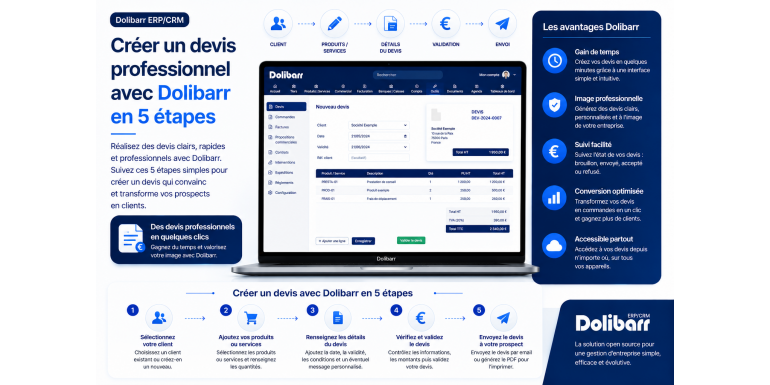
In this comprehensive practical guide, we'll show you how to create a professional quote with Dolibarr in just 5 clear and repeatable steps. You'll also discover best practices for structuring your quotes, mandatory legal information, tips for increasing your conversion rate, how to follow up with leads, and how to automatically convert accepted quotes into invoices. By the end of this guide, you'll have a complete mastery of the quoting process in Dolibarr and will be able to save several hours a week on your sales management.
Article summary
• Why use Dolibarr to create your quotes?
• The prerequisites before creating your first quote
• Step 1: Activate and configure the Sales Proposals module
• Step 2: Create or select the recipient client
• Step 3: Draft the content of the quote (products, services, discounts)
• Step 4: Customize the quote and add essential information
• Step 5: Send the quote to the client and follow up on their approval
• Converting an accepted quote into an invoice
• The mandatory legal information on a quote
• Tips to increase your conversion rate
• Managing follow-ups and expired quotes
• Common mistakes to avoid
• Conclusion
1. Why use Dolibarr to create your quotes?
Before diving into the practical aspects, let's understand why Dolibarr is a particularly relevant choice for managing your quotes. This will help you make the most of all its features.
A considerable time saving
How much time do you currently spend creating a quote in Word or Excel? Between formatting, calculations, copying customer contact information, adding terms and conditions, exporting to PDF, and sending by email, it takes an average of 30 to 45 minutes per quote. With Dolibarr, this time drops to 5 to 10 minutes for a standard quote, or even less if you have pre-registered recurring products. Over a hundred quotes per year, that's more than 50 hours saved.
Professional sales follow-up
Dolibarr automatically maintains a complete history of all your quotes: draft quotes, sent quotes, signed quotes, rejected quotes, and expired quotes. You can see the status of each sales proposal at any time, which is crucial for effective follow-up and ensuring you don't miss any opportunities. This level of traceability is impossible to maintain manually with scattered Word files.
A strengthened professional image
Quotes generated by Dolibarr have a professional appearance, featuring your logo, brand guidelines, full contact information, and all legally required details. This visual quality inspires confidence and credibility in potential clients. Conversely, a quote cobbled together in Word with inconsistent fonts or a sloppy layout gives a damaging impression of amateurism.
An automatic conversion to an invoice
One of Dolibarr's greatest strengths is the automatic conversion of an accepted quote into an invoice with a single click. No more copying information, no more risk of error, and your sales history remains consistent. It's also an excellent way to ensure you're billing for exactly what was agreed upon in the quote.
Native integration with your CRM
In Dolibarr, quotes are integrated into a true CRM. You can link a quote to a project, a specific contact, or a sales opportunity. This 360-degree view of your customer relationships is invaluable for understanding your sales cycles and optimizing your sales approach.
2. Prerequisites before creating your first quote
Before you start creating your first quote, a few preparations are necessary to ensure everything goes smoothly. These steps only take a few minutes but will save you time and frustration later on.
Enter your company information
Your company details will automatically appear on all your quotes. It is therefore essential that they are complete and accurate. Go to Settings > Company/Organization and fill in the following information carefully: company name, full address, postal code, city, country, telephone number, business email address, website (if you have one), SIRET number, APE/NAF code, intra-community VAT number (if applicable), share capital and legal form (SARL, SAS, EURL, etc.), and upload your logo in high resolution.
Configure VAT according to your situation
If you are subject to VAT, check that the applicable rates (20%, 10%, 5.5%, 2.1%) are correctly activated. If you are a self-employed individual exempt from VAT, deactivate VAT in your company settings so that your quotes are generated excluding VAT only, with the mandatory statement "VAT not applicable, article 293 B of the French General Tax Code".
Define your default payment terms
Payment terms (upon receipt, within 30 days, within 60 days, etc.) must be configured before creating quotes. Go to Configuration > Dictionaries > Payment Terms to review the available options and add more if needed. Then, define the default term in Configuration > Modules > Sales Proposals.
Prepare your products and services
If you regularly offer the same services or products, create them once and for all in the Products/Services module. For each entry, enter the name, description, unit price, applicable VAT rate, and optionally an image. These products can then be added to a quote in just a few clicks, saving you valuable time.
Customize the quote template
Dolibarr offers several PDF templates for generating your quotes (Azure, Cyan, etc.). Go to Configuration > Modules > Sales Proposals to activate the available templates and choose the one that best matches your brand image. You can also import a custom ODT template for a personalized look.
3. Step 1: Activate and configure the Sales Proposals module
STEP 1 ACTIVATION AND CONFIGURATION
Dolibarr works with modules. The module that manages quotes is called "Sales Proposals". Let's see how to activate and configure it correctly.
Activate the module
Log in to Dolibarr with an administrator account. Go to the Configuration menu in the top right corner, then click on Modules/Applications. Find the "Sales Proposals" module in the Sales Management category and activate it by clicking the button to the right of the entry. Once activated, the module will appear in the main menu and allow you to create quotes.
Configure quote numbering
Click the gear icon to the right of the Sales Proposals line to access the settings. Quote numbering should follow a clear logic. Several templates are available: simple numbering (PR2026-0001), numbering with the full date, numbering with customer code, etc. Choose the one that best suits your organization. For a small business, a format like QUOTE-2026-0001 or PR2026-001 is ideal because it includes the year and remains easy to read.
Set the default validity period
A quote must always have a validity period. In France, the standard period is 30 or 90 days, but you can choose a different period depending on your industry. Configure this default value in the module settings. You can always change it on a case-by-case basis for each quote.
Activate useful features
In the settings, you can enable several useful options: use global discounts, allow line item discounts, manage deposits, display gross margin (useful for salespeople), and enable multi-currency quotes if you work internationally. Enable the options relevant to your business, and disable the others to avoid cluttering the interface.
Choose the default PDF template
Still within the module settings, select the default PDF template for your quotes. The Azur template is the most popular due to its modern and clean design. You can preview each template by clicking the magnifying glass icon to the right of its name. If none of the templates suit your needs, you can customize an ODT template later.
4. Step 2: Create or select the recipient client
STEP 2 CREATE OR SELECT THE CLIENT
A quote is always addressed to a client (existing or prospective). Before creating the quote itself, you must therefore have the recipient in the Dolibarr database. Let's look at the different ways to do this.
Case 1: The client already exists
If you have already worked with this client or added them previously, their information is already in Dolibarr. Go to the Third Parties > List menu, search for the client by name, and verify that their contact details are up to date (address, email, phone number, main contact). If necessary, update the information before creating the quote.
Case 2: Create a new client
To create a new prospect, go to Third Parties > New Third Party. Enter the essential information: company name (or first and last name for an individual), type of third party (customer, prospect, or both), customer code (automatically generated or customized), full address, postal code, city, country, phone number, email address, and optionally, the intra-community VAT number for businesses. Confirm the creation by clicking Create.
Case 3: Create the client directly from the quote
Dolibarr also allows you to create the quote first and manage the customer on the fly. When creating the quote, in the Third Party field, start typing the customer's name. If no match appears, you'll have the option to create the third party directly. This is convenient for speed, but we recommend the first method to ensure all customer information is entered correctly.
Add contacts to the third party
For businesses, remember to add one or more contacts (individuals) to the third party. Go to the third party's record, Contacts/Addresses tab, then New Contact. Enter the last name, first name, job title, work email, and phone number. You can then designate this contact as the recipient of the quote, personalizing the delivery.
Categorize the third
To facilitate sales follow-up, classify your new client into one or more categories: hot prospect, cold prospect, VIP client, recurring client, etc. These categories will then allow you to filter your quotes and carry out targeted actions (follow-ups, promotional offers, etc.).
5. Step 3: Draft the content of the quote
STEP 3: WRITE THE QUOTE CONTENT
This is the central step in creating the quote: adding the products or services offered, their quantities, their prices, and any applicable discounts. It's also the step that requires the most attention, as a mistake here can be costly.
Create a new quote
Go to Commercial > Commercial Proposals > New Proposal. A blank form opens with several fields to fill in: the third party (client) that you prepared in the previous step, the date of the quote (by default today), the validity date (calculated automatically according to your configuration), the internal reference if you wish to add one, and possibly the associated project if you manage your business by project.
Please fill in the general terms and conditions
Before adding the lines, complete the payment terms (by default those defined in the configuration, but you can modify them for this specific quote), the preferred payment method (bank transfer, check, cash, direct debit, etc.), the delivery condition if applicable, and optionally the public notes (visible to the customer) and private notes (internal to your team).
Add product or service lines
This is the core of the quote. Click on Add a line. For each line, you can select an existing product/service from your database (the price will be automatically filled in) or enter a free-form line with a custom description. Enter the quantity, the unit price excluding VAT, the VAT rate, and optionally a discount (as a percentage or a fixed amount). Dolibarr automatically calculates the total excluding and including VAT for the line.
Add detailed descriptions
For each line item, you can add a longer description that will be displayed below the main title in the PDF. This description is invaluable for detailing the content of a service, listing included deliverables, or specifying any particular conditions. The clearer and more complete your descriptions, the better the client will understand what they are purchasing, and the fewer misunderstandings there will be later.
Organize the lines with headings and separators.
For a quote with many lines, organize the content into sections. You can add headings (without prices) to group services by category: for example, Phase 1: Audit and Analysis, Phase 2: Design, Phase 3: Implementation. This structure significantly improves readability and makes it easier for the client to understand the project.
Apply overall discounts
You can offer an overall discount on the entire quote: a one-time discount, a quantity discount, a loyalty discount, etc. This discount is in addition to any discounts on individual line items. Clearly state the type of discount in the description to highlight the value of the offer to the customer.
Check the totals
At the bottom of the quote, Dolibarr displays the totals: pre-tax total, VAT amount (broken down by rate if multiple rates are applied), and total including VAT. Carefully check these amounts before validating. This is also the time to verify that all lines have been entered correctly and that no services have been omitted.
6. Step 4: Customize the quote and add essential information
STEP 4: CUSTOMIZE AND COMPLETE
The basic content is in place, but a truly professional quote stands out in the details. Here's how to refine your quote to maximize its impact.
Add a custom introduction
Before presenting the priced services, add a few introductory lines that contextualize the offer. You can reiterate the client's needs, briefly outline your approach, and mention the expected benefits. This introduction should be placed in the Public Note field or as the first line of the quote (a line of text without prices). It personalizes the proposal and demonstrates that you have a clear understanding of the client's request.
Specify the general terms and conditions of sale
Your general terms and conditions of sale (GTC) must be included on all your quotes. You can include them in the footer of the PDF template, as an attachment, or via a link to your website. Essential elements to include include: payment terms, late payment penalties, cancellation conditions, warranties, delivery conditions, applicable law, and the competent jurisdiction in case of dispute.
Include the required information
Several details are mandatory on a quote in France: the date of issue, the quote number, the full identity of the seller and the buyer, the validity period of the offer, the details of the services with quantities and unit prices, the total excluding tax, the details of the VAT (or the mention "VAT not applicable, article 293 B of the CGI" for self-employed individuals under the exemption scheme), the total including tax, the terms and deadlines for payment, and the mention "Approved" followed by the date and signature for validation.
Add special conditions
Beyond the general terms and conditions, you can add specific conditions to this quote: specific penalties, delivery terms, cancellation conditions, intellectual property rights for creative services, payment plan arrangements, etc. The clearer your conditions are upfront, the fewer disputes you will have later.
Pay attention to the visual presentation
Verify that your logo appears clearly on the quote, that the colors adhere to your brand guidelines, and that the layout is clean and uncluttered. If necessary, modify the existing PDF template or create a custom ODT template to ensure a final product perfectly aligned with your brand image. A well-presented quote inspires confidence from the very first second.
Attach additional documents
Dolibarr allows you to attach documents to a quote: detailed company presentation, customer references, product datasheets, complete terms and conditions, projected schedule, etc. These documents enrich the offer and provide the necessary reassurance. Go to the Documents tab of the quote details to upload the attachments.
7. Step 5: Send the quote to the client and follow up on their approval
STEP 5: SENDING AND TRACKING THE QUOTE
The quote is ready. All that remains is to send it to the client and track their response. Dolibarr greatly simplifies this crucial final step.
Confirm the quote
Before sending, the quote must be validated. In Dolibarr, a quote has several statuses: Draft (editable, without a final number), Validated (with a final number, ready to be sent), Signed/Accepted (the customer has accepted), Rejected (the customer has rejected), Invoiced (converted into an invoice), Expired (validity date passed without a response). Click the Validate button at the top of the form to change the status from Draft to Validated. The quote then receives a final number and can no longer be modified.
Generate the PDF
Once validated, Dolibarr automatically generates a PDF of the quote according to the selected template. You can download it to visually verify it. If the result is not satisfactory (poorly positioned logo, incorrect layout, etc.), return to the template settings to make the necessary adjustments before sending.
Send the quote by email from Dolibarr
Click "Send by email" at the top of the form. A window will open with: the recipient field pre-filled with the main contact's email address (which can be edited), a default subject line (also editable), a template message that you can personalize, and the automatically attached PDF quote. Customize the message to be friendly and engaging, mention the quote's expiration date, and invite the client to contact you with any questions. Send the email.
Configure email templates
To save time on recurring emails, configure email templates in Settings > Emails. You can create a Quote Sending template that includes your signature, standard cover text, and dynamic variables like {refnum} to automatically insert the quote number. This template will be used for every quote you send.
Follow the opening and reading of the quote
Some third-party modules available on the Dolistore allow you to track whether your email has been opened and whether the quote PDF has been viewed. This is invaluable for timely follow-up: if the client has already opened the quote several times without responding, it means they are hesitant, and it's the perfect time to call them to address their concerns.
Mark the quote as accepted or refused
When the client responds, update the quote status in Dolibarr. For an accepted quote, click Mark as Signed. You can also upload the digitally signed or scanned quote to the Documents tab. For a rejected quote, click Mark as Rejected and note the reason for rejection in the private notes (price, deadline, competition, etc.). This information is valuable for analyzing your conversion rates and improving your future proposals.
8. Convert an accepted quote into an invoice
One of Dolibarr's most powerful features is the automatic conversion of an accepted quote into an invoice. Let's see how to do it and what the advantages are.
The transformation process
On the details page of a signed quote, a "Create Invoice" button appears. Click it to automatically create an invoice containing all the information from the quote: third party, product/service lines, prices, discounts, and payment terms. You can adjust certain elements (billing date, due date) before validating the new invoice.
The advantages of this transformation
This automation offers several major advantages: no risk of transcription errors, considerable time savings, perfect consistency between quotes and invoices (which avoids customer disputes), preserved sales history (the link between quotes and invoices remains visible in Dolibarr), faster invoicing, and therefore faster payment. It's a virtuous cycle for your cash flow.
Charge a deposit
For large projects, it's common to request a deposit before work begins. Dolibarr allows you to generate a deposit invoice directly from the quote: choose the deposit percentage (typically 30% or 50%), and the deposit invoice is created automatically. When the final invoice is issued, the deposit amount is deducted from the remaining balance.
Bill in installments
For multi-stage projects, you can create multiple invoices from a single quote: one invoice per phase, per deliverable, or per due date. Dolibarr keeps track of what has been invoiced and what remains to be invoiced, preventing oversights or duplicates. This feature is particularly useful for agencies, consultants, and high-value service providers.
9. Mandatory legal information on a quote
A quote is not just a commercial document: it is also a legally binding document that must comply with certain legal requirements. Here are the essential details to always include.
Seller identification
Your quote must include: the full company name, the registered office address, the SIRET number, the APE/NAF code, the legal form (SARL, SAS, EURL, EI, etc.), the share capital for commercial companies, the RCS number and the city of registration, the intra-community VAT number if you are subject to VAT.
Customer identification
The customer's information must also be clearly displayed: company name (or first and last name for an individual), full address, SIRET number and VAT number for businesses. This information is important in the event of a dispute or tax audit.
Quote characteristics
Several elements must be present and clearly identified: the date of issue of the quote, the quote number (sequential and unique), the validity period of the offer (generally 30 to 90 days), the word "Quote" clearly visible (to distinguish it from an invoice), the detailed description of the products or services offered, the unit prices excluding VAT, the quantities, the total excluding VAT, the details of the VAT (or the mention of the exemption for self-employed individuals), the total including VAT, the terms and deadlines for payment, and any late payment penalties.
Specific information for self-employed individuals
If you are a self-employed individual exempt from VAT, your quote must include the mandatory statement "VAT not applicable, article 293 B of the French General Tax Code (CGI)". This statement must appear clearly, usually at the bottom of the quote or near the amounts. Dolibarr adds it automatically if you have correctly configured the VAT exemption in the settings.
Special case of public procurement and construction
For quotes in the construction industry or for public contracts, additional information is mandatory: the professional's identification number (Qualibat, RGE, etc.), ten-year structural warranty or two-year guarantee depending on the services, references to applicable standards, and mention of consumer mediation for individuals. Check the specific requirements for your sector.
10. Tips to increase your conversion rate
Creating a quote is one thing, getting it signed is another. Here are some proven tips to convert as many of your quotes as possible into actual orders.
Send the quote quickly
The time it takes to send a quote is one of the most crucial factors in conversion rates. According to several market studies, a quote sent within 24 hours of the request has a conversion rate two to three times higher than one sent after a week. With Dolibarr, you can prepare and send a quote in minutes, giving you a significant competitive advantage.
Customize as much as possible
A generic quote gives the impression of mass production. Conversely, a quote that precisely reflects the client's needs, mentions specific details of your discussions, and offers tailored solutions will be perceived as a sign of attentiveness and professionalism. Take a few minutes to personalize each quote, even if you're starting with a template.
Pay attention to the introduction
The opening words of your quote are crucial. Avoid generic phrases like "Please find our offer attached." Opt instead for an introduction that outlines the context, demonstrates your understanding of the client's needs, and briefly presents your solution. The client should feel that this quote is tailored specifically to them, not a copy-paste job.
Present several options
Rather than a single offer, present two or three options at different price and service levels: an economy option, a standard option, and a premium option. This presentation significantly increases the conversion rate because it avoids a binary "yes or no" choice and guides the customer toward selecting one option from several.
Justify the prices
A price without context can seem high. Detail what's included in each service, the estimated time, the specific deliverables, and your methodology. The more the client understands what they're paying for, the lower the price will seem. Transparency is an excellent selling point.
Create a sense of urgency
The validity period of the quote plays an important psychological role. A 30-day validity period encourages the client to decide more quickly than a 6-month validity period. You can also offer special conditions valid only until a certain date: trade discounts, early start, bonuses included, etc.
Facilitating the signing
The simpler the signing process, the faster the client will sign. Clearly outline the procedure: return the signed quote by email, sign online via a service like Yousign or DocuSign, and confirm by replying to the email with the words "Approved." Avoid complex processes that discourage clients.
11. Manage follow-ups and expired quotes
Not all quotes sent receive an immediate response. Managing follow-ups is crucial to avoid missing any business opportunities.
When to restart?
The general rule is to follow up 5 to 7 days after the initial email if you haven't received a response. A second follow-up can be sent 10 to 15 days later. After three spaced-out follow-ups, persisting becomes counterproductive: the prospect will get the message. Instead, mark the quote as expired and focus your energy on other opportunities.
How to relaunch effectively?
A good follow-up isn't just a request for a response. It should provide added value: additional information, a similar customer reference, a response to a potential objection, or an extra benefit. Avoid generic follow-ups like "Did you receive our quote?". Opt instead for personalized messages that demonstrate your commitment.
Track quotes in Dolibarr
Dolibarr allows you to filter quotes according to their status: pending response, expired, signed, or rejected. Regularly (at least once a week) go to Sales > Sales Proposals > List to review your current quotes. Identify those that require follow-up and plan your actions.
Use the Calendar module to schedule follow-ups
When you send a quote, immediately create an event in the Dolibarr calendar for the scheduled follow-up. This way, you'll be notified at the right time and won't miss any follow-ups. This simple practice can significantly increase your closing rate.
Manage expired quotes
An expired quote is no longer legally valid: prices, terms, and deadlines may have changed. If the client returns a long time later asking to approve the quote, do not sign it as is. Issue a new quote with the updated terms. Dolibarr allows you to easily duplicate an old quote: use this function and adjust it as needed.
12. Common mistakes to avoid
To conclude this guide, here are the most common mistakes made when creating quotes in Dolibarr, and how to avoid them.
Error 1: Quote too brief
A quote consisting of only three vague lines leaves the client uncertain. They don't know exactly what they're buying, which can lead to misunderstandings and conflicts later on. Be specific: detail the deliverables, deadlines, and terms. A detailed quote inspires confidence and prevents disputes.
Mistake 2: Forgetting the legal notices
The absence of mandatory information can render your quote legally invalid in the event of a dispute. Configure Dolibarr correctly so that it automatically includes all the required information based on your status. Regularly check that nothing is missing.
Error 3: Prices incorrectly calculated
A pricing error on a quote can be costly: you could lose the contract because the price is too high, or you could end up providing a service at an unprofitable price because you underestimated it. Take the time to accurately calculate your costs and margins before setting a price. Dolibarr allows you to display the gross margin while drafting the quote; use this feature.
Error 4: Not following up on quotes sent
Sending a quote and forgetting to follow up is one of the most costly mistakes in terms of lost revenue. Implement a rigorous follow-up and reminder process for every quote sent.
Error 5: Non-customized PDF template
Using the default template without customizing it gives a generic image of your business. Take the time to personalize the template with your logo, colors, and specific details. It's an initial investment that pays off on all subsequent quotes.
Error 6: Vague payment terms
Unclear payment terms are a major cause of late payments. Clearly state the details: deposit percentage, payment deadlines, accepted payment methods, and late payment penalties. The clearer everything is upfront, the fewer problems there will be later.
Mistake 7: Not archiving quotes
All your quotes, whether signed or rejected, must be archived. Signed quotes are legally valid for 10 years. Rejected quotes are valuable for analyzing your sales performance and improving your future proposals. Fortunately, Dolibarr automatically archives all your quotes in its database.
13. Conclusion
Creating a professional quote with Dolibarr in 5 steps is within everyone's reach, even without special technical skills. The Sales Proposals module offers a complete, intuitive, and powerful solution that radically transforms your sales management. Say goodbye to cumbersome Word templates, error-prone manual calculations, and lost records of sent quotes. Hello to professional quotes generated in minutes, structured sales tracking, and automatic conversion to invoices.
Let's recap the 5 key steps we've covered in this guide. Step 1: Activate and configure the Sales Proposals module by customizing the numbering, validity period, and PDF template. Step 2: Create or select the recipient customer from your Dolibarr database. Step 3: Draft the quote content, including products, services, quantities, prices, and any applicable discounts. Step 4: Customize the quote and add essential information (introduction, terms and conditions, mandatory legal notices). Step 5: Send the quote to the customer via email from Dolibarr and carefully monitor its approval.
Beyond these technical steps, don't forget the fundamental business principles: send the quote quickly (ideally within 24 hours), personalize each proposal, justify prices by the value provided, offer several options if possible, facilitate the signing process, and above all, rigorously follow up on each quote sent. These best practices, combined with the power of Dolibarr, can significantly increase your conversion rate and therefore your revenue.
To go further, we encourage you to explore Dolibarr's advanced features: integration with an electronic signature system to accelerate validation, automated email reminders, creation of custom ODT templates for a presentation perfectly aligned with your brand identity, and use of sales statistics to analyze your performance. The French-speaking Dolibarr community is very active and full of tutorials and tips that will allow you to get the most out of the software.
Ultimately, the quote is one of the key moments in the business relationship, the point at which a company transforms interest into commitment, a discussion into a contract. Investing the necessary time and tools is a highly profitable endeavor. Dolibarr offers you everything you need to excel in this area, free of charge and with great flexibility. Now it's up to you to put these tips into practice and turn your next quotes into sig