
Introduction
In an increasingly competitive business environment, the quality of customer support has become a determining factor for customer retention and business growth. Today's customers demand quick responses, rigorous follow-up on their requests, and complete transparency in the handling of their complaints. Faced with these growing demands, companies must equip themselves with high-performance tools capable of centralizing, organizing, and automating the management of support requests. It is precisely in this context that the Dolibarr Tickets module takes on its full importance.
Dolibarr, as an open-source ERP and CRM, offers a complete and modular solution that adapts to the needs of small and medium-sized businesses, associations, and freelancers. Among its many modules, the Tickets module stands out as a powerful tool for setting up a professional, structured, and efficient customer support system. Whether you are a service company, a software publisher, a technical service provider, or an online store, this module allows you to manage all of your customers' requests from a single, intuitive interface.
In this detailed article, we will explore the Dolibarr Tickets module in depth. We will cover its operation, its configuration, its advanced features, the best practices for using it effectively, as well as the concrete advantages it brings to your organization. If you would like personalized assistance in setting up this module, do not hesitate to consult the experts available at nextgestion.com.
What Is the Dolibarr Tickets Module?
Definition and Objective
The Dolibarr Tickets module is a support request management system integrated directly into the ERP. It allows companies to receive, classify, track, and resolve their customers' requests in an organized manner. Each request is transformed into a "ticket" that has a unique identifier, a status, a priority, a category, and a complete history of exchanges.
The main objective of this module is to replace disorganized support management methods, such as scattered email exchanges, untracked phone calls, or handwritten notes, with a centralized and traceable system. Thanks to this module, every interaction with the customer is recorded, every request is assigned to a responsible person, and every resolution is documented.
Why Use a Ticketing System?
A ticketing system offers many advantages over traditional customer support management methods. First, it ensures that no request is forgotten or lost. Every ticket created remains in the system until it is fully resolved. Second, it allows requests to be prioritized based on their urgency and impact, thus ensuring that critical issues are addressed first. Third, it provides complete visibility into the support team's workload, enabling better task distribution and resource optimization.
Moreover, a ticketing system provides valuable data for analyzing support performance. Response times, resolution rates, the most frequent problem categories, and customer satisfaction can be measured and analyzed to continuously improve service quality.
Activation and Configuration of the Tickets Module
Step 1: Activate the Module
To start using the Tickets module in Dolibarr, you must first activate it. Log in to your Dolibarr instance with an administrator account, then go to the "Home" menu, then "Setup," and finally "Modules/Applications." In the list of available modules, search for "Tickets" or "Support Module" and activate it by clicking the corresponding button.
Once the module is activated, a new "Tickets" menu will appear in the main navigation bar of Dolibarr. This menu will give you access to all the features related to support ticket management.
Step 2: Configure General Settings
After activation, it is essential to properly configure the module to match your specific needs. Access the Tickets module settings via the "Setup" menu. You will find several important options to configure.
The first option concerns ticket numbering. Dolibarr allows you to define a custom numbering format for your tickets. You can choose a prefix, a suffix, and a sequential numbering format. For example, you can opt for a format like "TIC-2024-00001" to easily identify each ticket.
The second option concerns ticket categories. It is recommended to create categories that reflect the different types of requests you receive. For example, you can create categories such as "Technical Issue," "Information Request," "Complaint," "Feature Request," "Billing," or "Other." These categories will allow you to classify tickets and direct them to the right teams.
The third option concerns severity or priority levels. Dolibarr allows you to define several priority levels for tickets, such as "Low," "Normal," "High," and "Urgent." These priority levels help determine the order in which tickets should be processed.
Step 3: Configure Email Notifications
One of the most important aspects of configuring the Tickets module is setting up email notifications. These notifications automatically inform customers and support team members of updates regarding tickets.
You can configure notifications for different events, such as the creation of a new ticket, the assignment of a ticket to a team member, a change in ticket status, the addition of a message or reply to a ticket, and the closing of a ticket. These notifications ensure that all stakeholders are informed in real time of the progress of requests.
Step 4: Define Access Rights
Dolibarr offers a granular access rights management system that allows you to precisely control who can do what in the Tickets module. You can define access rights for creating tickets, reading tickets, modifying tickets, assigning tickets, closing tickets, and deleting tickets.
It is recommended to configure these access rights based on the roles of each member of your team. For example, first-level support agents may have the right to create and respond to tickets, while supervisors may have additional rights to reassign and close tickets.
Main Features of the Tickets Module
Ticket Creation
Ticket creation in Dolibarr can be done in several ways. The most direct method is to manually create a ticket from the Dolibarr interface. To do this, simply click on "New Ticket" in the Tickets menu and fill in the creation form. This form includes several fields, including the ticket subject, a detailed description of the problem, the category, the priority, the concerned customer, and optionally the associated project.
Another method of ticket creation is the use of a public interface. Dolibarr allows you to set up a ticket creation form accessible from an external website. This form allows customers to directly submit their support requests without needing to log in to Dolibarr. Tickets created via this interface are automatically integrated into the system and can be processed by the support team.
Finally, it is also possible to create tickets from incoming emails. This feature, when properly configured, allows emails received at a dedicated support address to be automatically transformed into tickets in Dolibarr. This method is particularly convenient for companies that receive a large number of requests by email.
Ticket Tracking and Management
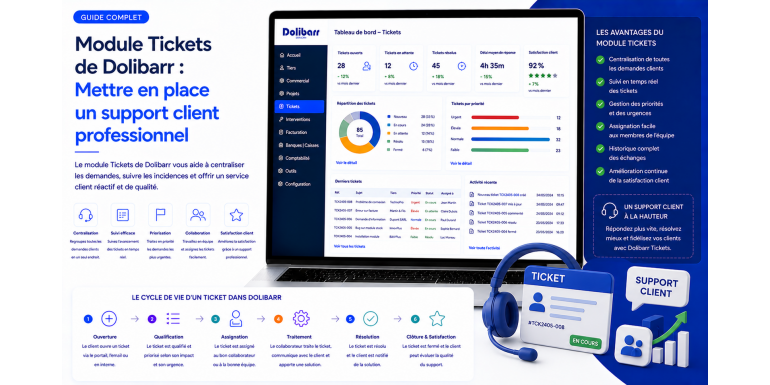
Once tickets are created, the module offers many features for their tracking and management. Each ticket has a lifecycle defined by different statuses. The default statuses in Dolibarr generally include "Unread," "Read," "In Progress," "Answered," "Pending," and "Closed." These statuses allow you to track the progress of each ticket and know exactly where the processing of each request stands.
The module also allows each ticket to be assigned to a specific member of the support team. This assignment can be done manually by a supervisor or automatically based on predefined rules. Ticket assignment ensures that each request is handled by a responsible person and avoids duplicate processing.
The complete history of each ticket is kept in the system. This history includes all messages exchanged between the customer and the support team, status changes, reassignments, internal notes, and attached files. This history is essential to ensure service continuity, even when the ticket is transferred from one agent to another.
Integration with Other Dolibarr Modules
One of the great advantages of the Dolibarr Tickets module is its native integration with the other modules of the ERP. This integration allows you to create links between tickets and other elements of the system, thus offering a comprehensive and coherent view of the customer relationship.
For example, a ticket can be linked to a specific customer in the Third Parties module. This link allows you to quickly view the customer's complete history, including their orders, invoices, contracts, and previous support tickets. This 360-degree view of the customer is extremely valuable for providing personalized and efficient support.
Similarly, a ticket can be associated with a project in the Projects module. This association is particularly useful for companies that manage complex projects and need to track support requests related to each specific project.
The Tickets module can also be linked to the Contracts module, allowing you to verify whether a customer has an active support contract before processing their request. This feature is essential for companies that offer different levels of support based on the contracts subscribed to by their customers.
Attachment Management
The Dolibarr Tickets module allows files to be attached to tickets. This feature is essential for technical support, as it allows customers to attach screenshots, error logs, documents, or any other file relevant to resolving their problem. Similarly, support agents can attach files to their responses, such as troubleshooting guides, patches, or explanatory documents.
Internal Notes and Collaboration
The module offers the ability to add internal notes to tickets. These notes are only visible to support team members and are not shared with the customer. They are particularly useful for collaboration between agents, allowing them to share information, analyses, or recommendations without the customer being informed.
This internal notes feature also facilitates the transfer of tickets between agents. When a ticket is reassigned to another team member, the internal notes provide the necessary context so that the new agent can resume processing the ticket without having to ask the customer for information again.
Advanced Features
Public Ticket Creation Interface
As mentioned earlier, Dolibarr allows you to set up a public ticket creation interface. This interface is a web page accessible from a browser, which you can integrate into your website or share directly with your customers. The public interface is customizable and can be adapted to your company's visual identity.
The public interface offers several advantages. It allows customers to submit their support requests at any time, even outside business hours. It reduces the support team's workload by eliminating the need to manually create tickets for each request received by phone or email. It also improves the customer experience by offering a dedicated and professional communication channel.
To configure the public interface, go to the Tickets module settings and activate the corresponding option. You can then customize the ticket creation form by choosing the fields to display, the available categories, and the proposed priority levels.
Dashboards and Statistics
The Dolibarr Tickets module includes dashboards and statistical tools that allow you to monitor your support team's performance. These dashboards display key indicators such as the number of open tickets, the number of closed tickets, the average response time, the average resolution time, the distribution of tickets by category, and the distribution of tickets by priority.
These statistics are essential for identifying the strengths and weaknesses of your customer support. For example, if you notice that the average resolution time is too high for a specific category of tickets, you can take steps to improve the processing procedures for that category, such as training agents or creating standardized procedures.
The dashboards also allow you to monitor the workload of each support agent. This visibility is crucial for fair task distribution and to avoid overloading certain team members.
Process Automation
Dolibarr offers automation possibilities that can significantly improve the efficiency of your customer support. Among the possible automations are the automatic sending of acknowledgments of receipt upon ticket creation, the automatic escalation of unprocessed tickets after a certain delay, the automatic closing of inactive tickets after a defined period, and the sending of automatic reminders to agents for pending tickets.
These automations reduce repetitive manual tasks and ensure that support processes are followed consistently. They also contribute to improving customer satisfaction by ensuring fast response times and rigorous follow-up on requests.
Field Customization
The Dolibarr Tickets module allows you to customize ticket fields by adding additional fields (extra fields) adapted to your specific needs. For example, you can add fields for the type of product concerned, the software version, the serial number, the customer's preferred contact channel, or any other information relevant to processing the request.
This field customization allows structured information to be collected from the moment the ticket is created, thus reducing the number of exchanges needed to obtain the information required to resolve the problem. It also contributes to better categorization and more detailed analysis of support requests.
Best Practices for Professional Customer Support with Dolibarr
Define Clear Procedures
Setting up professional customer support is not limited to installing and configuring a tool. It is essential to define clear procedures for processing tickets. These procedures must cover the entire lifecycle of a ticket, from its creation to its closure.
Define precise rules for ticket classification, expected response times based on priority, escalation processes for complex or urgent tickets, and ticket closure criteria. Document these procedures and ensure that all support team members know and apply them.
Train the Support Team
Training the support team is a crucial element for the success of your ticketing system. Ensure that all agents master the use of the Dolibarr Tickets module, including ticket creation, status management, adding responses and internal notes, using attachments, and consulting customer information.
Beyond technical training, it is also important to train agents in best practices for communicating with customers. Responses must be clear, professional, and empathetic. Each response must provide added value to the customer, whether it is a solution, an explanation, or an update on the progress of their request.
Use Categories and Priorities Consistently
Consistency in the use of categories and priorities is essential for the proper functioning of the ticketing system. Define clear criteria for each category and each priority level, and ensure that all agents apply them uniformly.
Consistent categorization allows reliable statistics to be generated and trends in support requests to be identified. It also facilitates the routing of tickets to the most competent agents for each type of request.
Implement Performance Indicators
To continuously improve the quality of your customer support, it is essential to implement performance indicators (KPIs). The most commonly used KPIs in the field of customer support include first response time, average resolution time, first contact resolution rate, customer satisfaction rate, number of tickets opened per period, and ticket reopening rate.
Monitor these indicators regularly and use them to identify areas for improvement. Share the results with your team and set realistic goals for each indicator.
Create a Knowledge Base
In addition to the Tickets module, it is strongly recommended to create a knowledge base containing solutions to the most frequently encountered problems. This knowledge base can be used both by support agents to quickly resolve recurring tickets and by customers to find answers to their questions without having to create a ticket.
Dolibarr allows you to manage a knowledge base via its Wiki module or via shared documents. Regularly feed this knowledge base with solutions to new problems encountered and update existing articles when procedures change.
Concrete Advantages of the Dolibarr Tickets Module
Centralization of Requests
The first major advantage of the Tickets module is the centralization of all support requests in one place. No more emails scattered across different inboxes, notes on sticky pads, or forgotten verbal requests. Each request is recorded in the system and can be viewed, tracked, and processed in a structured manner.
Complete Traceability
Every action performed on a ticket is recorded in the history. This complete traceability allows you to know exactly who did what and when. It is essential for dispute resolution, performance analysis, and continuous process improvement.
Improved Customer Satisfaction
Well-organized and responsive customer support directly contributes to improving customer satisfaction. Customers appreciate receiving quick acknowledgments of receipt, regular updates on the progress of their requests, and efficient resolutions to their problems. The Dolibarr Tickets module provides you with all the tools necessary to offer this level of service.
Cost Reduction
By automating support processes and improving team efficiency, the Tickets module helps reduce the operational costs of customer support. Agents spend less time on administrative tasks and more time on effectively resolving problems. Additionally, the knowledge base and the public ticket creation interface reduce the number of incoming phone calls and emails, thus freeing up resources for the most complex requests.
Native Integration with the ERP
The native integration of the Tickets module with the other Dolibarr modules is a considerable advantage over standalone customer support solutions. This integration allows you to access all customer information from the ticket, without having to switch between different applications. It also allows you to create links between tickets and orders, invoices, contracts, or projects, thus offering a complete and coherent view of the customer relationship.
Open Source and Economical Solution
Since Dolibarr is open-source software, the Tickets module is available for free. Unlike proprietary customer support solutions that require often costly monthly subscriptions, Dolibarr allows you to set up a professional support system without licensing fees. The only costs to plan for are those related to hosting, configuration, and possibly customizing the module.
Concrete Use Cases
IT Services Company
An IT services company can use the Dolibarr Tickets module to manage its customers' support requests. Tickets can be categorized by problem type (hardware, software, network, security) and by priority level. Support agents can view customers' maintenance contracts directly from the ticket to verify applicable service levels. Statistics allow tracking resolution times and identifying recurring problems requiring preventive actions.
Online Store
An online store can use the Tickets module to manage customer requests regarding orders, deliveries, returns, and refunds. The public ticket creation interface can be integrated into the store's website, offering customers a simple and quick way to submit their requests. The link with the Dolibarr Orders module allows agents to view order details directly from the ticket.
Consulting Firm
A consulting firm can use the Tickets module to manage client requests related to ongoing assignments. Tickets can be associated with corresponding projects in the Dolibarr Projects module, allowing precise tracking of requests by project. Internal notes facilitate collaboration between consultants working on the same project.
Association
An association can use the Tickets module to manage requests from its members. Ticket categories can include membership requests, questions about activities, complaints, and suggestions. The module allows centralizing all communications with members and ensuring rigorous follow-up on each request.
Tips for Optimizing the Use of the Tickets Module
Customize Response Templates
To save time and ensure response consistency, create response templates for the most frequent requests. These templates can include standard responses for acknowledgments of receipt, requests for additional information, solutions to common problems, and ticket closure messages. Agents can use these templates as a base and customize them according to the specific context of each ticket.
Conduct Regular Reviews
Organize regular reviews of open tickets to ensure that no request has remained unprocessed for an extended period. These reviews also help identify blocked tickets that require escalation or specific intervention.
Collect Customer Feedback
After closing a ticket, send a satisfaction survey to the customer to collect their opinion on the quality of the support received. This feedback is valuable for identifying areas for improvement and for measuring the impact of corrective actions implemented.
Keep the System Up to Date
Make sure to keep your Dolibarr instance up to date to benefit from the latest improvements and bug fixes for the Tickets module. Regular updates also ensure the security of your system and compatibility with the latest technologies.
Conclusion
The Dolibarr Tickets module is a powerful and comprehensive tool that allows any organization to set up professional customer support without major investment. Thanks to its features for creating, tracking, managing, and analyzing tickets, it offers a structured and efficient solution for centralizing support requests and improving customer satisfaction.
Its native integration with the other Dolibarr modules, its configuration flexibility, its customization possibilities, and its open-source nature make it an ideal solution for small and medium-sized businesses, associations, and freelancers who wish to professionalize their customer support without breaking the bank.
Setting up a ticketing system is not, however, limited to installing a tool. It also requires defining clear procedures, training the support team, implementing performance indicators, and adopting a continuous improvement approach. By combining the Dolibarr Tickets module with these best practices, you will be able to offer your customers quality support that will contribute to their loyalty and the growth of your business.
For personalized assistance in setting up and configuring the Dolibarr Tickets module, as well as for any other questions regarding the use of Dolibarr, visit nextgestion.com. The NextGestion experts are at your disposal to help you get the most out of your ERP and transform your customer support into a true competitive advantage.