
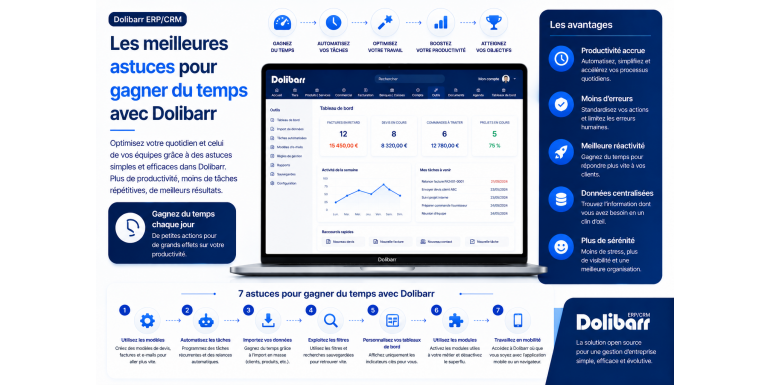
The ultimate 2026 guide to techniques, shortcuts, and hidden features to optimize your productivity
Do you use Dolibarr ERP & CRM daily and feel like you're spending too much time on it? Do you repeat the same tasks dozens of times a week? You know this software offers a wealth of possibilities, but you're probably only using a fraction of its potential? You're not alone. The vast majority of Dolibarr users miss out on features that could save them hours each week, simply because they're unaware of them or have never explored them.
However, Dolibarr is packed with tips, shortcuts, settings, and modules that can transform your user experience. From simple interface customization to advanced automations, including keyboard shortcuts, templates, bulk imports, and the API, there are countless techniques to accomplish more in less time. And the good news is that most of these tips are free, already included in Dolibarr, and only take a few minutes to set up.
In this comprehensive guide, we've compiled the best time-saving tips for Dolibarr, categorized by type and difficulty level. Whether you're a beginner discovering the software or an advanced user looking to further optimize it, you'll find everything you need to significantly improve your productivity. Topics covered include interface customization, template usage, automating repetitive tasks, keyboard shortcuts, bulk imports, APIs and integrations, essential modules, and much more. Get ready to transform your relationship with Dolibarr and free up hours of your week for what truly matters: growing your business.
Article summary
• Customize your dashboard to save time
• Mastering keyboard shortcuts and navigation
• Use templates so you never have to type again.
• Create predefined products and services
• Automate with scheduled jobs (cron)
• Bulk import and export
• Leveraging intelligent duplication
• Configure automatic emails
• Use the Dolibarr API for integrations
• Essential modules to save time
• Customize the fields and filters
• Optimize document management
• Multi-user mode: intelligent delegation
• Hidden, little-known features
• Good daily habits
• Conclusion
1. Customize your dashboard to save time
The dashboard is the first thing you see when you log in to Dolibarr. Smart customization can save you several minutes a day by highlighting the information that's truly relevant to your business.
Choose the relevant widgets
By default, Dolibarr displays numerous widgets on the dashboard, some of which may not be relevant to you. Go to Configuration > Display > Dashboard to enable or disable widgets as needed. Focus on the truly useful indicators: unpaid invoices, pending quotes, cash flow, and monthly revenue. The more focused your dashboard, the more readable and efficient you'll be.
Organize widgets by priority
Dolibarr allows you to move widgets using drag and drop. Place the most frequently accessed information at the top and relegate less important information to the bottom. For a salesperson, quotes and opportunities should be at the top. For an accountant, unpaid invoices and cash flow should be prioritized. This customization may seem minor, but it saves several seconds each time you access information, which adds up quickly.
???? TIP: Click the eye icon at the top of each widget to quickly hide it without permanently deleting it. You can reactivate it at any time from the settings.
Customize the menu bar
The main menu bar can also be customized. Go to Settings > Modules to disable any modules you don't use. The fewer menus there are, the faster you can find what you're looking for. This also reduces cognitive load and makes it easier for new users to get started.
Set your default homepage
Dolibarr lets you choose the page that appears after you log in. Go to your user preferences (by clicking on your name in the top right corner) and then to Display. If you spend most of your time working with invoices, set the invoice list as your homepage. If it's the CRM, choose the customer list. This saves you one or two clicks each time you log in.
2. Master keyboard and navigation shortcuts
Keyboard shortcuts are one of the best-kept secrets for saving time in any software. Dolibarr is no exception.
Universal browser shortcuts
Because Dolibarr is a web application, you benefit from all the standard browser shortcuts. Ctrl+T opens a new tab (useful for comparing multiple records), Ctrl+Tab quickly switches between tabs, Ctrl+L goes to the address bar, and Ctrl+F searches the current page. These simple yet powerful shortcuts can truly transform your browsing speed.
Global research
Dolibarr offers a particularly powerful but often overlooked global search feature. The search field in the upper right corner of the interface allows you to search simultaneously across all entities: third parties, invoices, quotes, products, and contacts. Type a few characters and you instantly get suggestions. This is significantly faster than navigating through successive menus.
???? TIP: For recurring searches (for example, invoices from an important client), create bookmarks in your browser that point directly to the filtered list. You can access it with one click.
Navigation history
Dolibarr keeps a history of recently visited pages, accessible from the top menu. This feature allows you to quickly return to a previously viewed page without having to navigate again. Very useful when you're juggling multiple files.
Multiple tabs
Take advantage of your browser's ability to open multiple tabs to save time. Click a link with your mouse wheel (or Ctrl+click) to open it in a new tab without leaving the current page. This allows you to compare multiple quotes, check a client's history while creating a new invoice, and more.
Form shortcuts
In Dolibarr forms, you can quickly navigate between fields using the Tab key (and Shift+Tab to go back). The Enter key usually submits the form. Mastering these shortcuts avoids constantly switching between the keyboard and mouse, which can save several seconds per entry. Over a hundred entries per day, the saving is significant.
3. Use templates so you never have to retype again
Templates are one of Dolibarr's most powerful time-saving features. Yet, many users still retype the same information for every document.
Email templates
Instead of writing each email from scratch, create templates in Settings > Email Templates. Prepare a template for each recurring situation: sending quotes, sending invoices, level 1 follow-ups, level 2 follow-ups, post-order thank-yous, customer feedback requests, etc. Each template can contain dynamic variables that are automatically replaced with the correct information when the email is sent.
PDF document templates
Dolibarr offers several PDF templates for quotes and invoices, but you can also create your own custom ODT templates with LibreOffice. Once your template is created and tested, all your quotes and invoices will be generated instantly according to your brand guidelines. This initial investment of a few hours saves you time on every document generated subsequently.
Event models
If you use the Dolibarr calendar, create templates for recurring events. For example, a template for client appointments with a standard duration of 1 hour, a template for conference calls, etc. These templates avoid having to configure each event individually.
???? TIP: Variables in email templates are key to saving time. Learn the main ones: {refnum} (document number), {total_ttc} (amount), {date_lim_reglement} (due date), {company_name} (customer). Using each variable correctly saves you manual entry.
Reuse the standard notes
For product descriptions, special conditions, and acknowledgments at the bottom of quotes, create libraries of standard notes in a separate document (or directly in Dolibarr via the Notes module). Copying and pasting is always faster than retyping. Over time, you'll build a truly reusable knowledge base.
4. Create predefined products and services
If you regularly invoice for the same services or products, not creating them in the database is one of the main sources of wasted time.
Why predefine your products?
Manually re-entering the label, description, price, and VAT rate for each service you invoice every week is absurd. With a pre-defined product, adding it to a quote or invoice takes just two clicks, with all the information correctly filled in. Over 50 invoices per month, the time saved can amount to several hours.
How to create a product or service
Go to Products/Services > New Product or New Service. Enter the code (which can be generated automatically), the label, the description (which can be very detailed), the selling price excluding VAT, the applicable VAT rate, and optionally an image. You can also set a purchase price to track margins, and a stock level for physical products.
Organize using categories
If you have many products, create categories to organize them: by product family, by customer, or by project. Go to Products/Services > Categories to create them and then associate them with your products. This organization greatly simplifies searching when adding a product to an invoice.
Multiple prices
For businesses that use a differentiated pricing policy (individual rates, business rates, wholesale rates), Dolibarr allows you to define multiple prices per product. Configure the price levels in Configuration > Modules > Products/Services, then assign each customer to a level. The correct price is then automatically applied to each customer.
Product variants
For products available in multiple versions (size, color, etc.), the Product Variants module allows you to manage all variations without creating a separate page for each one. This is particularly useful for e-commerce businesses or companies selling customizable items.
5. Automate with scheduled jobs (cron)
Automation is probably the biggest source of potential time savings in Dolibarr. Everything that can be automated should be.
Understanding planned jobs
Dolibarr includes a system of scheduled jobs that allows you to automatically execute tasks at regular intervals: send reminder emails, generate periodic reports, back up the database, import data from a file, etc. These jobs run in the background, without your intervention.
Configure the system cron
To run Dolibarr jobs, you must first configure a cron job on the server. The command to add to the crontab is typically: `php /path/to/dolibarr/htdocs/cron/cron_run_jobs.php` — this triggers the job execution every hour. On shared hosting, your hosting provider usually offers a graphical interface for configuring cron.
Useful native jobs
Dolibarr offers several very useful built-in jobs. Activate the ones that meet your needs:
• Recurring invoices (automatically send invoices at regular intervals for subscriptions).
• Automatic sending of reminders for unpaid invoices.
• Automatic generation of periodic reports.
• Automatic database backup.
• Automatic cleaning of temporary files.
• Stock levels are automatically updated based on movements.
Create custom jobs
For specific needs, you can create your own custom jobs via the Dolibarr interface. Go to Configuration > System > Scheduled Jobs. There, you can configure a PHP script, a system command, or a Dolibarr class method to run at regular intervals. This flexibility allows you to automate virtually anything repetitive.
???? TIP: Before putting a job into production, test it manually several times. An error in a job that runs automatically every hour can quickly cause significant damage (incorrect mass emails, corrupted data). Also, enable email notifications in case of errors.
6. Bulk import and export
Manually entering hundreds of records into Dolibarr is a considerable waste of time when everything can be imported in a few minutes via a CSV or Excel file.
The native import tool
Dolibarr includes an import wizard accessible via Configuration > Tools > Import. This wizard allows you to import data in bulk: third parties (customers, suppliers), contacts, products, invoices, accounting entries, and many other types of data. The wizard guides you step by step: choosing the data type, selecting the file, mapping columns, previewing, and importing.
Prepare an import file
For a successful import, the file must be well-structured: one line per record, columns corresponding to Dolibarr fields, UTF-8 encoding to avoid accented character issues, and consistent separators (commas or semicolons depending on your configuration). To simplify the process, first download an import template from Dolibarr: it contains all possible columns with the correct names.
Concrete use cases
Bulk import is particularly useful in several situations: migration from another software (importing your entire customer and product database), initial creation of a large database, occasional updates of information (for example, price changes on hundreds of products), integration of data from another tool (exporting an e-commerce site to Dolibarr).
Export for analysis
Exporting is just as powerful. Go to Settings > Tools > Export to generate a CSV or Excel file containing the data of your choice: a list of customers with their sales figures, invoices over a specific period, inventory status, etc. These exports can then be analyzed in Excel or integrated into other tools. This is particularly useful for advanced business or accounting analyses.
Recurring imports
If you regularly need to import the same types of data (for example, orders from an e-commerce site every night), automate the process using a script linked to a scheduled job. Once configured, the import runs automatically without your intervention. This automation can save several hours per week for high-volume organizations.
7. Leverage intelligent duplication
Rather than creating a document from scratch, duplicating an existing one is often the fastest method. Let's see how to make the most of this feature.
Duplicate a quote or invoice
On a quote or invoice page, a Clone or Duplicate button lets you create a new, identical document with a single click. You only need to modify specific details (client, date, a few lines) instead of retyping everything. This feature is invaluable for recurring services or subscriptions.
Duplicate a third
For organizations with multiple linked entities (a group with several subsidiaries, an individual with multiple addresses), duplicating a third party is faster than re-entering everything. Click Clone from the third party's record, then adjust the specific information.
Duplicate a product
When you create a new product similar to an existing one (same category, same supplier, same pricing mechanism), duplicating it saves a lot of time. You keep the structure and only have to change the label, image, and possibly the price.
???? TIP: Combine duplication and templates: use duplication for variations of the same case (similar customers, recurring invoices), and templates for entirely new types. This dual strategy covers virtually all your situations.
Automatic recurring bills
For truly recurring invoices (monthly subscriptions, quarterly maintenance contracts), Dolibarr offers a recurring invoice module. You create a template invoice, define the frequency (monthly, quarterly, annually), and Dolibarr automatically generates the invoices at each due date. This is better than manual duplication because it's completely automated.
8. Configure automated emails
Automated emails are one of the most cost-effective features in terms of time. Once configured, they send themselves.
Automatic invoice sending
Instead of manually sending each invoice by email after creation, configure Dolibarr to automatically send the invoice to the customer as soon as it is validated. Go to Configuration > Modules > Invoices > Settings and activate automatic sending. You save the few minutes it takes to send each invoice manually, potentially adding up to several hours per month.
Internal notifications
Dolibarr can send automatic notifications to your team for important events: new orders, payments received, quotes accepted, low stock levels, etc. Configure these notifications in Settings > Notifications. This way, your team is informed in real time without you having to follow up.
Thank you emails
After each order or payment, an automated thank-you email is appreciated by customers and strengthens the relationship. Set up a standard email template and link it to a trigger (for example, invoice approval). It's automatic, professional, and effortlessly improves the customer experience.
Deadline reminders
Set up due date reminders that are automatically sent to customers a few days before the payment deadline. These proactive reminders significantly reduce late payments. It's a simple yet incredibly effective tip.
Automatic quote tracking
After sending a quote, schedule an automated follow-up email 5 to 7 days later if the client hasn't responded. This simple message reminding them of the offer can significantly increase the conversion rate without any additional effort on your part.
9. Use the Dolibarr API for integrations
Dolibarr's REST API is an advanced yet extremely powerful feature. It allows you to connect Dolibarr to other tools and automate complex processes.
What is the Dolibarr API?
The REST API is a set of URLs that you can call from other software to interact with Dolibarr: retrieve data, create entries, update information, etc. This is what allows, for example, an e-commerce site to automatically create orders in Dolibarr, or an external accounting service to import your entries.
Enable the API
To use the API, you must first activate it in Configuration > Modules > REST API. Once activated, generate an API key for each application that needs to communicate with Dolibarr. This key serves as authentication and allows you to track who does what. Complete API documentation is available via the API Explorer module.
Concrete use cases
Here are some examples of useful integrations via the API: synchronization with an e-commerce site (Prestashop, WooCommerce) to automatically retrieve orders, integration with a marketing automation tool (Sendinblue, Mailchimp) to synchronize the customer database, connection with external accounting software to automatically export entries, creation of custom mobile applications for your sales representatives.
No-code tools to make it easier
If you're not a developer, no-code tools like Zapier, Make (formerly Integromat), or n8n allow you to create integrations without coding. You visually configure the workflows: "When a new order arrives on WooCommerce, create a third party and an invoice in Dolibarr." These tools open up enormous possibilities for non-technical users.
???? TIP: For simple needs (1-to-1 synchronization between two tools), start with Zapier or Make. For more complex or more cost-effective long-term needs, invest in n8n or hire a developer.
10. Essential modules to save time
Beyond the native functionalities, several modules available on the Dolistore can considerably accelerate your workflow.
The Advanced Multi-User Module
If several people work on Dolibarr, this module allows you to define very granular access rights and validation workflows. Instead of everything having to go through you, certain tasks can be delegated with the right safeguards, freeing up your time for higher-value activities.
The electronic signature module
For quotes and contracts, the electronic signature module eliminates the time spent printing, manually signing, scanning, and emailing. The client signs online in just a few clicks, and the signed quote is automatically saved in Dolibarr. This saves several hours per month for organizations that issue a high volume of quotes.
The Bank Synchronization module
Instead of manually entering each bank transaction, this module connects Dolibarr to your bank account (via aggregators like Powens, Bridge, or Budget Insight). Transactions are automatically imported daily and even reconciled with the corresponding invoices. This results in a huge saving for bookkeeping.
The centralized email module
This module integrates your email inbox directly into Dolibarr: received emails are automatically linked to the corresponding customer records. You no longer need to switch between your email client and Dolibarr to have a complete view of the customer relationship.
Sector-specific modules
Depending on your industry, specialized modules exist: restaurant module, construction module, real estate module, healthcare module, e-commerce module, etc. These modules are designed for the specific needs of your business and can save you a significant amount of time by eliminating workarounds and redundant data entry.
11. Customize the fields and filters
Dolibarr's advanced customization allows you to perfectly adapt the software to your processes, eliminating unnecessary data entry and time-consuming workarounds.
Add custom fields
If you need to store business-specific information that isn't in the native fields (customer contract number, service type, lead source, etc.), create custom fields. Go to Configuration > Extensions > Additional Attributes. You can add fields for third parties, contacts, products, invoices, and more. These custom fields will then be available in filters and reports.
Create custom filters
Dolibarr's lists allow you to filter by numerous criteria. For filters you use regularly (for example, "active customers who haven't ordered in the last 6 months"), create custom filters and save them. You can then access them with a single click instead of redefining the filter each time.
Hide unnecessary fields
Dolibarr forms can contain many fields, some of which are irrelevant to you. Go to Configuration > Modules > Preferences to hide the fields you never use. This makes your forms faster to fill out and less visually cluttered.
Define default values
For fields where you almost always enter the same value, define a default value. For example, if 90% of your customers are French, set France as the default country. If you always offer 30 days to pay, set that as the default. With dozens of entries per day, these small gains add up quickly.
12. Optimize document management
Dolibarr allows you to manage documents associated with each entity (quotes, invoices, clients, projects). Good document organization can save a lot of time when searching for a file.
Always attach the documents
Make it a habit to attach all relevant documents directly to the appropriate record in Dolibarr: signed contracts to the third party's record, signed quotes to the quote's record, purchase orders to the supplier's record, etc. When you're looking for a document, you'll find it immediately in the right place, without having to search through your Windows folders or email inboxes.
Organize using subfolders
For records containing many documents (large projects, long-standing clients), create subfolders to organize the files: contracts, purchase orders, deliverables, correspondence, etc. This thematic organization greatly facilitates subsequent searching.
Name the files correctly
The file name should be descriptive: 2026-03-15_Contrat_ClientX.pdf is infinitely more practical than Document1.pdf or Scan-15-03.pdf. A consistent naming convention (date + type + third party) facilitates searching by sorting or keywords.
Integrated document management
Dolibarr includes a basic but functional document management system (DMS). For organizations with a large volume of documents, an advanced DMS module may be beneficial: file versioning, workflow validation, full-text search, and granular access rights. This is an investment to consider if document management represents a significant portion of your business.
13. Multi-user mode: intelligent delegation
If you work in a team, optimization necessarily involves good collaborative organization in Dolibarr.
Create suitable user profiles
Rather than granting full access to everyone, create profiles tailored to each role: salesperson (access to quotes, invoices, CRM), accountant (access to accounting, payments), assistant (access to third parties, calendar), manager (full access). This segmentation simplifies the interface for each user and reduces errors.
Delegate repetitive tasks
Identify the tasks you perform out of habit but could be delegated: processing payments, updating customer records, creating simple quotes. Train someone on your team and free up your time for higher-value tasks such as sales strategy or prospecting.
Use validation workflows
For sensitive actions (approving quotes above a certain amount, modifying prices, removing third parties), set up approval workflows. The employee submits the request, and you approve it with a single click from your dashboard. It's faster than handling everything yourself while still maintaining control.
The shared calendar
The shared calendar allows the entire team to see everyone's appointments and availability. No more sending emails to schedule meetings: you can see directly who is available when. Synchronize with Google Calendar or Outlook for perfect consistency between Dolibarr and your personal calendars.
14. Hidden, little-known features
Here are some little-known but remarkably effective features of Dolibarr.
The Cross-Cutting Categories module
You can categorize almost all objects in Dolibarr: third parties, products, quotes, invoices, projects, and contacts. A good categorization strategy allows you to quickly filter information. For example, create a "VIP" category for third parties to instantly identify your priority clients.
Custom views of lists
Lists (third parties, invoices, quotes) can be customized in terms of the columns displayed. Instead of always seeing the same default columns, choose the ones that are truly useful to you. On the invoice list, for example, add the Due Date and Payment Status columns to gain a management perspective.
Fast exports
On any list, a button allows you to directly export the results in Excel or CSV format. Combine this with a custom filter to generate specific reports in seconds (for example, "all unpaid invoices from VIP clients").
Private and public notes
On each record, you can add public notes (visible to all users and sometimes printed on documents) and private notes (internal to your team). Use private notes to record strategic information about a client, reasons for a delay, ongoing negotiations, etc.
Internal bookmarks
Dolibarr offers an internal bookmarking system. You can create direct links to your most frequently visited pages, like a quick access panel. Go to View > Bookmarks to configure them. It's more convenient than navigating through menus.
???? TIP: Action baskets on lists allow you to act on multiple entries simultaneously: send 20 invoices by email, mark 50 payments, delete 30 obsolete entries. Select the desired rows using the checkboxes, then choose the action from the menu at the bottom of the list.
15. Good daily habits
Beyond technical features, good daily habits are crucial for using Dolibarr effectively.
Enter as you go
Instead of accumulating data entry to do in bulk once a week or month, get into the habit of entering information immediately into Dolibarr: new contact met, new order, payment received, etc. This continuous entry is less psychologically taxing and much more efficient. A few minutes a day is worth more than half a day a month.
Establish weekly routines
Block out time in your calendar specifically for Dolibarr: 30 minutes on Monday morning to review current quotes, 30 minutes on Friday to process the week's payments, etc. These regular routines prevent administrative delays and create mental automatisms that speed up your work.