
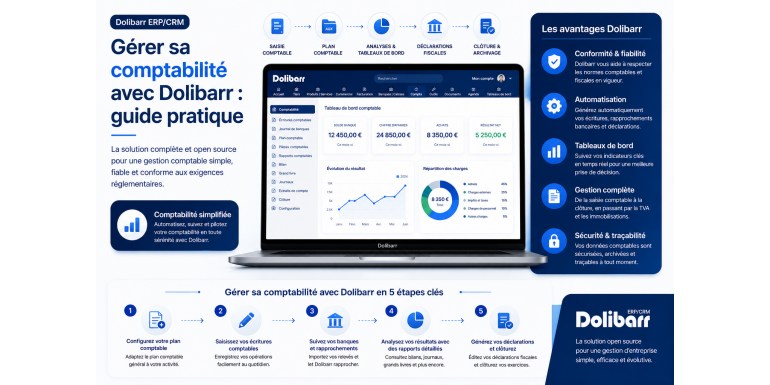
Everything you need to know to master accounting in Dolibarr in 2026
Accounting is one of the cornerstones of any business, whether it's a micro-enterprise, a small or medium -sized enterprise, an association, or a self-employed individual. Yet, it's often still perceived as a time-consuming, complex, and anxiety-inducing chore. Tax obligations, accounting entries, bank reconciliations, VAT returns, the general ledger, the balance sheet, the profit and loss statement… all of this can quickly become a real headache for managers without accounting training.
It is precisely to meet these challenges that Dolibarr ERP & CRM integrates a complete, accessible, and free accounting module. Whether you manage your own accounting or work with a chartered accountant, Dolibarr offers all the necessary tools to automate repetitive tasks, generate your accounting entries, track your accounts, and produce the required legal documents. All from a single interface, without relying on expensive third-party accounting software.
In this comprehensive practical guide, we'll explore all facets of accounting management with Dolibarr. You'll discover how to activate and configure the accounting module, understand the chart of accounts, set up accounts, generate journal entries from invoices and payments, perform bank reconciliations, produce financial statements, manage VAT, export data for your accountant, and much more. Whether you're a beginner in accounting or an advanced user, this guide will help you get the most out of Dolibarr's accounting features.
Article summary
• Why use Dolibarr for your accounting?
• Activate the accounting module in Dolibarr
• Understanding the general accounting plan (PCG)
• Configure accounting accounts in Dolibarr
• Generate accounting entries automatically
• Bank reconciliation: how does it work?
• Managing VAT with Dolibarr
• Produce the financial statements: balance sheet, income statement, general ledger
• Export the data for your accountant
• Keeping a recipe book (for self-employed individuals)
• Managing the annual accounting close
• Best practices and mistakes to avoid
• Useful add-ons
• Conclusion and next steps
1. Why use Dolibarr for your accounting?
Before getting to the heart of the matter, it is important to understand the concrete advantages that Dolibarr offers compared to other accounting management solutions.
Native integration with your business
Dolibarr's main advantage is that accounting doesn't operate in silos. Every invoice issued, every payment received, every purchase recorded can automatically generate the corresponding accounting entries. You don't need to re-enter the information into separate accounting software, which eliminates the risk of errors and saves considerable time.
A free and open source solution
Unlike traditional accounting software such as Sage, EBP, or Cegid, which can cost several hundred or even thousands of euros per year, Dolibarr is completely free. This financial advantage is crucial for very small businesses and freelancers who want to control their management costs.
Accounting compliant with French standards
Dolibarr integrates the French General Chart of Accounts (PCG) and allows you to generate journal entries compliant with current accounting standards. You can also configure other charts of accounts if you operate internationally (Morocco, Belgium, Switzerland, Canada, etc.).
Easier collaboration with your accountant
Dolibarr makes it easy to export accounting entries in formats compatible with leading accounting software. This allows your accountant to easily retrieve your data for audits, annual financial statements, and tax returns.
Total flexibility
You can use Dolibarr very easily to track your cash flow and prepare URSSAF declarations (self-employed mode), or activate full double-entry bookkeeping to manage traditional business accounting. This modularity is unique on the market.
2. Activate the accounting module in Dolibarr
By default, the advanced accounting module is not enabled in Dolibarr. Here's how to enable and configure it to get started.
Step 1: Log in with an administrator account
To activate a module, you must have administrator rights in Dolibarr. Log in with your admin account, then go to the Configuration menu in the top right corner of the interface.
Step 2: Access the list of modules
In Configuration, click on Modules/Applications. You will see the complete list of modules available in Dolibarr, sorted by category. Accounting is located in the "Accounting and Finance" category.
Step 3: Activate the essential modules
For comprehensive accounting management, activate the following modules: Accounting (advanced double-entry bookkeeping), Banks and Cash (tracking bank accounts and financial transactions), Customer Invoices, and Supplier Invoices (to generate sales and purchase entries). For simpler management, you can also activate only the Banks module if you don't need double-entry bookkeeping.
Step 4: Configure the module settings
Once the Accounting module is activated, click the gear icon to the right of the line to access its settings. There you can define: the start date of the fiscal year, the duration of the fiscal year (usually 12 months), the chart of accounts to use (French GAAP, Moroccan GAAP, etc.), the default accounts for sales, purchases, bank transactions, VAT, and other specific options.
Step 5: Define authorized users
Accounting contains sensitive information. Go to Users and Groups to define precisely who can view, modify, or approve accounting entries. For a small organization, you can manage everything yourself, but in a team, it's important to clearly define roles.
3. Understanding the general accounting plan (PCG)
Before diving into the technical configuration, it is essential to understand what the general accounting plan is and how it is organized.
What is the general accounting plan?
The French General Chart of Accounts (PCG) is a framework that defines how accounting transactions must be recorded in France. It organizes all possible company accounts into a hierarchical numerical code system. It forms the basis of all French accounting.
The organization into eight classes
The PCG is structured into eight main classes, each identified by a number:
• Class 1: Capital accounts (capital, reserves, loans).
• Class 2: Fixed asset accounts (equipment, furniture, software).
• Class 3: Inventory and work-in-progress accounts.
• Class 4: Third-party accounts (customers, suppliers, employees, government).
• Class 5: Financial accounts (banks, cash).
• Class 6: Expense accounts (purchases, salaries, rents, taxes).
• Class 7: Revenue accounts (sales, services).
• Class 8: Special accounts (rarely used).
Hierarchical coding
Each account has a multi-digit code. For example, account 411000 corresponds to customers (class 4 = third parties, subclass 41 = customers). Account 707000 corresponds to sales of goods (class 7 = products). Account 512000 corresponds to the bank (class 5 = financial accounts, subclass 51 = banks). The more digits added, the more precise the account.
Why is this structure important?
This coding system allows any accountant, anywhere in France, to immediately understand the nature of an accounting entry. It is also this structure that enables the automatic generation of the balance sheet and income statement from these entries. Dolibarr uses this structure transparently, but understanding it is helpful for properly configuring your system.
4. Configure accounting accounts in Dolibarr
Once the module is activated, you must configure the accounting accounts that correspond to your business. This step is crucial for what follows.
Load the basic chart of accounts
Dolibarr comes with several pre-configured charts of accounts (France, Belgium, Morocco, Switzerland, Canada, etc.). Go to Accounting > Configuration > Charts of Accounts and load the chart of accounts corresponding to your country. You can then add, modify, or delete accounts as needed.
Set default accounts
To automate journal entry generation, you need to tell Dolibarr which accounts to use in different contexts. Go to Accounting > Configuration > Default Accounts and configure: default sales account (usually 707000 for sales of goods or 706000 for services), default purchase account (607000 for purchases of goods or 604000 for studies and services), bank account (512000), cash account (530000), and VAT collected and deductible accounts if you are subject to VAT.
Linking products and services to accounts
Each product or service sold can be linked to a specific accounting account. This linking is invaluable if you sell different product categories with varying VAT rates. Go to each product/service's record and fill in the "Sales Accounting Account" field.
Linking third parties to accounts
For each customer and supplier, you can define a specific accounting account (411XXX by default for customers and 401XXX for suppliers). For a small business, the generic account is sufficient. For more detailed accounting, you can create a sub-account for each important customer.
Configure payment methods
Each payment method (bank transfer, check, cash, credit card) must be linked to an accounting account. Go to Settings > Payment Methods to verify and adjust these links. This ensures that journal entries are correctly generated when payments are received or disbursed.
5. Generate accounting entries automatically
One of Dolibarr's major advantages is the automatic generation of accounting entries from business documents. Let's see how this works.
The principle of transfer to accounting
When you create an invoice, payment, or bank entry in Dolibarr, this information remains in the sales modules until you explicitly transfer it to accounting. This mechanism allows you to verify the data before it is officially recorded.
Transfer customer invoices
Go to Accounting > Accounting Allocation > Customer Invoices. You will see a list of all your issued invoices. Select the invoices to transfer (usually those from a specific period), verify that the suggested accounting accounts are correct, and click "Transfer to Accounting." The journal entries will then be automatically generated in the sales journal.
Transfer supplier invoices
The process is similar for supplier invoices. Go to Accounting > Accounting Allocation > Supplier Invoices, verify the suggested accounts, and confirm the transfer. The entries are generated in the purchases journal.
Transfer payments and bank entries
Customer receipts and supplier payments must also be transferred to the accounting system. Go to Accounting > Accounting Allocation > Payments and proceed in the same way. The entries are then recorded in the bank journal.
View the generated entries
Once the transfers are complete, go to Accounting > Accounting Transactions to view all generated entries. You can filter by journal, period, account, or document number. Each entry can be viewed in detail, including its debit and credit lines.
Correct or cancel an entry
If you notice an error in a previously transferred entry, you can cancel it from the accounting interface. However, please note: once the accounting period is closed, entries can no longer be modified. Therefore, make any corrections before closing the books.
6. Bank reconciliation: how it works
Bank reconciliation is an essential step in accounting. It involves verifying that the transactions recorded in your accounting system match those on your bank statement.
Why perform a bank reconciliation?
Bank reconciliation allows for the rapid detection of errors (omitted entries, duplicate entries, incorrect amounts) and potential fraud. It ensures that your accounting accurately reflects your financial situation. It is also a legal requirement for business accounting.
Manually enter bank transactions
The simplest method is to manually enter each bank transaction in Dolibarr. Go to Bank > Account List, select your account, and click "Enter a transaction." Enter the date, description, amount, and transaction type. This method is reliable but time-consuming.
Import a bank statement
Most banks allow you to export statements in CSV, OFX, or QIF format. Dolibarr offers an import function that lets you load these files in just a few clicks. Go to Bank > Import and select the file you want to import. Review the suggested entries before confirming.
Bringing the scriptures closer together
Once the bank transactions have been entered or imported, go to Bank > Bank Reconciliation. Select the relevant account and period. Dolibarr will display the unreconciled transactions. Check the boxes next to those that match your physical bank statement and confirm. Once reconciled, they will be marked as such and will not reappear.
Detect anomalies
If, after reconciliation, there are still transactions in Dolibarr that do not appear on your statement (or vice versa), this indicates an anomaly that needs investigating: a missed transaction, a date error, an incorrect amount, etc. The more regularly you perform reconciliation (ideally monthly), the easier it becomes.
7. Managing VAT with Dolibarr
VAT is one of the most complex aspects of French accounting. Dolibarr offers comprehensive tools to manage it correctly.
Configure VAT rates
In France, there are several VAT rates: 20% (standard rate), 10% (intermediate rate), 5.5% (reduced rate), and 2.1% (special rate). Go to Settings > Dictionaries > VAT Rates to verify that all rates applicable to your business are listed. You can add others if necessary (foreign rates, special rates for French overseas departments and territories).
Define VAT accounts
Collected VAT (on your sales) and deductible VAT (on your purchases) must be linked to specific accounts: 44571 for 20% collected VAT, 44566 for deductible VAT on goods and services, and other sub-accounts for the different rates. Configure these accounts in Accounting > Setup > Default Accounts.
Calculate the VAT to be declared
Go to Accounting > VAT Return to generate a detailed report. Dolibarr automatically calculates the VAT collected, the deductible VAT, and the balance due (or refunded) for a given period. This report provides you with all the information you need to complete your return on impots.gouv.fr.
Managing VAT on cash receipts
For services, VAT is due upon receipt of payment, not upon invoicing. Dolibarr allows you to manage this specific system by correctly configuring the settings in Accounting > Configuration. VAT is then calculated only on payments actually received.
Special case: VAT exemption threshold
If you are a self-employed individual or micro-enterprise exempt from VAT, simply disable VAT management in Settings > Company. Your invoices will be issued without VAT and the statement "VAT not applicable, article 293 B of the French General Tax Code" will automatically appear.
8. Produce the financial statements: balance sheet, income statement, general ledger
Once your accounting entries have been entered and verified, Dolibarr can automatically generate the main mandatory accounting documents.
The Big Book
The general ledger compiles all accounting entries sorted by account. To generate it, go to Accounting > Reports > General Ledger. Select the period and optionally one or more specific accounts. The report can be exported as a PDF or Excel file. It is an essential document for understanding the details of each account.
The accounting balance
The trial balance shows, for each account, the total debits, the total credits, and the balance. It's an essential control tool: if the sum of debits doesn't equal the sum of credits, there's an error in your accounting. Go to Accounting > Reports > Trial Balance to generate it.
The income statement
The income statement summarizes expenses (class 6) and revenues (class 7) over a given period, usually the fiscal year. It allows you to determine the company's net income (profit or loss). Go to Accounting > Reports > Income Statement to generate it.
The results
The balance sheet presents the company's financial position at a given date: assets (what the company owns) and liabilities (its sources of financing). Go to Accounting > Reports > Balance Sheet to generate it. Note that the balance sheet is generally prepared at the end of the fiscal year and sometimes requires specific inventory entries.
Export and print reports
All these reports can be exported as PDFs for archiving or to your accountant, or as Excel files for further analysis. Remember to save them regularly, ideally at the end of each month or quarter.
9. Export the data for your accountant
If you work with an accountant, you will need to periodically send them your accounting data. Dolibarr offers several suitable export formats.
The accounting entries file (FEC)
The FEC (Fichier des Écritures Comptables - Accounting Entries File) is a standardized format required by the French tax authorities. Any company maintaining computerized accounting records must be able to produce this file in the event of a tax audit. Go to Accounting > Export FEC to generate it. Dolibarr produces a TXT file that strictly adheres to the standard imposed by the DGFiP (French Public Finances Directorate).
Export to CSV and Excel format
For more flexible analysis or to share your data in a universal format, you can export the entries to CSV or Excel. Go to Accounting > Accounting Transactions, filter for the desired period, and click "Export." The resulting file can be opened in Excel, LibreOffice Calc, Google Sheets, or any other spreadsheet program.
Compatibility with accounting software
The main software programs used by French accountants (Sage, Cegid, EBP, ACD, ISACOMPTA) generally accept imports in FEC or CSV format. Ask your accountant which format they prefer and configure your exports accordingly.
Plan regular exchanges
To make your accountant's job easier, schedule regular exchanges: monthly submission of journal entries for monitoring, quarterly submission of VAT returns, and annual submission of the balance sheet. This regular schedule avoids massive adjustments at the end of the fiscal year.
10. Keep a recipe book (for self-employed individuals)
Self-employed individuals (micro-entrepreneurs) have simplified accounting obligations: they simply have to keep a record of receipts and, for sales activities, a register of purchases.
The recipe book
The receipts book lists, in chronological order, all payments received in connection with the business. For each payment, the following must be indicated: the date, the name of the customer, the method of payment, the amount, and the nature of the service or product sold.
Generate the book from Dolibarr
In Dolibarr, go to Accounting > Reports > Sales Ledger (or use the dedicated self-employed module available on the Dolistore). Dolibarr automatically generates a document compliant with legal requirements based on your recorded payments.
The purchase register
If you sell goods, you must also keep a purchase ledger listing suppliers, amounts, and dates. Again, Dolibarr can generate this document from recorded supplier invoices.
Keep the documents
Self-employed individuals must keep their sales ledger, purchase register, invoices, and all supporting documents for at least 10 years. Dolibarr automatically archives these documents in its database. However, remember to perform regular external backups to prevent data loss.
11. Manage the annual accounting close
The annual closing is an important moment in a company's accounting life. Here's how to manage it in Dolibarr.
The operations prior to closing
Before closing a fiscal year, several checks are necessary: all bank reconciliations are up to date, all customer and supplier invoices are entered, pending payments are recorded, and inventory entries (depreciation, provisions, stock) are posted if required. This phase can last several weeks for a medium-sized company.
Checking the balance
Before closing, print the full trial balance and verify that it is balanced (total debits = total credits). Also, check the balances of the customer (411) and supplier (401) accounts by comparing them with the details provided by the business modules. Any discrepancies should be investigated.
Closing entries
Closing entries typically include: reversing deferred revenue and prepaid expenses, recording depreciation for the period, accounting for ending inventory, calculating the profit or loss for the period, and allocating it. These entries are often prepared with the assistance of a chartered accountant.
Close the exercise in Dolibarr
Once all entries have been made, go to Accounting > Setup > Fiscal Years and mark the fiscal year as closed. Once closed, no new entries can be added. This is a final step and should be carried out in consultation with your accountant.
Open the new exercise
After closing the books, create the new fiscal year (generally from January 1st to December 31st of the following year in France). Dolibarr automatically carries over the balances of the balance sheet accounts (classes 1 to 5) to the new fiscal year. The expense and revenue accounts (classes 6 and 7) are reset to zero.
12. Best practices and mistakes to avoid
For reliable and compliant accounting, here are some essential tips.
Enter transactions regularly
Don't let invoices and payments pile up. Weekly or bi-weekly entry is ideal. The longer you wait, the more cumbersome the task becomes and the greater the risk of error.
Always check before transferring
Before transferring invoices to accounting, always verify that the proposed accounts are correct. Incorrect initial configuration can generate dozens or even hundreds of erroneous entries, which are time-consuming to correct.
Perform regular backups
Losing your accounting database would be catastrophic. Set up automatic daily or weekly backups and store them on a separate medium (cloud, external drive). In case of a problem, you'll be able to quickly restore your data.
Documenting your accounting choices
Keep a notebook (digital or paper) where you document your accounting choices: which accounts are linked to which products, why a particular exceptional entry was made, etc. This will be invaluable for understanding your accounting retrospectively or for handing it over to a successor or a new accountant.
Mistake 1: Mixing personal and business accounts
One of the most common mistakes is paying for personal expenses with a business account or vice versa. This makes accounting incredibly complicated. Maintain a strict separation between your personal and business finances.
Mistake 2: Not keeping the supporting documents
Every accounting entry must be supported by documentation (invoice, receipt, contract, etc.). In the event of a tax audit, the absence of supporting documentation may result in the disallowance of an expense or VAT deduction. Keep all your supporting documents for at least 10 years, ideally scanned and digitally archived in Dolibarr.
Error 3: Postponing the closing indefinitely
Some managers postpone the annual closing, believing they are saving time. This is a mistake: the longer you wait, the more difficult it is to retrieve the information. The closing must be completed within the legal deadlines (generally 3 to 6 months after the end of the fiscal year).
13. Useful add-on modules
Several modules available on the Dolistore (the official Dolibarr store) can enhance your accounting functionalities.
Fixed Assets Module
If your company owns fixed assets (equipment, furniture, vehicles), this module allows you to manage their depreciation automatically. It calculates the depreciation charges each year and generates the corresponding journal entries.
Advanced Expense Reports Module
To manage employee expense reports or executive business expenses, this module offers a dedicated interface with validation workflow, automatic generation of accounting entries and link with reimbursements.
Multi-currency module
If you invoice or purchase internationally, this module allows you to manage multiple currencies with automatic conversion based on exchange rates. Accounting entries are always generated in the company's reference currency.
Bank Synchronization Module
Third-party modules allow you to connect Dolibarr directly to your bank account (via aggregators such as Budget Insight, Bridge, or Powens). Your bank transactions are then automatically imported daily, eliminating manual entry.
Self-employed module
Specifically designed for micro-entrepreneurs, this module simplifies management by disabling unnecessary features and adding specific reports (compliant receipt book, automatic calculation of URSSAF contributions, etc.).
Automated VAT Return Module
This module goes beyond the native functionality by directly pre-filling the VAT return boxes according to form CA3 or CA12. It greatly simplifies the production of this monthly or quarterly return.
14. Conclusion and next steps
Managing your accounting with Dolibarr is entirely possible, even for users without extensive accounting training. The software offers a high level of automation, seamless integration with your business operations, and compliance with French accounting standards. Whether you're a freelancer, a small business owner, or the finance manager of a small or medium-sized enterprise (SME), Dolibarr can adapt to your level of complexity and grow with your business.
The key to success lies in a good initial setup and consistent data entry. Invest time at the beginning to properly configure your accounts, payment methods, VAT rates, and default accounts. Then, make it a habit to enter your transactions weekly and perform bank reconciliations monthly. At this pace, accounting will no longer be a chore, but a true tool for managing your business.
To delve deeper, we recommend consulting the official Dolibarr documentation on the wiki, participating in community forums where hundreds of users share their tips, and considering specific training if your accounting needs are complex. For businesses exceeding a certain volume of activity, working with a chartered accountant familiar with Dolibarr remains a worthwhile investment, ensuring tax compliance and providing access to strategic advice.
Ultimately, Dolibarr represents a unique opportunity to benefit from a professional accounting management tool without a significant financial investment. It combines the power of major commercial ERP systems with the flexibility and freedom of open-source software. Whether you're starting your business or looking to replace expensive paid accounting software, Dolibarr undoubtedly deserves your attention. Take the time to explore it, gradually learn its features, and you'll soon discover that accounting, far from being a burden, can become a real asset for managing your business.
─── End of article ───
A practical guide to mastering accounting in Dolibarr in 2026.