
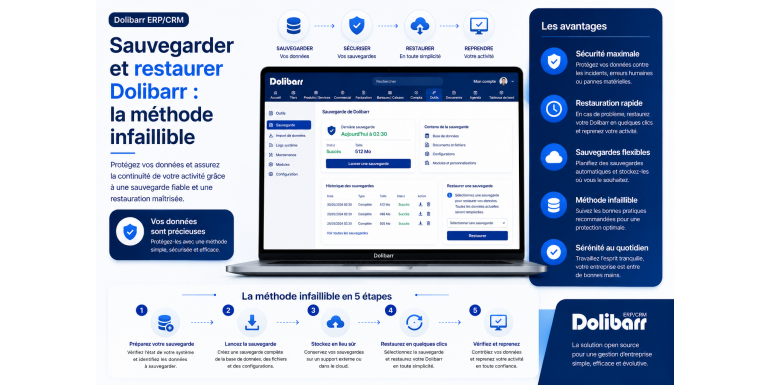
The complete 2026 guide to protecting your data and restoring your Dolibarr installation in case of disaster
Your data in Dolibarr ERP & CRM represents the heart of your business: invoices, quotes, customer records, accounting entries, contracts, documents, custom settings… The loss of this information, even partial, can lead to catastrophic consequences: inability to invoice, loss of sales history, problems with the tax authorities, or even jeopardizing the continuity of your business.
However, a recent study reveals that 60% of SMEs that suffer a massive data loss close within six months . The causes are numerous: hardware failure, ransomware attack, human error, improper handling during an update, physical damage (fire, water damage), or simply software corruption. The good news is that all these risks can be significantly reduced with a rigorous backup strategy.
In this comprehensive guide, we'll explore in detail the foolproof method for backing up and restoring your Dolibarr installation. You'll discover which components to back up, the different methods available (integrated, manual, automated, external), how to automate the process, how to test your backups, and most importantly, how to quickly restore your Dolibarr installation in case of a problem. Whether you're a beginner or an experienced administrator, this guide will give you all the information you need to rest easy, knowing your data is protected.
Article summary
• Why backing up Dolibarr is absolutely crucial
• Understanding the components to back up
• Method 1: Integrated backup via the Dolibarr interface
• Method 2: Manual backup via the command line
• Method 3: Automated backup with a cron script
• Method 4: Backup via FTP and phpMyAdmin
• Storing your backups: the 3-2-1 rule
• How to restore a Dolibarr backup
• Testing your backups: an often-forgotten step
• Backup and update: essential precautions
• Special cases: DoliCloud and shared hosting
• Securing your backups against ransomware
• Best practices and fatal mistakes to avoid
• Conclusion: Your 10-step action plan
1. Why backing up Dolibarr is absolutely crucial
Before addressing the technical aspects, let's take a moment to understand why backing up Dolibarr is not an option, but an absolute necessity.
The risks to your data
Your Dolibarr data is threatened by numerous, sometimes unexpected, risks. Hardware failures can occur without warning: a hard drive can fail overnight, especially after several years of use. Cyberattacks are constantly increasing: ransomware, malware, and SQL injections can corrupt or encrypt your data. Human error is a major cause of data loss: accidental deletion, improper handling during an update, or incorrect database modifications. Physical disasters such as fire, water damage, or theft can destroy both your server and your local backups. Finally, software corruption can occur after a power outage, a software bug, or a system problem.
The consequences of data loss
Beyond the stress and frustration, a Dolibarr data loss has concrete and costly consequences. You lose the complete history of your customers and suppliers. Your issued and received invoices disappear, which poses a problem during a tax audit. Your accounting is compromised, making it difficult to file legal returns. Custom settings (invoice templates, accounting accounts, users) are lost. Your business activity can be interrupted for several days, or even weeks. Data recovery costs can reach several thousand euros.
Legal obligations
In France, companies are legally required to retain their accounting records for at least 10 years. This obligation extends to digital data stored in Dolibarr. In the event of a tax audit, you must be able to provide the FEC (Accounting Entries File) and the original invoices. Failure to provide these documents can result in substantial tax penalties. A robust backup strategy is therefore not just a good practice, but a legal and tax obligation.
2. Understand the components to back up
To back up Dolibarr effectively, it is crucial to understand that the application relies on two distinct components that must be backed up together.
The MySQL or MariaDB database
The database is the heart of Dolibarr. It contains absolutely all structured data: information on third parties (customers, suppliers), products and services, quotes, invoices, payments, accounting entries, users, settings, etc. Without the database, your Dolibarr installation is completely unusable. The database is usually named dolibarr or doli and can contain several hundred tables. Its size varies from a few megabytes for a small installation to several gigabytes for systems with a large history.
The documents folder
The documents folder (usually located in /var/lib/dolibarr/documents/ or htdocs/documents/ depending on your installation) contains all the physical files: PDFs of generated invoices and quotes, attachments, imported documents, product photos, logos, custom ODT templates, temporary files, and much more. This folder can quickly become large, reaching several gigabytes after a few years of use. Without this folder, you would lose all generated and imported documents, even if the database itself is intact.
Configuration files
The conf.php file located in htdocs/conf/ contains database connection parameters, system paths, and other crucial settings. It is essential to back it up as well, as it allows for a quick restoration of a working installation. For custom installations, don't forget the third-party modules installed in htdocs/custom/, which may contain your specific developments.
Dolibarr source code files
The Dolibarr source code itself (the PHP files) can be downloaded again from the official website if needed, so backing it up isn't strictly necessary. However, if you've customized the code (modified PDF templates, added functions), it's important to also back up these custom files to avoid losing your work.
The summary: what you absolutely must save
In summary, a complete Dolibarr backup must absolutely contain: the entire database (SQL export), the entire documents folder, the conf.php file, and any source code customizations. Any backup that omits one of these elements is incomplete and will leave you in a difficult situation if you need to restore it.
3. Method 1: Integrated backup via the Dolibarr interface
Dolibarr natively offers a backup feature accessible directly from the administration interface. This is the simplest method, ideal for non-technical users.
Access the backup tool
Log in to Dolibarr with an administrator account. Go to the Configuration menu in the top right corner, then click on System and then Backup. This will take you to the backup interface.
Back up the database
In the Database Backup section, several options are available depending on your Dolibarr version and the server's operating system. You can choose between a mysqldump command (for MySQL/MariaDB), which produces a standard SQL file, or a compressed backup in .sql.gz format to save space. Select the option that suits you, adjust the settings if necessary (compression, encoding), and then click Generate Backup. Dolibarr will then produce a file that you can download to your computer.
Save the documents folder
In the File Backup section, Dolibarr offers to generate a ZIP archive containing the entire Documents folder. Click the generate button and wait (the time depends on the folder size). Once ready, download the archive to your computer.
Advantages and limitations of this method
This method has several advantages: it is accessible to everyone, requires no technical skills, and works on all Dolibarr installations. However, it also has significant limitations: it requires manual intervention for each backup, which increases the risk of forgetting; it may not function correctly on very large databases (PHP timeout); it does not automatically back up the conf.php file; and the generated files are stored on the server, which offers no protection in case of hardware failure of the server itself.
4. Method 2: Manual backup via the command line
For users accessing their server via SSH, backing up via the command line is faster and more reliable than using the graphical interface. Here's how to do it.
Connect to the server via SSH
Open a terminal and connect to your server via SSH. On Linux or macOS, the command is simple:
ssh username@server_address
On Windows, you can use PuTTY or the built-in terminal in Windows 10/11. Once connected, you are ready to run the backup commands.
Back up the database using mysqldump
The mysqldump command is the standard tool for exporting a MySQL or MariaDB database. Run the following command, replacing the values with those of your installation:
mysqldump -u database_user -p dolibarr_database_name > dolibarr_backup.sql
You will be prompted to enter the database password. Once executed, the command generates a backup_dolibarr.sql file containing your entire database. To compress the backup and save space, use gzip:
mysqldump -u database_user -p dolibarr_database_name | gzip > dolibarr_backup.sql.gz
Back up the documents folder with tar
To archive the documents folder, use the tar command with gzip compression:
tar -czvf documents_dolibarr.tar.gz /var/lib/dolibarr/documents/
The documents_dolibarr.tar.gz file now contains your entire documents folder, compressed. The exact path to the documents folder depends on your installation. On some servers, it may be in /home/user/dolibarr/documents/ or /opt/dolibarr/documents/.
Save the configuration file
Don't forget the conf.php file:
cp /var/www/html/dolibarr/htdocs/conf/conf.php conf_dolibarr_backup.php
Advantages of this method
Command-line backup is faster, more reliable, doesn't suffer from PHP timeout limitations, can handle very large databases, and can be easily automated via a script. It's the recommended method for any Dolibarr production installation.
5. Method 3: Automated backup with a cron script
Manual backups, even via the command line, present a major risk: forgetting. The best method is to fully automate the process with a cron script that runs regularly, without human intervention.
Create a complete backup script
Create a file named sauvegarde_dolibarr.sh containing the following script:
#!/bin/bash
DATE=$(date +%Y-%m-%d_%H-%M)
BACKUP_DIR=/home/backups/dolibarr
DB_USER=dolibarr_user
DB_PASS=password
DB_NAME=dolibarr
DOCS_PATH=/var/lib/dolibarr/documents
mkdir -p $BACKUP_DIR
mysqldump -u $DB_USER -p$DB_PASS $DB_NAME | gzip > $BACKUP_DIR/db_$DATE.sql.gz
tar -czf $BACKUP_DIR/documents_$DATE.tar.gz $DOCS_PATH
find $BACKUP_DIR -mtime +30 -delete
This script creates a backup folder, exports the database with a timestamped name, archives the documents folder, and automatically deletes backups older than 30 days to avoid filling up the disk.
Make the script executable
Grant execute permissions to the script:
chmod +x /home/sauvegarde_dolibarr.sh
Next, manually test the script to verify that it works:
./sauvegarde_dolibarr.sh
Schedule execution with cron
Cron is a tool integrated into Linux systems that allows you to schedule the automatic execution of tasks. Edit the cron table with the command:
crontab -e
Add the following line to run a backup every day at 3 AM:
0 3 * * * /home/sauvegarde_dolibarr.sh > /var/log/sauvegarde_dolibarr.log 2>&1
For a backup every six hours:
0 */6 * * * /home/sauvegarde_dolibarr.sh
Verify that cron is working
A few days after setting up the cron job, verify that the backups are being created correctly in the designated folder. Also, check the cron logs via:
grep CRON /var/log/syslog
or directly consult the log file that you defined in the cron command.
Send an email notification
To be notified of any problems, you can modify the script to send an email after each execution. Use the `mail` or `sendmail` command, or configure a service like Mailgun, SendGrid, or Postmark for reliable notifications.
6. Method 4: Backup via FTP and phpMyAdmin
For shared hosting where you do not have SSH access, the FTP + phpMyAdmin method remains the most practical solution.
Export the database via phpMyAdmin
Log in to phpMyAdmin through your hosting control panel (cPanel, Plesk, etc.). Select the Dolibarr database from the left-hand menu. Click the Export tab at the top. Choose either the quick export in SQL format or the custom export option to adjust settings (including enabling gzip compression for large databases). Click Run. A .sql or .sql.gz file will be downloaded to your computer.
Download the documents folder via FTP
Use an FTP client such as FileZilla, Cyberduck, or WinSCP to connect to your server. Navigate to the Dolibarr documents folder. Download the entire folder to your local computer. Note: this operation can take a long time if the folder is large (several hours for a few gigabytes using standard FTP).
Download the configuration files
Using FTP, access the htdocs/conf/ folder and download the conf.php file. If you have customized any modules, also download the htdocs/custom/ folder.
Limitations and precautions
This method is slow, manual, and can fail for very large installations due to FTP timeouts. For shared hosting, seriously consider subscribing to a VPS or DoliCloud as soon as your installation grows, in order to benefit from more robust automated backups.
7. Storing backups: the 3-2-1 rule
Having backups isn't enough: you also need to store them properly. The golden rule for backups is the 3-2-1 rule, formulated by analyst Peter Krogh.
The 3-2-1 rule explained
This rule stipulates that you must maintain at least three copies of your data, stored on two different media, including one copy located off-site. This redundancy provides protection against virtually all disaster scenarios, from hardware failures to physical catastrophes.
Practical application for Dolibarr
Here's how to apply this rule to your Dolibarr installation. First copy: the original data on the Dolibarr server. Second copy: a local backup on an external USB drive or a NAS on your premises. Third copy: a remote backup to a secure cloud service (Backblaze B2, Wasabi, Amazon S3, OVH Object Storage, etc.). This configuration protects you against primary server failure, local drive failure, and even a major disaster (fire, theft) that would destroy both the server and the external drive.
Off-site storage with rsync
To automate sending your backups to a remote server, the rsync tool is ideal. Here's an example of a command to add to your backup script:
rsync -avz /home/backups/dolibarr/ user@serveur-distant:/backups/dolibarr/
This command synchronizes your local backups with a folder on a remote server, transferring only the modified files (saving bandwidth and time).
Cloud storage with rclone
To send your backups to cloud services like Google Drive, OneDrive, Dropbox, or professional solutions like Backblaze B2, the rclone tool has become a standard. It supports more than 40 different cloud services. Once configured, sending is done with a simple command:
rclone copy /home/backups/dolibarr/ cloud:dolibarr-backups/
Encrypt remote backups
If you store your backups in the cloud, you must encrypt them before sending them to protect your sensitive data. Use GPG or a tool like Borg, Restic, or Duplicity, which natively integrate encryption. Example with GPG:
gpg --symmetric --cipher-algo AES256 backup.tar.gz
8. How to restore a Dolibarr backup
Having backups is useless if you don't know how to restore them quickly when needed. Here's the complete procedure.
Prepare the restoration environment
Before any restoration, ensure you have a clean environment. If you are restoring to the same server after a problem, first create a backup of the current state (just in case). If you are restoring to a new server, first install Apache (or Nginx), PHP, and MySQL/MariaDB with the same versions as on the original server.
Step 1: Restore the Dolibarr source code
Download the same version of Dolibarr from the official website dolibarr.org. Extract the archive to the designated folder (usually /var/www/html/dolibarr/ on Linux). If you had any customizations in htdocs/custom/, restore them as well.
Step 2: Restore the configuration file
Copy your saved conf.php file to htdocs/conf/conf.php. This file contains the database connection settings. If you are restoring to a new server with a different database name, adjust these settings accordingly.
Step 3: Restore the documents folder
Extract your archive from the documents folder and place it in the designated location (usually /var/lib/dolibarr/documents/). Then check the permissions:
chown -R www-data:www-data /var/lib/dolibarr/documents/
chmod -R 755 /var/lib/dolibarr/documents/
Step 4: Restore the database
First, create an empty database:
mysql -u root -p -e "CREATE DATABASE dolibarr CHARACTER SET utf8 COLLATE utf8_unicode_ci;"
Then import your SQL backup:
gunzip < backup_dolibarr.sql.gz | mysql -u username -p dolibarr
Or if your backup is not compressed:
mysql -u username -p dolibarr < backup_dolibarr.sql
Step 5: Check the installation
Access your Dolibarr via your browser. Log in with your usual credentials. Verify that all your data is present: customers, invoices, and settings. Generate a PDF invoice to check that the documents folder is working. If everything is OK, the restoration was successful. Otherwise, consult the Apache and PHP error logs to identify the problem.
Partial restoration of a document
Sometimes you might need to restore a single item (an invoice deleted by mistake, for example) without affecting the rest of the database. In this case, restore your backup to a test server, locate the item you want to restore, and then manually export it to your production server. This is more complex but avoids overwriting recent data.
9. Testing your backups: the often-forgotten step
An untested backup is not a backup. This is one of the hardest lessons many administrators learn at the worst possible time: when they need to restore. Too many people only discover their backups are corrupted, incomplete, or unusable when disaster strikes.
Why testing is crucial
Several problems can render a backup unusable: corruption during writing, silent errors in the script, incorrect MySQL passwords resulting in empty dumps, accidental exclusion of important files, and compression issues. These problems can only be detected by performing a full restore.
The test server method
The most reliable method is to periodically set up a test server and fully restore your most recent backup to it. You can use a virtual machine (VirtualBox, VMware), a Docker container, or a temporary VPS with a hosting provider. Once the restoration is complete, log in to Dolibarr and verify that everything is working: user login, data access, PDF generation, and menu navigation.
Recommended testing frequency
For a Dolibarr production installation, test your backups at least once a quarter. For critical installations, monthly testing is recommended. Document each test: date, version backed up, result, and any problems encountered. This documentation will help you identify any potential degradation over time.
Quick test without full restore
For a quick check between two full tests, you can perform partial checks: verify that the database backup file contains SQL (and not an error message), test the integrity of the tar archive with the tar -tzf command, verify that the size of the backups is consistent with previous backups (no sudden jump that would indicate a problem).
10. Backup and update: essential precautions
Dolibarr updates are one of the most critical times for your data. A failed update can corrupt the database or render the application unusable. Therefore, prior backups are absolutely essential.
Save your data just before the update.
Do not rely on the previous night's backup. Perform a full backup just before starting the update. This ensures you have a completely up-to-date restore point. This backup should include the database, the documents folder, and the conf.php file.
Keep the old version of the code
Before replacing the Dolibarr files with the new version, make a copy of the old installation. In case of problems, you can quickly restore the old version.
cp -r /var/www/html/dolibarr /var/www/html/dolibarr_backup_$(date +%Y%m%d)
Testing on a pre-production environment
If your installation is critical, never update directly to production. First, clone your installation to a test server, perform the update, verify that everything works (including your third-party modules and customizations), and only then apply the update to production. This precaution prevents many unpleasant surprises.
Rollback plan
Prepare your rollback plan in advance: which backup to restore, which commands to use, and how long it will take. Having this documented plan allows you to react quickly and calmly in case of a problem, rather than improvising under stress.
11. Special cases: DoliCloud and shared hosting
Depending on your hosting plan, backup methods may vary. Here are the specifics you need to know.
Case of DoliCloud and other SaaS
If you use Dolibarr in SaaS mode via DoliCloud or another provider, backups are generally managed by the hosting provider. However, check several points: how often backups are performed (daily, weekly), how long they are kept, where they are stored (ideally in another data center), and how you can retrieve a copy. Never rely solely on the provider's backups: regularly export your data yourself (FEC export, invoice export as PDF, CSV export of third-party data) to store it locally.
Case of shared hosting
On shared hosting plans (OVH, Infomaniak, o2switch, Hostinger), automatic backups are often included in the package but with limitations: short retention period (7 to 30 days), sometimes a fee for restoration, and no granular control. Supplement these backups with your own by regularly downloading the database via phpMyAdmin and the documents via FTP. Store these copies both locally and in the cloud.
Case of VPS and dedicated servers
On a VPS or dedicated server, you have complete control and total responsibility. Hosting providers like OVH offer snapshot or additional backup options (often paid but inexpensive). Activate these in addition to your own scripted backups. Defense in depth is the best strategy.
Case of local installation
For a local Dolibarr installation on your computer (using DoliWamp, for example), backups are entirely your responsibility. Configure a script that regularly exports the database and the documents folder to an external drive or the cloud. Losing your computer without a backup would mean the total loss of your Dolibarr data.
12. Securing your backups against ransomware
Ransomware has become one of the main threats to businesses. It encrypts your data and demands a ransom to decrypt it. Even worse, it actively targets backups to prevent restoration.
The danger of backups on the same server
If your backups are stored on the same server as your Dolibarr installation, or on a server accessible from it, ransomware can encrypt them along with your original data. You would then be left without any recourse. This is why off-site storage is absolutely crucial.
The principle of immutability
The best protection against ransomware is to have immutable backups, meaning they cannot be modified or deleted, even by a compromised administrator account. Services like Amazon S3 (with Object Lock), Backblaze B2 (with immutability), and Wasabi offer this feature. Your backups are protected for a defined period.
Offline storage
Another simple and effective approach is storage on disconnected physical media: external USB hard drives, magnetic tapes, or NAS devices that are powered off except during backups. This so-called air-gap method is invulnerable to ransomware, which can only attack media connected to the network.
Monitor for anomalies
Set up alerts for the size of your backups and the number of files. A sudden change (a backup much smaller or much larger than usual) can indicate a problem: ransomware attack, data corruption, or a script malfunction. Reacting quickly often helps limit the damage.
13. Best practices and fatal mistakes to avoid
To conclude this guide, here is a list of essential best practices and the most fatal mistakes we have seen Dolibarr users make.
Essential best practices
• Automate your backups: regularity is more important than frequency.
• Apply the 3-2-1 rule: three copies, two media, one off-site copy.
• Regularly test your backups with actual restores.
• Encrypt your remote backups to protect your sensitive data.
•