
1. Introduction
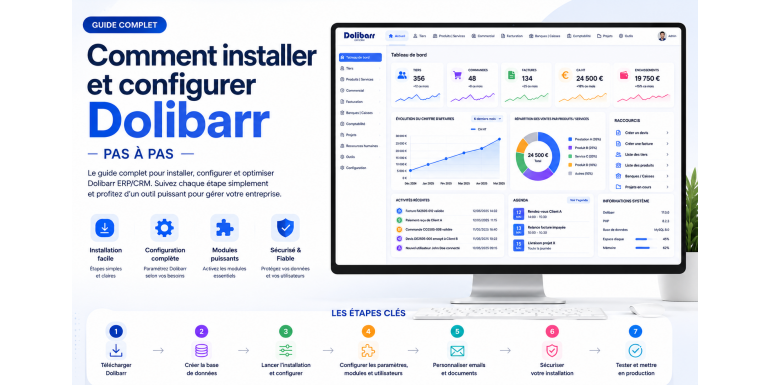
In a context where business digitalization has become essential, having a powerful management tool is a real growth lever. ERP (Enterprise Resource Planning) systems now allow companies to centralize all their activities within a single platform. Among the most accessible and powerful solutions on the market, Dolibarr ERP CRM stands out for its simplicity, modularity, and open-source model. However, to fully benefit from its features, it is crucial to understand how to install and configure it properly. This complete guide walks you step by step through the installation and configuration of Dolibarr, even if you are a beginner.
2. Why Choose Dolibarr
Before diving into the technical steps, it is important to understand why Dolibarr is a relevant choice. Dolibarr is designed for small and medium-sized businesses, freelancers, and entrepreneurs. It allows you to manage invoicing, customers, suppliers, products, inventory, and much more. Its ease of use makes it accessible to everyone, while its modularity allows it to adapt to any business. Additionally, being open source, it does not require expensive licenses, making it a cost-effective solution.
3. Technical Requirements for Installing Dolibarr
To install Dolibarr, you need a compatible technical environment. The required components include a web server (Apache or Nginx), a database server (MySQL or MariaDB), and PHP. You can install these components manually or use all-in-one solutions like XAMPP or WAMP to simplify the process. It is also recommended to have web hosting if you want your ERP to be accessible online.
4. Downloading Dolibarr
The first step is to download the latest version of Dolibarr from the official website. Once the file is downloaded, you need to extract it into your web server directory. If you are using a local server, place the files in the htdocs folder (for XAMPP) or www folder (for WAMP). If you are using online hosting, transfer the files via FTP.
5. Creating the Database
Before starting the installation, you need to create a database. Use a tool like phpMyAdmin to create a new database. Note the database name, username, and password, as you will need them during installation. Make sure the user has full privileges on the database.
6. Launching the Dolibarr Installation
Once the files are in place and the database is created, open your browser and go to your server URL (for example http://localhost/dolibarr). The installation wizard will start automatically. It will guide you through several steps, including checking your server configuration.
7. Initial Configuration
During installation, you will need to enter your database information. Input the database name, username, and password. The installer will then create the necessary tables. After this step, you will configure the administrator account by setting a secure username and password.
8. Configuring General Settings
After installation, log in to your Dolibarr interface. The first step is to configure your company’s general settings. Enter your company name, address, contact details, currency, and tax settings. This information will be used in generated documents.
9. Activating Modules
Dolibarr operates with a module system. You need to activate the modules relevant to your activity. Essential modules include customer management, invoicing, products, and inventory. You can activate or deactivate modules at any time according to your needs.
10. Configuring Users and Permissions
To secure your ERP, it is important to manage users and their permissions. Create accounts for each user and assign specific rights. This allows you to control access to different features and protect sensitive data.
11. Setting Up Invoicing
Invoicing is a key feature of Dolibarr. Configure invoice templates, automatic numbering, and payment terms. You can also customize documents with your logo and legal information.
12. Managing Products and Services
Add your products and services to the system. Define prices, categories, and units. This step is essential to facilitate the creation of quotes and invoices. You can also manage inventory if needed.
13. Email Configuration
Dolibarr allows you to send emails directly from the application. Configure your SMTP server to enable this feature. This will allow you to automatically send invoices, reminders, or notifications to your customers.
14. Securing Your Installation
Security is a critical element. Make sure to protect your installation by using strong passwords, regularly updating Dolibarr, and configuring file access permissions. It is also recommended to regularly back up your database.
15. Installing Additional Modules
To enhance Dolibarr’s functionality, you can install additional modules. These modules allow you to add new features such as advanced inventory management, enhanced CRM capabilities, or integration with other tools.
16. Testing and Validation
Before going live, it is important to perform tests. Check that all features are working correctly, that documents are properly generated, and that users can access the necessary modules.
17. Going Live
Once testing is complete, you can move your ERP into production. If you installed Dolibarr locally, you can migrate it to an online server. Make sure your hosting is secure and performs well.
18. Maintenance and Updates
Dolibarr evolves regularly. It is important to follow updates to benefit from new features and security fixes. Before each update, perform a full backup.
19. Best Practices for Optimal Use
To get the most out of Dolibarr, adopt best practices. Organize your data, train your users, and use automation features. Proper use of the ERP improves productivity and overall management.
20. Conclusion
Installing and configuring Dolibarr may seem complex at first, but by following the steps outlined in this guide, you can set up a powerful ERP tailored to your needs. Thanks to its flexibility, simplicity, and low cost, Dolibarr is an ideal solution for businesses looking to digitalize their management. Once properly configured, it becomes a strategic tool to manage your operations and improve efficiency.