
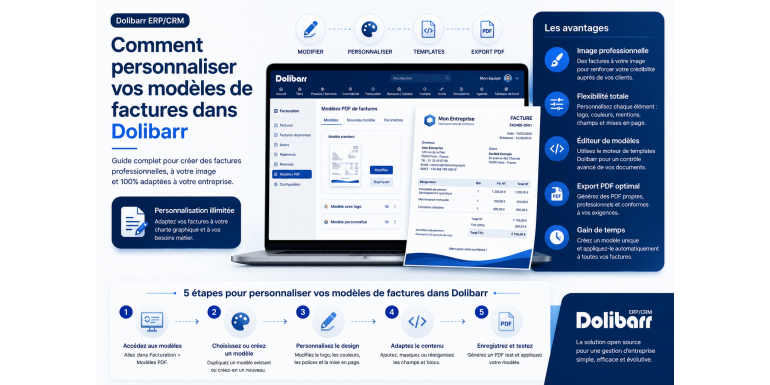
A complete 2026 guide to adapting your invoices to your company identity
Dolibarr ERP & CRM is one of the most widely used open-source business management solutions in the world. Whether you're a micro-enterprise, a small or medium-sized enterprise (SME), a non-profit organization, or a freelancer, Dolibarr allows you to manage your entire business from a single interface: quotes, invoices, orders, inventory, accounting, contact management, and much more. However, one of the most visible elements for your clients remains the invoice . A well-designed, clear invoice that aligns with your brand identity significantly enhances your company's credibility and improves the customer experience.
In this detailed article, you will discover how to customize your invoice templates in Dolibarr step by step. We will cover native templates, adding your logo, modifying colors and fonts, creating custom PDF templates using ODT, using the Customreports module, and even advanced development techniques to create a 100% bespoke template. This guide is suitable for both beginners and advanced users who want to delve deeper into the subject.
Article summary
• Why customize your invoices in Dolibarr?
• Understanding Dolibarr's native invoice templates
• Initial configuration before customization
• Customize the built-in PDF templates (Crab, Sponge, Eratosthenes)
• Create a custom invoice template using an ODT file
• Change the colors, fonts, and logo of your invoices
• Advanced customization: create your own PHP template
• Manage legal notices and payment terms
• SEO and UX best practices for your invoices
• Common mistakes to avoid
• Conclusion and next steps
1. Why customize your invoices in Dolibarr?
An invoice is more than just an accounting document. It's a powerful communication tool between your business and your clients. A personalized invoice conveys a professional image, strengthens your brand, and makes it easier for your clients to understand. Here are the main reasons why you should invest time in customizing your Dolibarr invoices:
Strengthen your brand image
When your clients receive an invoice, they don't just see an amount to pay. They perceive your company's identity: colors, logo, typography, and tone. A neutral, generic invoice can give the impression of a lack of professionalism, while an invoice featuring your brand colors immediately builds trust.
Improve the customer experience
A well-structured invoice, with clear information on products, discounts, VAT, and payment terms, significantly reduces customer questions. This decreases the number of calls to the accounting department and speeds up payments.
Comply with legal obligations
In France, Belgium, Morocco, Canada, and Switzerland, the mandatory information on an invoice differs. Customizing your templates allows you to automatically integrate the SIRET number, the intra-community VAT number, the ICE (Common Business Identifier in Morocco), the general terms and conditions of sale, and late payment penalties, without having to add them manually to each invoice.
Save time on a daily basis
Once your template is perfectly configured, you no longer need to worry about formatting. Every invoice issued from Dolibarr will automatically adhere to your brand guidelines. It's an initial investment that pays for itself quickly, especially if you issue dozens of invoices per month.
2. Understanding Dolibarr's native invoice templates
Before customizing anything, it's essential to understand which templates Dolibarr offers natively. When you install Dolibarr, several PDF templates are already available in the Invoices module. Here are the main ones:
The Crab model
This is the default Dolibarr template and probably the most widely used. It offers a classic and clean layout, with a header containing your company information, a recipient block on the right, a central table listing products or services, and a footer with totals and payment terms. It is compatible with most common needs.
The Sponge model
More modern than Crabe, this template offers a slightly more spacious layout. It is particularly well-suited for service companies that want a clean and easy-to-read invoice. It also includes options to show or hide certain elements such as discounts or product references.
The Eratosthenes model
This model is more compact and ideal for businesses that issue invoices with many lines. It optimizes space to fit more information on a single page, thus reducing the number of printed sheets.
The Octopus model
The newer Octopus model was designed to meet modern requirements and offers a more contemporary look. It includes improved QR code support for bank payments by default and is particularly well-suited for digitally focused businesses.
3. Initial configuration before customization
Before diving into the actual customization, you must ensure that your company's basic information is correctly entered in Dolibarr. This information will automatically appear on all your invoices.
Step 1: Enter the company information
Log in to Dolibarr with an administrator account. Go to Configuration > Company/Organization. Carefully fill in all the fields: company name, full address, postal code, city, country, telephone, email, website, SIRET number, APE code, intra-community VAT number, share capital, legal form, etc.
Step 2: Upload your logo
Still on the Company/Organization page, you'll find a field to upload your logo. For best results, use a transparent PNG file. The recommended size is approximately 300 pixels wide for optimal print quality. Avoid excessively large logos, as these can slow down PDF generation.
Step 3: Configure currencies and language
Go to Settings > Miscellaneous and verify that the default currency matches your business activity (EUR, MAD, USD, CHF, CAD, etc.). Also configure the default language. Dolibarr supports over 70 languages, and you can generate invoices in your client's language if you work internationally.
Step 4: Activate the Invoices module
If you haven't already done so, go to Settings > Modules and activate the Invoices module. Without this module, you won't be able to create or customize invoices. Once activated, a new Invoicing menu will appear in the main dashboard.
4. Customize the built-in PDF templates
Dolibarr allows customization directly from the administration interface, without touching the code. Here's how to do it.
Access the Invoices module settings
Go to Configuration > Modules > Standard Modules > Financial Management > Invoices. Click on the gear icon to the right of the Invoices line to access the detailed settings.
Enable or disable the templates
In the Document Templates section, you will see a list of available templates (Crab, Sponge, Eratosthenes, Octopus). You can activate multiple templates simultaneously and choose which one to use when generating each invoice. To set a default template, click the star next to the desired template.
Change display options
For each activated template, you can configure several options by clicking on the preview or settings icon. For example, you can choose whether or not to display discounts, internal product references, barcodes, product images, or custom footer text.
Customize headers and footers
Go to Settings > PDFs and Forms to configure the headers and footers common to all your templates. There you can define custom text that will appear on all your invoices, such as a slogan, bank details (IBAN, BIC), a GDPR notice, or mandatory legal information.
5. Create a custom invoice template using an ODT file
This is probably the most powerful method for customizing your invoices without touching PHP code. Dolibarr allows you to use ODT (OpenDocument Text) files, created with LibreOffice or OpenOffice, as dynamic templates.
Step 1: Activate the ODT module
Go to Configuration > Modules and activate the ODT/ODS Document Templates for Invoices module. This module allows Dolibarr to generate invoices from ODT files instead of native PDF templates.
Step 2: Download a basic ODT template
Dolibarr provides demonstration ODT templates that you can download and customize. These templates are usually located in the documents/doctemplates/invoices/ folder of your Dolibarr installation. Download one of these templates to your computer to modify it.
Step 3: Edit the ODT file with LibreOffice
Open the ODT file with LibreOffice Writer. You will see that the template contains variables enclosed in square brackets, such as [company_name], [invoice_ref], [invoice_date], [customer_name], [line_desc], [line_qty], [line_price], [total_ht], [total_tva], [total_ttc], etc. These variables will be automatically replaced by Dolibarr during generation.
You can freely modify the formatting: change fonts, colors, add images, create custom tables, insert your logo, modify the block layout, etc. The important thing is not to modify the variable names within the brackets, otherwise they will not be recognized.
Step 4: Import the model into Dolibarr
Once your ODT template is ready, log in to Dolibarr and go to Configuration > Modules > Invoices > Settings. In the ODT Templates section, you can upload your new ODT file. It will then be available in the list of templates when generating an invoice.
Step 5: Test your new model
Create a test invoice and generate it using your new ODT template. Verify that all variables are correctly replaced and that the formatting meets your expectations. Repeat the process between LibreOffice and Dolibarr until you achieve the perfect result.
6. Change the colors, fonts, and logo of your invoices
Visual customization is one of the most important aspects of aligning your invoices with your brand guidelines. Here's how to master these elements.
Change the logo
The logo is primarily changed via Settings > Company/Organization. However, some templates allow you to use a different logo for invoices than the general company logo. To do this, go to Settings > PDF and place your specific logo in the designated folder. For high-quality printing, use a PNG format with a transparent background and a resolution of at least 300 DPI.
Change colors
The colors of the native templates cannot be directly modified from the user interface. To change them, you have two options. The first is to use a custom ODT template and define your colors within it using LibreOffice. The second is to directly modify the template's PHP code, which requires technical skills.
If you choose to modify the PHP version, open the pdf_crabe.modules.php file located in htdocs/core/modules/facture/doc/. Look for the color variables, usually defined in hexadecimal or RGB. Modify them to match your brand's color codes. Note: these modifications will be overwritten during a Dolibarr update. Therefore, it's best to duplicate the file under a new name to create your own template.
Change the fonts
The fonts used in native PDF templates are defined in the source code. To modify them, you can again choose between the ODT method (which supports any font installed on your server) and the PHP method. The ODT method is significantly simpler. For the PHP method, note that Dolibarr uses the TCPDF library to generate PDFs, and this library only includes a few standard fonts. If you want to use a custom font, you will need to add it to the TCPDF directory and declare it explicitly.
Adjust the size and layout of the logo
The logo size on the invoice can be adjusted. In Settings > PDF, you'll usually find options to set the maximum logo height in pixels. If you need finer control, modify the settings directly in the PHP code or use an ODT template where the image size is controlled by LibreOffice.
7. Advanced customization: create your own PHP template
For users with PHP technical skills, creating a fully customized invoice template is the ultimate solution. This method offers complete freedom over all aspects of the generated document.
Understanding the structure of a Dolibarr PDF template
Each PDF template is a PHP file that inherits from the ModelePDFFactures class. This file contains the methods necessary to generate the document: PDF initialization, adding the header, generating the body with the product lines, calculating the totals, adding the footer, and finalizing.
Step 1: Duplicate an existing model
The quickest way to create your own template is to copy an existing one, such as pdf_crabe.modules.php, and rename it, for example, pdf_monentreprise.modules.php. Place this new file in htdocs/core/modules/facture/doc/. Then, change the class name within the file to match the new name.
Step 2: Customize the methods
Modify the various methods in the file to customize the rendering. The most important methods are _pagehead (page header), _tableau (product table), _tableau_info (information on totals and conditions), and _pagefoot (footer). You can integrate images, specific colors, different fonts, and even dynamic elements based on customer or product data.
Step 3: Activate your template in Dolibarr
Once your template is created, go to Configuration > Modules > Invoices > Settings. Your new template should automatically appear in the list. Activate it by clicking the corresponding checkbox, and then set it as the default template if you wish.
Step 4: Test and debug
Create an invoice and generate it using your new template. If you encounter any errors, enable Dolibarr's debug mode in Configuration > Security to view detailed error messages. You can also use PHP logging functions to trace the generation process.
Best practices for model development
• Always start by copying an existing model to avoid reinventing the wheel.
• Version your model with Git to track your changes.
• Test with different datasets: invoices with a single line, with multiple pages, with discounts, with different VAT rates.
• Document your code to facilitate future maintenance.
• Back up your template before each Dolibarr update, as custom files may be affected.
8. Manage legal notices and payment terms
A business invoice must include certain mandatory information depending on your country and your business activity. Dolibarr allows you to manage this information centrally.
Mandatory information in France
In France, every invoice must include at least: the company name of the seller and the buyer, their respective addresses, the SIRET number, the intra-community VAT number if applicable, the date of issue, the invoice number, the precise description of the products or services, the quantities and unit prices excluding VAT, the rate and amount of VAT, the total excluding and including VAT, the payment terms, the due date, the rate of late payment penalties and the fixed compensation for recovery costs of 40 euros.
Mandatory information in Morocco
In Morocco, invoices must contain: the tax identifier (IF), the common identifier of the company (ICE), the patent number, the professional tax number, the CNSS number, the company name, the full address, the invoice number, the date, and the details of the products or services with mention of the VAT.
Configure footer mentions
Go to Settings > PDFs and Forms. You will find several fields to configure the information automatically included at the bottom of each invoice: terms and conditions, bank details, mandatory legal notices, and specific notes. This information will appear on all your invoices without you having to add it manually.
Define default payment terms
In Configuration > Modules > Invoices, you can define default payment terms: upon receipt, 30 days end of month, 60 days net, etc. These terms will be pre-selected when creating a new invoice, saving you valuable time.
9. SEO and UX best practices for your invoices
You might be wondering what SEO has to do with an invoice. In reality, if your invoices are accessible online via a customer portal or if they are indexed by an internal search engine, several UX and SEO principles can be applied.
Name your PDF files correctly
Configure Dolibarr to generate descriptive filenames like Invoice-2026-001-CustomerName.pdf instead of fact_xxx.pdf. This makes it easier for your customers to find files and improves file organization.
Optimize readability
Use a legible font, at least 10 points for the body text and 14 to 18 points for headings. Opt for sans-serif fonts such as Arial, Helvetica, or Open Sans for better on-screen readability. Limit the use of bright colors, which can strain the eyes.
Structuring information
Organize the information hierarchically: important information at the top (invoice number, date, total due), details in the middle (product lines), and secondary information at the bottom (legal notices, bank details). Use visual separators such as horizontal lines or changes in background color to differentiate the sections.
Include a payment QR code
To facilitate payment, you can integrate a SEPA payment QR code (EPC QR code) or a link to an online payment portal. More and more Dolibarr templates, such as Octopus, natively integrate this functionality. Your customers will then be able to pay simply by scanning the code with their banking application.
Adopt a responsive design for mobile viewing
Although PDFs are inherently non-responsive, you can optimize their readability on mobile devices by using a legible font, sufficient margins, and avoiding overly wide tables. If your clients frequently view their invoices on smartphones, consider a vertical format with compact sections.
10. Common mistakes to avoid
When customizing your invoice templates in Dolibarr, certain pitfalls are frequently encountered. Here are the main ones to avoid.
Directly modify the Dolibarr core files
The most common mistake is directly modifying native template files like pdf_crabe.modules.php. These modifications will be overwritten during the next Dolibarr update. Always duplicate the file under a new name before modifying it.
Forgetting to test on different scenarios
Testing your template with just a simple, single-line invoice isn't enough. Consider testing it with longer, multi-page invoices, with discounts, with different VAT rates, with products including images, and so on. You'll often discover bugs or formatting issues in these specific cases.
Using a poor quality logo
A pixelated logo gives a bad impression of your company. Always use a high-resolution logo, ideally vector-based or at least 300 DPI. Avoid low-quality JPGs or overly compressed files.
Overloading the information bill
Trying to include too much information on an invoice makes it unreadable. Focus on the essentials: mandatory legal information, details of the products or services, the total, and payment terms. Marketing information or lengthy promotional paragraphs have no place on an invoice.
Neglecting backups before making changes
Before making any changes to your template, especially via PHP code, create a complete backup of your Dolibarr folder and database. This will allow you to revert to the previous state if any problems occur.
Do not train users
If several people in your company use Dolibarr, train them on how to use custom templates. Explain how to switch templates during generation, how to verify information, and how to avoid common errors.
11. Conclusion and next steps
Customizing your invoice templates in Dolibarr is an investment that quickly pays off. A well-designed invoice strengthens your brand image, improves your customers' experience, helps you comply with legal obligations, and saves you valuable time every day.
Whether you choose simple customization via native settings, the use of ODT templates, or the development of a fully bespoke PHP template, the important thing is to get started. You can begin with basic customization (logo and company information) and evolve your template over time based on customer feedback and your business needs.
To delve deeper, we recommend consulting the official Dolibarr documentation, participating in the French-speaking community on the official forum, and exploring the Dolistore, which offers numerous add-on modules to extend Dolibarr's functionality. If advanced customization exceeds your technical skills, don't hesitate to contact a certified Dolibarr integrator who can design a template perfectly tailored to your business.
Ultimately, Dolibarr offers remarkable flexibility for invoice customization. This is one of the major advantages of this open-source solution: you have complete control over the appearance and content of your business documents, without relying on a third-party editor or paying recurring fees for basic features. Take advantage of this to create invoices that truly reflect your company's identity and values.
─── End of article ───
If you found this article helpful, please share it with other Dolibarr users!