
1. Introduction
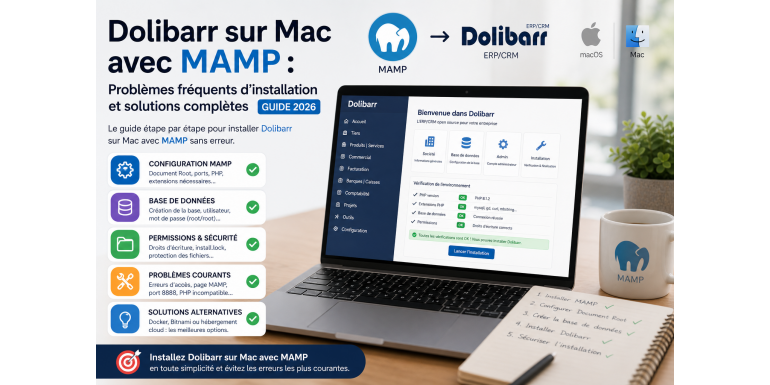
Installing Dolibarr ERP CRM on a local Mac environment using MAMP is a common practice among developers, integrators, and businesses that want to test or deploy an ERP system locally. However, despite the apparent simplicity of the process, many users encounter technical difficulties during installation, as discussed in the Dolibarr forum thread.
These issues are particularly common among beginners or users who are not fully familiar with Apache, MySQL, and PHP environments. This article provides a detailed analysis of the problems encountered, their technical causes, and the solutions already proposed, while also adding advanced recommendations to ensure a successful installation in 2026.
2. Technical Context of Installing Dolibarr on Mac
Before analyzing the issues, it is important to understand the technical environment.
Dolibarr requires:
- A web server (Apache)
- A database server (MySQL or MariaDB)
- PHP
On Mac, the most commonly used tool to simulate this environment is MAMP.
The basic process is straightforward:
- Install MAMP
- Copy Dolibarr into the server directory
- Launch the installer via a web browser
However, several issues may arise during these steps.
3. Main Problem Reported in the Forum
The most common issue reported by users is the following:
➡️ After installing MAMP and placing Dolibarr in the directory, the user accesses:
http://localhost:8888/
Instead of seeing the Dolibarr installer, they see the default MAMP homepage.
This is a critical issue because it completely blocks access to Dolibarr.
4. Technical Analysis of the Problem
This behavior is usually caused by a misconfiguration of the “Document Root” (the web server’s root directory).
By default, MAMP points to:/Applications/MAMP/htdocs
So even if Dolibarr is installed elsewhere, Apache cannot “see” it.
According to official documentation, this path must be configured correctly.
5. Solution 1: Configure the Document Root Properly
This is the primary solution recommended in the forum.
Steps:
- Open MAMP
- Go to Preferences
- Open Web Server tab
- Change the Document Root
- Set it to:
/Applications/MAMP/dolibarr/htdocs
Then:
- Restart servers
- Reload localhost
???? Result: Dolibarr becomes accessible
6. Solution 2: Move Dolibarr into htdocs
A simpler alternative is:
Instead of changing MAMP settings, move Dolibarr into:/Applications/MAMP/htdocs/dolibarr
Then access:http://localhost:8888/dolibarr/htdocs
This method is often easier for beginners.
7. Database Configuration Issues
Another frequent problem relates to MySQL configuration.
Common errors include:
- Unable to create database
- Access denied
- Incorrect credentials
Standard solution:
- Use default credentials:
- User:
root - Password:
root
- User:
- Enable database creation
These are the default MAMP settings.
8. Apache Port Issue
Many users forget that MAMP uses port 8888 by default.
So:
- ❌ http://localhost → does not work
- ✔ http://localhost:8888 → works
This small detail often causes installation failure.
9. PHP Configuration Problems
Dolibarr requires a compatible PHP version.
Possible issues:
- PHP version too old
- Missing extensions
Solution:
- Use PHP version ≥ 7.2
- Enable required extensions:
- mysqli
- gd
- curl
10. File Permission Issues
Another common issue is related to file permissions.
➡️ Dolibarr cannot write to certain directories
Solution:
- Check folder permissions
- Enable write access
Important folders:
documentshtdocs/conf
11. Security Issues After Installation
After installation, Dolibarr may display warnings such as:
- Missing
install.lockfile - Config file still writable
Official solution:
- Create
install.lock - Set
conf.phpto read-only
12. Mac-Specific Changes in 2026
An important point for 2026:
Older solutions like DoliMamp are no longer maintained.
➡️ Users must install Dolibarr manually
The official Mac auto-installer is no longer available.
13. Recommended Alternatives
To avoid MAMP-related issues, consider these alternatives:
Option 1: Docker
- Fast deployment
- Isolated environment
Option 2: Bitnami
- Simplified installation
Option 3: Cloud hosting
- No local configuration needed
14. Best Practices for Successful Installation
To avoid all these issues:
- Install MAMP properly
- Verify ports
- Configure Document Root
- Check PHP version
- Create database correctly
- Secure the installation
Following these steps ensures optimal performance.
15. Impact for Businesses and Integrators
A failed installation can lead to:
- Loss of time
- Technical frustration
- Poor first impression
A successful installation enables:
- Fast testing
- Team training
- Module development
16. SEO and Strategic Value
The topic “Dolibarr MAMP Mac” has high SEO potential because:
- It is a common issue
- Many users search for solutions
- Few complete guides exist
???? This makes it a strong topic for attracting qualified traffic.
17. Conclusion
Installing Dolibarr on Mac using MAMP may seem simple, but it involves several technical pitfalls that can block users. The main issue is incorrect Document Root configuration, followed by problems related to ports, database setup, and file permissions. By applying the solutions outlined in this guide, users can quickly resolve these issues and ensure a stable and secure installation. In 2026, mastering this setup is essential for any business or integrator looking to fully leverage Dolibarr’s capabilities.