
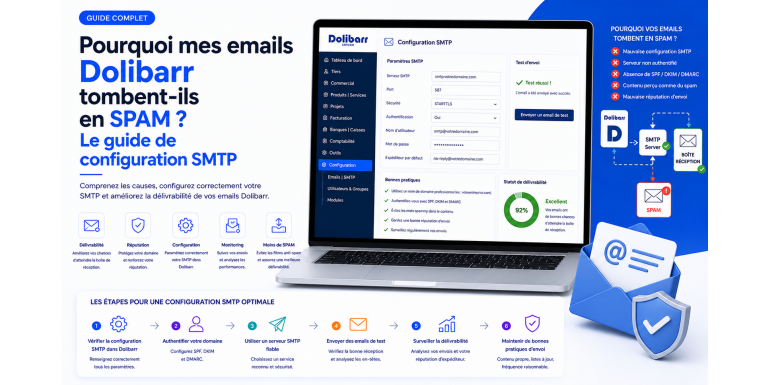
You just sent an invoice, a quote, or a newsletter from Dolibarr. A few minutes later, your customer calls: "I haven't received anything." You check their record, you can see clearly that the send is marked as completed, but the email arrives nowhere. Worse, when they finally find it, it is in their spam folder. This scenario is one of the most frustrating for Dolibarr users and is, unfortunately, very common.
The good news is that email deliverability is not a matter of luck: it follows precise technical rules that you can master. Proper SMTP configuration, well-set DNS records (SPF, DKIM, DMARC), polished content, and a suitable sending provider are enough to transform your Dolibarr emails into professional messages that always land in the inbox. In this comprehensive guide, NEXT GESTION explains step by step how to diagnose problems, choose a good configuration, and ensure your emails reach their destination.
Table of Contents
- Why your Dolibarr emails end up in spam
- How email deliverability works
- The different sending modes of Dolibarr
- The basic SMTP configuration
- Choosing your SMTP provider
- SPF: authorizing sending servers
- DKIM: signing your emails
- DMARC: authentication policy
- Reverse DNS (PTR) and domain name
- IP reputation and domain reputation
- Polishing email content
- Links, attachments, and trigger words
- Testing your configuration
- Diagnosing rejections and bounces
- GDPR compliance and consent
- Unsubscribe link and clean lists
- Volume and ramp-up
- General best practices
- How NEXT GESTION can help you
- Conclusion
- FAQ
1. Why your Dolibarr emails end up in spam
Before diving into the technical details, let's understand why an email can be classified as spam. Email providers (Gmail, Outlook, Yahoo, ProtonMail, OVH, Free, Orange…) apply highly sophisticated anti-spam filters that evaluate each message against dozens of criteria:
- Sender authentication: can we prove the email actually comes from the announced domain?
- Reputation of the sending IP address and domain.
- Content: subject, body, text/image ratio, presence of trigger words.
- Presence of suspicious links or unusual attachments.
- History: have you previously sent emails marked as spam?
- Recipient behavior: opens, clicks, reports, unsubscribes.
If several of these signals are unfavorable, the message is quarantined or rejected. With Dolibarr, the most frequent issues come from an insufficient default SMTP configuration or poorly set DNS records. But other factors come into play, and we'll review them methodically.
2. How email deliverability works
To understand what's happening, you need to know an email's journey. When Dolibarr sends a message:
- It transmits the message to an SMTP server (its own or a provider's).
- The SMTP server connects to the recipient's receiving server (Gmail, Outlook…).
- The receiving server verifies the sender's identity via SPF, DKIM, and DMARC.
- It analyzes the content and cross-references with its reputation database.
- It decides to accept, reject, or classify as spam.
- If accepted, it deposits the message in the appropriate folder (Inbox, Promotions, Spam).
Each of these stages can fail deliverability. Dolibarr's configuration influences stage 1; your domain's DNS records influence stage 3; the quality of your content and reputation influence stages 4 and 5.
3. The different sending modes of Dolibarr
Dolibarr offers several ways to send an email, each with implications.
PHP mail mode (to be avoided in production)
By default, Dolibarr can use PHP's mail() function, which relies on the local SMTP server. This is the simplest option, but also the most problematic: your web server becomes the sender, its IP often has no established reputation, and email providers consider it suspicious. Result: high spam rate and frequent sending errors.
NEXT GESTION recommendation: never use this mode in production. It is one of the main causes of the problem.
Authenticated SMTP mode
Dolibarr connects to an external SMTP server with a username and password. This is the recommended mode. The SMTP server used can be:
- Your email provider (Google Workspace, Microsoft 365, OVH, Infomaniak…).
- A service specialized in deliverability (Brevo, Mailjet, Postmark, Amazon SES, Mailgun, SMTP2GO…).
- Your internal SMTP server (if you have a mature infrastructure).
API mode
Some providers offer an HTTP API rather than a traditional SMTP connection. Faster, more secure, it requires the installation of a dedicated module in Dolibarr. It is an interesting option for high volumes.
Whatever the chosen mode, the principle remains the same: route the email through a properly authenticated professional server, and never directly from your Dolibarr server.
4. The basic SMTP configuration
To configure SMTP in Dolibarr, go to Setup > Email. You will find the following fields to fill in.
Sender address
This is the address that will appear as the sender of the emails. It must use your domain name (for example contact@your-company.com) and not a generic Gmail or Yahoo address. A @gmail.com address sent by your Dolibarr server is a sign of identity spoofing and will almost systematically be rejected by anti-spam filters.
SMTP server, port, user, password
This information is provided by your SMTP provider. Typical values are:
- Port 587 with STARTTLS for a modern encrypted connection.
- Port 465 with direct SSL/TLS for older servers.
- Port 25 only for server-to-server communications, to be avoided for Dolibarr.
Authentication is generally done by username + password. Some providers now offer authentication via API key or OAuth2 for greater security.
TLS / SSL
Always enable connection encryption. There is no valid reason today to transmit credentials in clear text.
Connection test
Dolibarr offers a "Test email sending" button that allows you to validate the configuration. Use it after each modification.
NEXT GESTION advice: create a test email with an external recipient (Gmail for example) and observe its arrival and classification. An email that does not arrive at all is a configuration problem; an email that arrives in spam is a reputation or authentication problem.
5. Choosing your SMTP provider
The choice of provider has a direct impact on deliverability. Here are the main options.
Your business email service
If you use Google Workspace or Microsoft 365, their SMTP servers are a good option for moderate volumes (a few hundred emails per day). They benefit from excellent reputation. Limits: daily sending quotas, sometimes tricky configuration (especially for accounts with MFA).
Sovereign European providers
For companies concerned about data sovereignty:
- OVHcloud Email Pro or Exchange OVH: reliable SMTP, hosting in France.
- Infomaniak: excellent email service with servers in Switzerland.
- Mailfence, ProtonMail Business: alternatives focused on confidentiality.
Specialized transactional deliverability services
For larger volumes and maximum reliability:
- Brevo (formerly Sendinblue, French): complete interface, good free quotas, GDPR compliance.
- Mailjet (French, owned by Sinch): high reliability, complete API, good value for money.
- Postmark: reference for transactional sending, excellent deliverability, more expensive.
- Amazon SES: economical and powerful, requires technical skills.
- Mailgun, SMTP2GO, SendGrid: other major market players.
What to choose?
For most SMEs using Dolibarr, Brevo, Mailjet, or Postmark offer the best compromise: simple configuration, high deliverability, GDPR compliance, accessible rates. For very large volumes, Amazon SES becomes relevant.
NEXT GESTION systematically recommends separating transactional emails (invoices, quotes, notifications) from marketing emails (newsletters). Ideally two providers or two distinct subdomains to preserve reputation.
6. SPF: authorizing sending servers
SPF (Sender Policy Framework) is a DNS record that lists the servers authorized to send emails on behalf of your domain. It is the first defense against identity spoofing.
Why it's crucial
Without SPF, anyone can claim to send an email from your-company.com. With SPF, the receiving server checks that the sending IP is in the authorized list. If not, the email is rejected or marked as suspicious.
How to configure it
You must add a TXT record at the root of your domain, containing the list of authorized sources. The format looks like:
v=spf1 include:spf.provider.com -all
The important elements:
- v=spf1: protocol version.
- include:: integrates a provider's servers (e.g., Brevo:
include:spf.sendinblue.com). - -all: rejects all other senders (strict policy).
Pitfalls to avoid
- Never have several distinct SPF records for the same domain: only one is allowed, grouping all sources.
- Do not exceed 10 DNS lookups: this is the limit imposed by the specification.
- Do not use
+all: this authorizes any sender, which cancels all the interest of SPF. - Test your record after modification (tools like MXToolbox or mail-tester).
7. DKIM: signing your emails
DKIM (DomainKeys Identified Mail) adds a cryptographic signature to each email sent. This signature proves that the email actually comes from your domain and has not been altered in transit.
Why it's essential
DKIM is now considered mandatory by Gmail and Yahoo for senders sending more than 5,000 emails per day. But even for small volumes, it considerably improves deliverability. Without DKIM, your emails have little chance of arriving in the inbox at Gmail or Outlook.
How to configure it
The procedure varies according to your SMTP provider, but the principle is always the same:
- The provider generates a key pair (public and private).
- You publish the public key in a TXT DNS record of your domain, under a selector (e.g.,
selector1._domainkey.your-company.com). - The provider keeps the private key and signs each email sent with it.
- The receiving server retrieves the public key via DNS and verifies the signature.
At Brevo, Mailjet, Postmark, etc., this step is precisely documented in their interface, with the values to copy-paste into your DNS zone.
DKIM best practices
- Use a 2048-bit key (and not 1024, weaker).
- Renew the key periodically (every 6-12 months) to reduce the risks in case of compromise.
- Sign all outgoing emails, without exception.
8. DMARC: authentication policy
DMARC (Domain-based Message Authentication, Reporting and Conformance) is the DNS record that tells receiving servers what to do when SPF or DKIM fails. It is the last building block of email authentication.
What it's for
DMARC allows you to:
- Define a policy: what to do with an unauthenticated email (nothing, quarantine, reject).
- Receive reports from recipient servers: who sends in your name, who fails, where.
- Protect your domain against large-scale spoofing (phishing).
How to configure it
A simple DMARC record looks like:
v=DMARC1; p=quarantine; rua=mailto:dmarc@your-company.com; pct=100
The important parameters:
- p=: policy (
none,quarantine,reject). - rua=: address to send aggregated reports to.
- pct=: percentage of messages to which to apply the policy.
Progressive deployment strategy
Do not go directly to p=reject at startup: you risk blocking your own legitimate emails. Proceed in three steps:
- Monitoring phase:
p=noneto receive reports without applying a policy. - Observation phase:
p=quarantinewith a lowpct=(10%, then 25%, then 50%). - Protection phase:
p=rejectonce certain that all your legitimate flows are authenticated.
This ramp-up generally takes 6 to 12 weeks.
Report analysis tools
DMARC reports are in XML, hardly readable. Use a dedicated tool to exploit them: Postmark DMARC Digests (free), dmarcian, Easy DMARC, Valimail.
9. Reverse DNS (PTR) and domain name
Beyond SPF/DKIM/DMARC records, two DNS elements are often neglected but important.
Reverse DNS (PTR)
When a mail server receives an email, it looks at the sending IP and asks for its reverse name. If the IP has no configured PTR, or if the PTR does not match a coherent domain, the email is suspicious.
For servers hosted at OVH, Scaleway, Hetzner, AWS, etc., you must configure the PTR from the administration interface. The PTR must point to a domain name you control and which resolves back to the same IP.
If you use an external SMTP provider (Brevo, Mailjet…), it is they who manage the PTR of their own IPs. You have nothing to do.
HELO/EHLO
When the SMTP connection is established, the sending server introduces itself with a HELO/EHLO name. This name must be consistent with the PTR and your domain. An inconsistency is a negative signal.
10. IP reputation and domain reputation
Beyond the technical aspect, your sender reputation matters enormously. It is evaluated at two levels.
IP reputation
Each SMTP server has an IP with a reputation score maintained by the main players (Senderbase, Talos, Spamhaus, Spamcop, Microsoft SNDS, Google Postmaster Tools…). If the IP has already been used to send spam, your email shares that bad score.
This is one of the main advantages of specialized SMTP services: their IPs are dedicated or shared but constantly monitored. If a customer abuses, they are quickly banned to preserve collective reputation.
Domain reputation
Increasingly, anti-spam filters also evaluate the reputation of the domain (your-company.com), independently of the IP. Key factors:
- Domain age: a recent domain is more suspicious.
- Sending history: spam complaints in the past weigh long.
- Sending consistency: regular volumes, low bounce rates.
- Interactions: opens, clicks, replies. Conversely, deletions without opening are bad.
How to monitor your reputation
- Google Postmaster Tools (free) for Gmail: essential.
- Microsoft SNDS for Outlook/Hotmail.
- Sender Score by Validity (free, on request).
- MXToolbox Blacklist Check to verify if your IP/domain is on a blacklist.
11. Polishing email content
Technique is not everything. A poorly written email will be classified as spam even with a perfect configuration.
The subject
The subject is carefully analyzed. Avoid:
- Excessive uppercase ("MAKE MONEY").
- Multiple exclamation marks ("!!!!").
- Classic trigger words ("free", "urgent", "limited offer", "100%"…).
- Multiple emojis (one is tolerable, five is suspicious).
The body of the message
A few best practices:
- Text/image ratio of at least 60/40. An email composed only of a large image is very suspicious.
- Not too many links: 1 to 5 links is reasonable for a transactional email.
- Clear, properly formatted text: no fancy fonts, no garish colors.
- Include a text version (plain text) in addition to HTML: this is an email standards requirement.
- Professional signature with complete contact details.
Personalization
An email that addresses the recipient by name and refers to specific elements (order number, quote, project) has a much greater chance of being considered legitimate. Dolibarr allows you to use variables in email templates to automate this personalization.
12. Links, attachments, and trigger words
Links
- Avoid URL shorteners (bit.ly, tinyurl): they are massively used by spam.
- Links must point to a domain consistent with the sender.
- The link text must match its destination (divergences are suspicious).
- Limit the number of links per message.
Attachments
Attachments increase the risk of spam classification, especially:
- Executable files (.exe, .bat, .scr…) which are almost systematically blocked.
- Archives (.zip, .rar) encrypted with a password.
- Office documents with macros.
For Dolibarr, the most common attachments are invoice and quote PDFs. They generally pass well, provided they are of reasonable size (less than 5 MB ideally).
An alternative is to send a link to the PDF rather than the PDF as an attachment. This reduces the email's weight and allows tracking opens.
Trigger words
Filters maintain lists of words and expressions associated with spam. A few examples: "click here", "exclusive offer", "increase your income", "no commitment", "100% free", "get rid of", "guaranteed reduction". Avoid these formulations in your Dolibarr templates.
13. Testing your configuration
Several free tools allow you to test your configuration in a few minutes.
Mail-tester.com
The reference tool. It gives you a temporary email address. You send a Dolibarr email to this address, then consult the report. The score out of 10 takes into account SPF, DKIM, DMARC, content, blacklists, etc. Aim for at least 8/10; ideally 10/10.
MXToolbox
Allows you to verify your DNS records (SPF, DKIM, DMARC, MX, PTR), test the deliverability of an IP, and consult blacklists. Essential for diagnosis.
Google Postmaster Tools
Once your domain is added, you access detailed statistics on your sends to Gmail: spam rate, authentication, IP/domain reputation, encryption issues. Invaluable for identifying improvement areas.
GlockApps
Paid tool but very complete: it sends your email to a mailbox at each major provider (Gmail, Outlook, Yahoo, Orange, Free…) and tells you where it lands (Inbox, Spam, other).
Internal test
The simplest test: create an account at each of the main providers (Gmail, Outlook, Yahoo, Orange, Free) and regularly send yourself Dolibarr emails. You will immediately see where they land.
14. Diagnosing rejections and bounces
When an email is rejected, the destination server returns a bounce with an SMTP code. These codes are precious for diagnosis.
The main codes
- 2xx: success. The email has been accepted.
- 4xx: temporary error (full mailbox, server problem). The send can be retried.
- 5xx: permanent error. The email will never be accepted.
Common reasons
- 550 5.7.1 Message rejected as spam: your email has been identified as spam. Check SPF, DKIM, DMARC, and content.
- 554 5.7.1 [IP] not authorized: your IP is blacklisted or poorly authenticated.
- 550 5.1.1 User unknown: the address does not exist. Clean your list.
- 421 4.7.0 Try again later: rate limit exceeded. Slow down.
- 552 5.2.3 Message size exceeds limit: email too large (often because of an attachment).
Reading complete headers
When an email arrives in spam, open its complete headers ("View original" option in Gmail, for example). You will find SPF, DKIM, DMARC results, as well as the score assigned by the filter. This indicates precisely what is causing the problem.
Dolibarr bounce management module
Dolibarr offers a module that can retrieve bounces from a dedicated mailbox and automatically mark invalid addresses. Very useful for maintaining clean lists.
15. GDPR compliance and consent
Beyond the technical aspect, the legal framework also influences deliverability. A recipient who has not asked to receive your emails is more likely to report as spam, which degrades your reputation.
Consent
GDPR requires consent for marketing emails (opt-in clear, free, specific, informed). For transactional emails (invoices, quotes, confirmations), consent is implicit as soon as a contractual relationship exists.
Best practices
- Double opt-in for newsletters: the user confirms their subscription via a confirmation email.
- Clear mention of the purpose in the registration form.
- Suppression list well maintained: a user who unsubscribes must never receive an email again.
- Consent register documented (date, source, content of mention).
Dolibarr offers consent management features in the Mailing/Email Marketing module. Activate them if you send mass communications.
16. Unsubscribe link and clean lists
For marketing emails, the presence of a clear and functional unsubscribe link is:
- Legally mandatory (GDPR, LCEN in France).
- Technically beneficial: Gmail and Yahoo even impose a
List-Unsubscribeheader on large senders. - Strategically smart: a user who unsubscribes is less harmful than a user who clicks "Report as spam".
Maintaining clean lists
A clean list is a list where:
- All addresses are valid (no typos, no closed mailboxes).
- All recipients have given their consent recently.
- Inactive users for 6-12 months are removed or re-engaged via a dedicated campaign.
- Hard bounces (5xx) are removed immediately.
Regular cleaning (at least once a quarter) is essential. Tools like NeverBounce, ZeroBounce, Hunter Verifier allow you to validate a list before sending.
17. Volume and ramp-up
If you start with a new IP or a new sending domain, you must ramp up progressively. Otherwise, anti-spam filters will interpret the volume spike as an attack.
The "warm-up" technique
- Week 1: 50 emails per day to your most engaged contacts.
- Week 2: 100 emails per day.
- Week 3: 250 emails per day.
- Week 4: 500 emails per day.
- Week 5+: double each week until target volume.
This progression builds positive reputation with major providers.
Provider quotas
Each provider has its limits:
- Google Workspace: 2,000 recipients/day for standard paid accounts.
- Microsoft 365: 10,000 recipients/day with some limitations.
- Brevo, Mailjet, Postmark: depending on the plan, generally much more.
If you approach your quota, it is often a sign that you should switch to a specialized service.
18. General best practices
To summarize what makes the difference between a Dolibarr that delivers well and a Dolibarr that ends up in spam.
- Never use PHP mail mode in production.
- Configure a real authenticated SMTP server, ideally specialized.
- Publish complete and correct SPF, DKIM, DMARC records.
- Verify the PTR of your server if you send directly.
- Use a sender address from your domain, never Gmail/Yahoo.
- Personalize email templates so they look like real professional messages.
- Maintain clean lists, respected unsubscribes, processed bounces.
- Test regularly on mail-tester and Postmaster Tools.
- Monitor blacklists and react quickly in case of listing.
- Separate transactional and marketing to preserve the reputation of critical sends.
- Train users: avoid garish email templates, huge attachments, mass recipients in CC.
19. How NEXT GESTION can help you
Email deliverability is a topic at the crossroads of technical (DNS, SMTP), functional (templates, business processes), and strategic (provider choice, compliance) aspects. Many Dolibarr users encounter the same difficulties and spend weeks looking for the cause without finding it.
At NEXT GESTION, we offer a deliverability audit service dedicated to Dolibarr:
- Analysis of your current SMTP configuration.
- Complete audit of your DNS records (SPF, DKIM, DMARC, PTR).
- Selection and implementation of a suitable SMTP provider.
- End-to-end configuration and testing.
- Optimization of Dolibarr email templates (transactional, marketing).
- Implementation of monitoring (Postmaster Tools, DMARC reports).
- Team training on best practices.
The investment pays off quickly: an email that does not arrive is an unhappy customer, an unpaid invoice, a lost commercial opportunity. With a good configuration, deliverability becomes a controlled subject, and never again a source of stress.
20. Conclusion
If your Dolibarr emails end up in spam, it is neither inevitable nor a mystery. The cause is almost always in one of these areas: incorrect SMTP configuration, lack of SPF/DKIM/DMARC authentication, poor IP reputation, awkward content, or poorly maintained lists. The right reflex is to methodically diagnose each of these points before touching anything.
With careful configuration (a specialized SMTP provider, well-set DNS, professional email templates, clean lists), your Dolibarr emails can achieve a deliverability rate above 98%, equivalent to the best market practices. This is a huge gain for your image, your customer relationship, and your payment cycle.
Are your Dolibarr emails going to spam? Contact NEXT GESTION at contact@nextgestion.com for a free audit. We will identify the precise causes and propose a remediation plan suited to your context.
21. FAQ: Dolibarr Email Deliverability
Why do my Dolibarr invoices arrive in spam at Gmail but not at Orange? Filters vary from one provider to another. Gmail is stricter on authentication (SPF/DKIM/DMARC). If your emails pass at Orange but not Gmail, it is probably an authentication problem. Check with Google Postmaster Tools.
What is the best SMTP provider for Dolibarr? For most SMEs, Brevo, Mailjet, or Postmark offer the best compromise. For very large volumes, Amazon SES is very economical.
Is it absolutely necessary to use an external SMTP provider? No, but it is highly recommended. If you have few sends, your business email service (Google Workspace, Microsoft 365) often suffices. For larger volumes or for total deliverability control, a specialized provider becomes necessary.
Can I send emails from a Gmail address in Dolibarr? Technically yes, but it is not recommended. Use your professional domain instead and configure SMTP accordingly. A Gmail address sent by your Dolibarr server will almost always be classified as spam.
How much does a professional SMTP provider cost? From free (up to a few hundred emails per day at Brevo) to a few tens of euros per month for tens of thousands of emails. It is a modest cost given the deliverability gain.
How do I know if my domain is blacklisted? Use MXToolbox Blacklist Check or similar tools. If you are on a blacklist, follow the delisting procedure of the corresponding manager.
Should DKIM be renewed? Ideally every 6 to 12 months to reduce the risks of compromise. Most providers do this automatically.
How long does a reputation ramp-up take? From a few weeks to several months depending on the target volume. Patience is essential: rushing the ramp-up is counterproductive.
Article written by NEXT GESTION, expert in Dolibarr ERP/CRM integration and consulting. For a deliverability audit or professional SMTP configuration, contact us at contact@nextgestion.com.